
Automatic Order Routing
Send orders to the right warehouse based on inventory levels, ZIP codes, or address matching.
Rules handle the repetitive parts of order processing for you. You pick a trigger event (like an order import or inventory sync), add the actions you want, and the rule runs on its own from there.
Send orders to the right warehouse based on inventory levels, ZIP codes, or address matching.
Change shipping methods, update order data, add SKUs, or apply charges and discounts before orders hit your system.
Send email alerts when orders are imported, shipped, or match specific conditions.
Choose which warehouses push inventory to your sales channels and filter what gets synced.
Every rule has three parts: Trigger → Conditions → Actions.
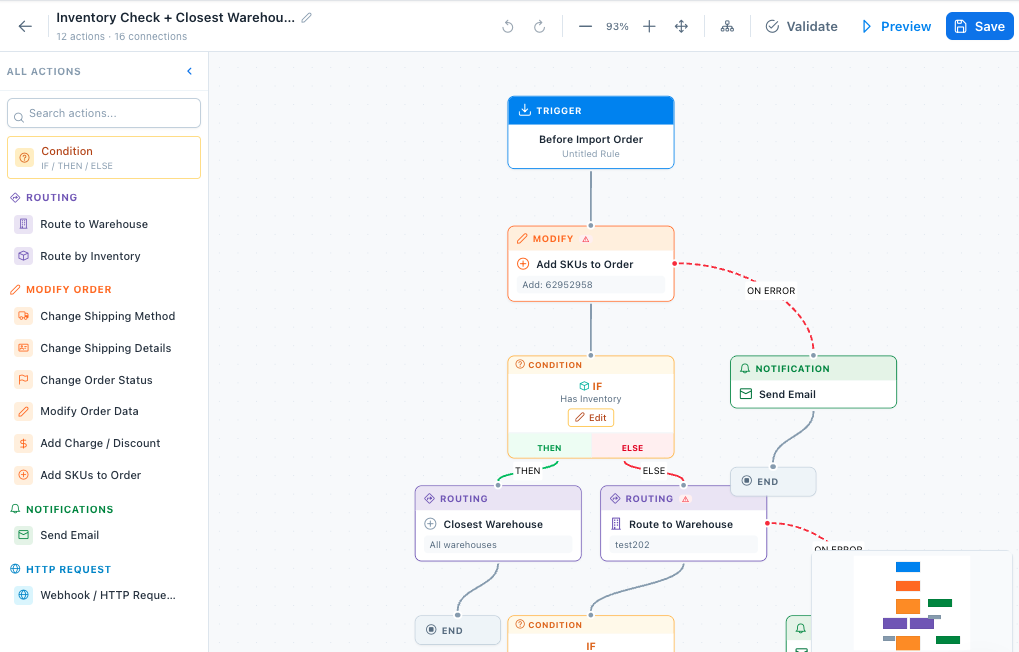
You build rules in the Flow Editor, a drag-and-drop canvas where you wire up triggers, conditions, and actions. Chain as many actions as you need, and add IF/THEN/ELSE branches for conditional logic.
Triggers are the events that kick off a rule. The trigger you choose also determines which actions you can use.
Runs before an order is imported from a sales channel. This is the most used trigger — it supports routing, order modification, and notification actions.
Runs when inventory is synchronized with a sales channel. Use it to control which warehouses push inventory.
Runs when a purchase order shipment is in transit. Useful for sending webhooks to external systems.
Runs when a purchase order shipment is complete. Trigger notifications or HTTP requests on receipt.
Runs when tracking information is updated on an order.
Actions are what the rule actually does. They’re grouped by category in the sidebar.
| Action | Description |
|---|---|
| Route to Warehouse | Send orders to a specific warehouse you choose |
| Route by Inventory | Auto-check stock and route only to warehouses that can fulfill the order |
| Closest Warehouse | Route to the nearest warehouse by customer address using geocoding |
| Route by ZIP Code | Assign warehouses based on the customer postal code range |
| Route by SKU | Send specific products to designated warehouses |
| Address Match | Match the customer address against warehouse addresses for best fit |
| Action | Description |
|---|---|
| Change Shipping Method | Override the carrier and shipping service on the order |
| Change Shipping Details | Update the carrier and method saved on the order |
| Change Order Status | Set the order to a different status (e.g., hold, ready, canceled) |
| Modify Order Data | Update address, dates, tags, references, or customer info |
| Add Charge / Discount | Apply a surcharge or discount to the order total |
| Add SKUs to Order | Insert additional products into the order (e.g., gift inserts, promos) |
| Find & Replace | Find and replace order values manually or via CSV upload |
| Action | Description |
|---|---|
| Send Email | Send an email notification with customizable template and recipients |
| Action | Description |
|---|---|
| Webhook / HTTP Request | POST event data to an external URL with custom headers and field mapping |
| Action | Description |
|---|---|
| Select Warehouses | Choose which warehouses push inventory data to the sales channel |
The Rules page at Automation > Global Rules has two main sections:
This section lists all rules you’ve created. Each rule card shows:
You can filter and search your rules using:
Below your rules, you’ll find pre-built Templates grouped by category. Pick one as a starting point and adjust it to fit your workflow.
| Category | Templates |
|---|---|
| Order Routing | Route to Specific Warehouse, Route by ZIP / Region, Address Match Routing |
| Order Modification | SKU Find & Replace |
| Notifications | Order Confirmation Email |
| Inventory Sync | Warehouse Inventory Push, Inventory Sync with Filter |
| Integrations | Webhook on PO Complete, Webhook on PO In-Transit |
Click any template card to preview its steps, then create a rule from it.
For a walkthrough of the Flow Editor and how to manage your rules, see Creating & Managing Rules.
Related pages: