
Rebalance Inventory
Move products from locations with excess stock to ones that need more. Keep your inventory balanced.
Esta página aún no está disponible en tu idioma.
Transfers let you move inventory from one fulfillment location to another. The process is simple: select where the inventory is coming from, choose where it’s going, pick which products to transfer, and confirm the details.
This guide walks you through creating a transfer from start to finish.
Creating a Transfer moves inventory from one of your fulfillment locations to another — rebalancing overstock, preparing for peak seasons, or getting products closer to customers. OmniOrders validates quantities against available stock and tracks every unit in transit until the receiving location confirms arrival.
Move products from locations with excess stock to ones that need more. Keep your inventory balanced.
Position inventory closer to customers. Ship orders from the nearest location to reduce delivery times.
Move stock ahead of seasonal peaks or promotions. Ensure high-demand locations are well stocked.
See exactly where inventory is in transit. Monitor transfer status until items arrive.
Creating a transfer takes five steps. The system guides you through each one.
Select Source Fulfillment Location
Choose the fulfillment location where the inventory currently is. This is the location you’re transferring FROM.
The system shows all your fulfillment locations. Pick the one that has the inventory you want to move.
Click Continue to move to the next step.
Select Destination Fulfillment Locations
Choose one or more fulfillment locations where you want to send the inventory. These are the locations you’re transferring TO.
You can select multiple destinations if you want to split the inventory across several locations. Each destination will receive the quantities you specify in later steps.
The system asks: “Please select the locations to which would like to send the inventory that you are ordering in this transfer. This help ensure that the inventory is properly distributed and received.”
Click Continue when you’ve selected all destination locations.
Select SKUs and Quantities
Choose which products (SKUs) to transfer and how many units of each.
If you try to transfer more than available, you’ll see an error: “SKUs exceeding available quantity”
Click Continue to proceed to delivery site details.
Assign Quantities to Delivery Sites
If you selected multiple destination locations, this step lets you decide how much goes to each one.
For each destination, you’ll specify:
The system ensures all transferred quantities are assigned. Any unassigned quantities show as warnings.
Click Continue to preview your transfer.
Preview and Confirm Transfer
Review all transfer details before creating it:
When everything looks correct, click Continue to see the final confirmation dialog.
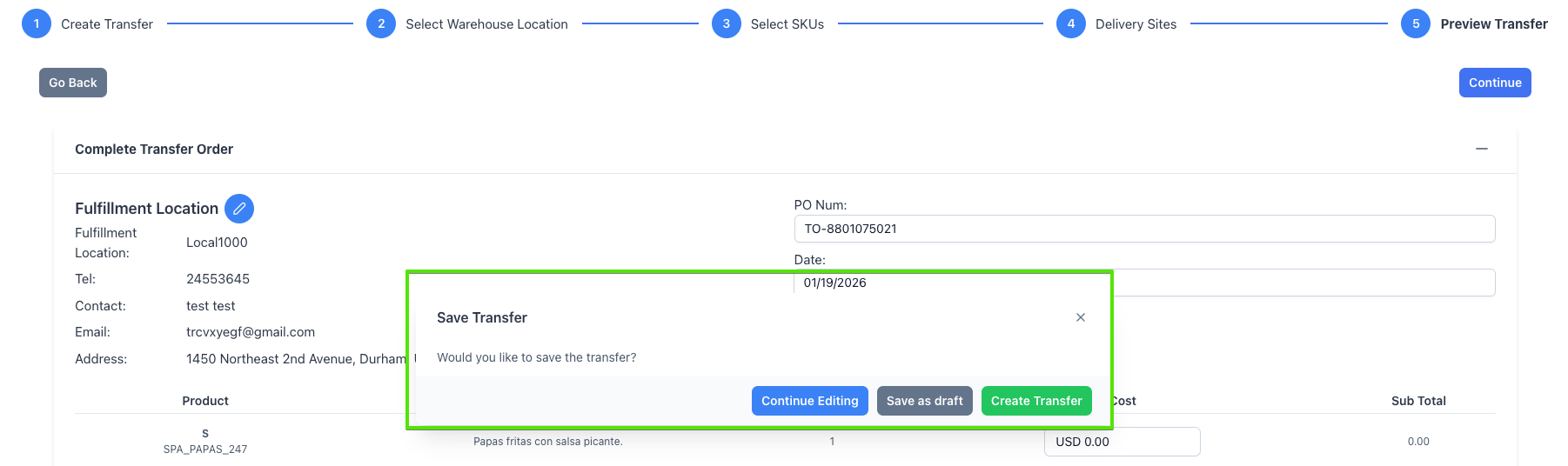
After reviewing your transfer, a confirmation dialog appears asking: “Would you like to save the transfer?”
You have three options:
Add special instructions for the warehouse handling the inventory. This might include:
If you track costs, you can enter:
Track other costs related to the transfer:
The system prevents common mistakes:
If you try to transfer 100 units but only 50 are available, you’ll see: “Is unavailable the qty in this Fulfillment Location to this SKU”
Solution: Reduce the transfer quantity or check inventory levels at the source location.
If you’re sending to multiple locations, all units must be assigned. For example, if you’re transferring 100 units total, the destination quantities must add up to exactly 100.
Solution: Verify destination quantities add up to the total transfer amount.
Before creating a transfer, verify the source location has enough inventory. View inventory levels from the Inventory page filtered by location.
Add warehouse notes to provide context. Explain why the transfer is happening and any special handling needed.
If you’re not sure about all details, save as draft. Come back later to review and complete the transfer.
Verify contact information for each destination. The warehouse uses this information to coordinate receipt of inventory.
Transfers cannot be edited after creation. Cancel the transfer and create a new one with the correct details.
When receiving the transfer, adjust the received quantities to reflect only undamaged units. Document the damage in the receiving notes for your records.
Monitor transfer status from the Transfers page. When the destination location receives items, the transfer status and received quantities update automatically.
Yes — transfers that haven’t been fully received can be cancelled. Go to the Transfers page, find the transfer, and use the cancel action from its menu.
Problem: You clicked Continue without selecting a fulfillment location.
Solution: Select at least one location from the dropdown before proceeding.
Problem: You tried to continue without adding any products.
Solution: Add at least one SKU with a quantity greater than zero.
Problem: Transfer quantities exceed available inventory or aren’t fully assigned to destinations.
Solution:
Next Steps: Transfers Overview | Fulfillment Locations