Monitor orders, inventory, and operations from the OmniOrders dashboard. View real-time KPIs, recent activity, and quick-access actions.
---
title: Dashboard Overview
description: Monitor orders, inventory, and operations from the OmniOrders dashboard. View real-time KPIs, recent activity, and quick-access actions.
---
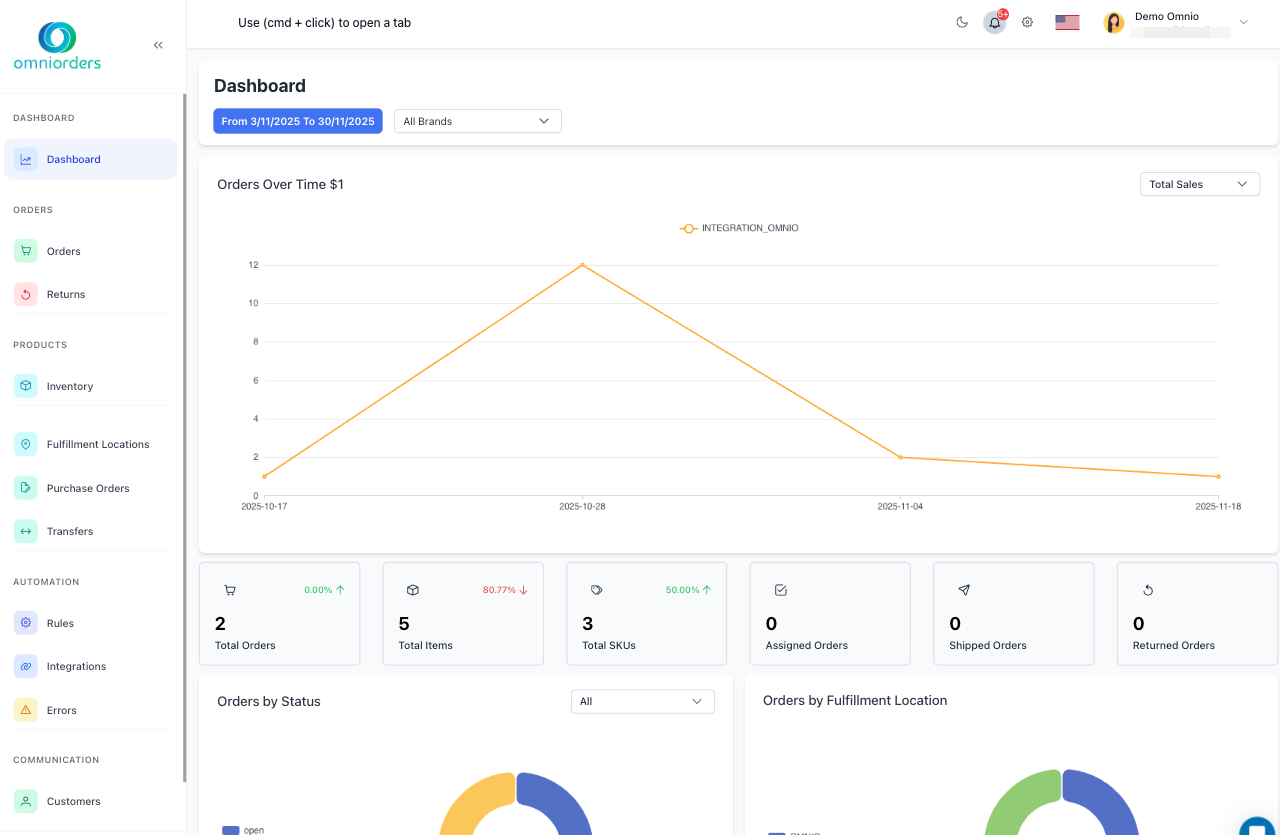
The **Dashboard** is your command center in OmniOrders. After logging in, you'll see real-time metrics, alerts, and quick access to your most important workflows. Everything is designed to help you make fast, informed decisions about your daily operations.
:::tip[Real-Time Updates]
Your Dashboard automatically refreshes to show the latest data. Use the date range selector to view historical trends and performance.
:::
---
## 📊 What's on Your Dashboard
The Dashboard is organized into clear sections to help you quickly understand your business:
<CardGrid>
<IconCard title="Summary Metrics" icon="bar-chart">
View key performance indicators at a glance:
- Total orders (today, this week, this month)
- Order fulfillment status
- Revenue and sales trends
- Pending actions requiring attention
</IconCard>
<IconCard title="Recent Orders" icon="package">
Monitor your latest order activity:
- New orders awaiting processing
- Orders in fulfillment
- Recently shipped orders
- Click any order to view details
</IconCard>
<IconCard title="Inventory Alerts" icon="warehouse">
Stay on top of stock levels:
- Low stock warnings
- Out of stock items
- Recent stock adjustments
- Inventory sync status
</IconCard>
</CardGrid>
---
## 🎯 Quick Actions
Access your most common tasks directly from the Dashboard:
<CardGrid>
<IconCard title="Create New Order" icon="shopping-cart">
Start processing a new order immediately:
- Manual order entry
- Quick order templates
- Customer order lookup
</IconCard>
<IconCard title="Adjust Inventory" icon="package">
Update stock levels on the fly:
- Add or remove inventory
- Transfer between locations
- View inventory history
</IconCard>
<IconCard title="Process Shipments" icon="truck">
Handle shipping tasks efficiently:
- Print shipping labels
- Update tracking information
- Mark orders as shipped
</IconCard>
</CardGrid>
---
## 🚨 Alerts & Notifications
The Dashboard keeps you informed about critical issues and important updates through real-time notifications.
<CardGrid>
<IconCard title="Order Alerts" icon="alert-circle">
**Critical Issues**: Orders requiring immediate attention. Examples:
- Payment failures
- Address validation errors
- Inventory shortages blocking fulfillment
</IconCard>
<IconCard title="Integration Status" icon="alert-triangle">
**Connection Warnings**: Third-party platform sync issues. Examples:
- Shopify connection errors
- Amazon API rate limits
- Carrier service disruptions
</IconCard>
<IconCard title="System Notifications" icon="info">
**Updates & Information**: Platform news and announcements. Examples:
- New feature releases
- Scheduled maintenance
- Plan usage updates
</IconCard>
</CardGrid>
:::caution[Urgent Alerts]
Red badges indicate critical issues that may impact your operations. Click the alert to view details and resolution steps.
:::
---
## 📈 Performance Charts
Visualize your business trends with interactive charts:
<Steps>
1. **Order Volume Trends**
Track daily, weekly, and monthly order patterns to identify peak periods and growth trends
2. **Fulfillment Performance**
Monitor how quickly orders move from placement to shipment across different time periods
3. **Top Products**
See which SKUs are selling the most to optimize inventory and marketing strategies
4. **Sales by Channel**
Compare performance across different sales platforms (Shopify, Amazon, eBay, etc.)
5. **Carrier Distribution**
Analyze which shipping carriers you're using most and their cost impact
</Steps>
:::tip[Interactive Charts]
Click on any chart segment to drill down into detailed data. For example, clicking a specific day on the order volume chart will filter all dashboard data to that day.
:::
---
## 🎨 Customizing Your Dashboard
Personalize your Dashboard to focus on what matters most to your workflow:
<CardGrid>
<IconCard title="Drag & Drop Cards" icon="layout-dashboard">
**Arrange Your Layout**: Rearrange dashboard cards by dragging them
- Prioritize important metrics at the top
- Hide cards you don't need
- Your preferences save automatically
</IconCard>
<IconCard title="Filter by Location" icon="warehouse">
**Multi-Location Support**: View data for specific warehouses
- Select individual locations
- View combined totals
- Compare location performance
</IconCard>
<IconCard title="Date Range Control" icon="calendar">
**Time Period Selection**: Adjust the reporting timeframe
- Today, this week, this month
- Custom date ranges
- Compare to previous periods
</IconCard>
</CardGrid>
:::note[Auto-Save]
🎯 OmniOrders automatically saves your Dashboard preferences, including:
- Card positions and visibility
- Active filters and date ranges
- Chart view settings
:::
---
## 🔧 Dashboard Settings
Access advanced Dashboard configuration options:
<CardGrid>
<IconCard title="Refresh Intervals" icon="settings">
Configure how often data updates:
- Real-time (recommended)
- Every 5 minutes
- Every 15 minutes
- Manual refresh only
</IconCard>
<IconCard title="Default Views" icon="user">
Set your preferred starting state:
- Default date range
- Default location filter
- Startup cards to display
</IconCard>
<IconCard title="Notification Preferences" icon="mail-check">
Control which alerts appear:
- Critical alerts only
- All notifications
- Custom alert rules
</IconCard>
</CardGrid>
---
## 🧭 Navigating from Dashboard
Use the Dashboard as your launching point to access all OmniOrders modules:
<CardGrid>
<IconCard title="Left Sidebar" icon="menu">
**Main Navigation**: Quick access to all modules
- Orders
- Inventory
- Products
- Integrations
- Reports
- Settings
</IconCard>
<IconCard title="Breadcrumb Trail" icon="folder">
**Current Location**: Always know where you are. Shows your navigation path and allows quick
backtracking to previous sections
</IconCard>
<IconCard title="Search Bar" icon="search">
**Quick Find**: Search across all data
- Find orders by number
- Look up products by SKU
- Search customers by name
</IconCard>
</CardGrid>
:::tip[Pro Tip]
Use the breadcrumb trail to quickly navigate back to the Dashboard from any module. Click "Dashboard" in the breadcrumb to return to your overview.
:::
---
## 💡 Dashboard Best Practices
Get the most out of your Dashboard with these tips:
<CardGrid>
<IconCard title="Start Your Day Right" icon="check-circle">
**Morning Routine**: Review your Dashboard first thing
- Check for overnight orders
- Review critical alerts
- Monitor inventory levels
- Plan your day's priorities
</IconCard>
<IconCard title="Monitor Throughout Day" icon="trending-up">
**Stay Updated**: Keep the Dashboard open in a browser tab
- Auto-refresh shows real-time changes
- Get immediate alert notifications
- Track fulfillment progress
</IconCard>
<IconCard title="End-of-Day Review" icon="pie-chart">
**Daily Wrap-Up**: Review performance before closing
- Compare actual vs. expected volume
- Ensure all critical orders shipped
- Address pending issues
</IconCard>
</CardGrid>
---
## 🆘 Need Help?
<CardGrid>
<IconCard title="Dashboard Training" icon="life-buoy">
Learn advanced Dashboard features:
- Video tutorials
- Interactive walkthroughs
- Best practice guides *Coming soon*
</IconCard>
<IconCard title="Contact Support" icon="message-circle">
Get assistance from the OmniOrders team:
- Live chat support
- Email help desk
- Phone support for urgent issues
</IconCard>
</CardGrid>
---
**Next Steps:** Explore other sections to learn about [Orders](/orders/overview/), [Inventory](/inventory/overview/), and [Integrations](/integrations/overview/).