Step-by-step guide to sign in or request access to your OmniOrders workspace. Learn how to log in, reset your password, and troubleshoot access issues.
---
title: "Account Access & Login"
description: Step-by-step guide to sign in or request access to your OmniOrders workspace. Learn how to log in, reset your password, and troubleshoot access issues.
---
Logging in to OmniOrders starts from the standard sign-in page. You only need your **email and password** to access your workspace and reach the dashboard quickly.
<SupademoEmbed demoId="cmmxoyvww2ssqepohnc7ik4dr" />
:::tip[First Time User?]
Make sure your company admin has invited you and you've received your welcome email before attempting to log in.
:::
---
## 📋 Before You Begin
Prepare the following before accessing your account:
<CardGrid>
<IconCard title="Account Setup" icon="check-circle">
Ensure your company admin has:
- Created your account in OmniOrders
- Sent your welcome email
</IconCard>
<IconCard title="Credentials Ready" icon="key-round">
Have available:
- Your <strong>work email</strong> address
- Your <strong>password</strong>
</IconCard>
<IconCard title="Trusted Device" icon="shield-check">
Use a secure device:
- Enable "Remember me" only on trusted devices
- Ensure browser cookies are enabled
</IconCard>
</CardGrid>
---
## 🔑 Standard Email Login
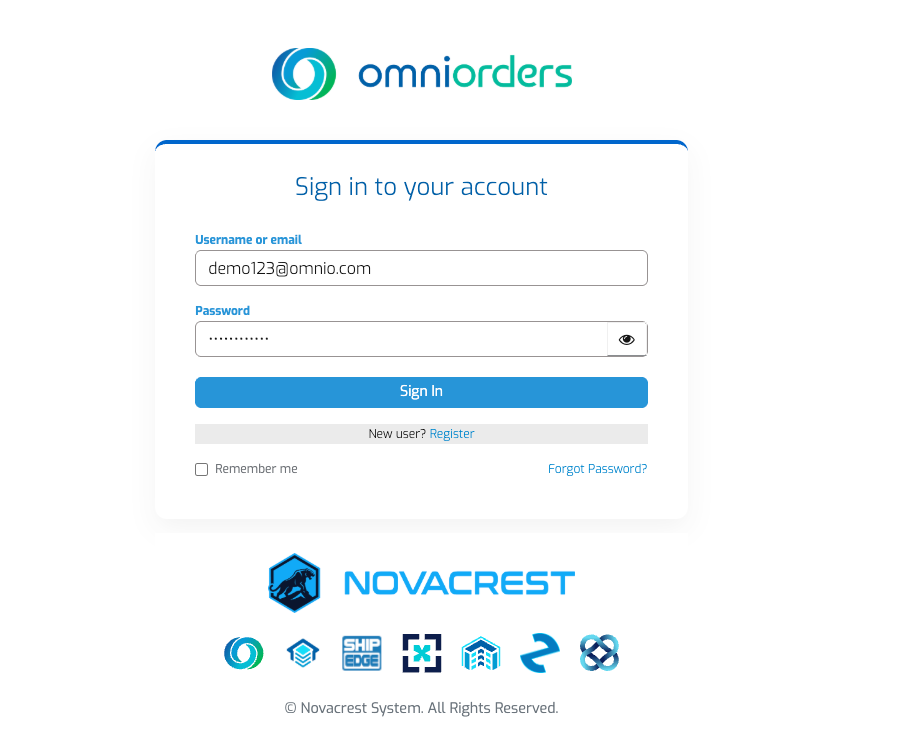
Follow these steps to access OmniOrders with your email and password:
<Steps>
1. **Navigate to Login Page**
Open the OmniOrders login page at `/session/login`
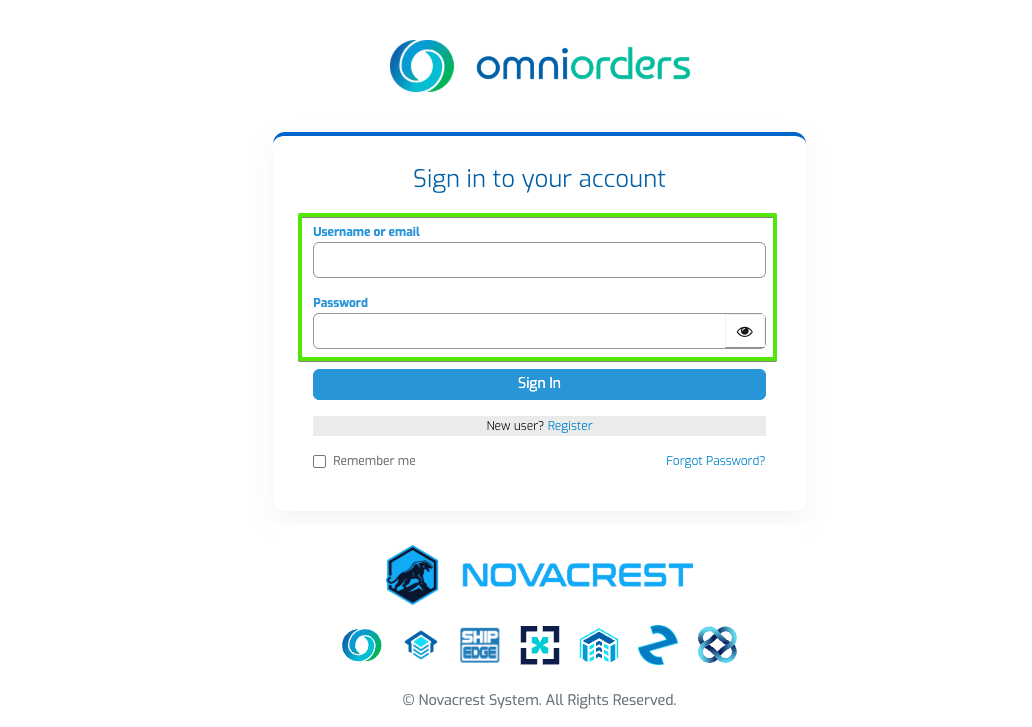
2. **Enter Your Credentials**
- Enter your username or email in the **Username or email** field
- Enter your password in the **Password** field
</Steps>
<div style="text-align: center; margin: 1.5rem 0;">
</div>
<Steps>
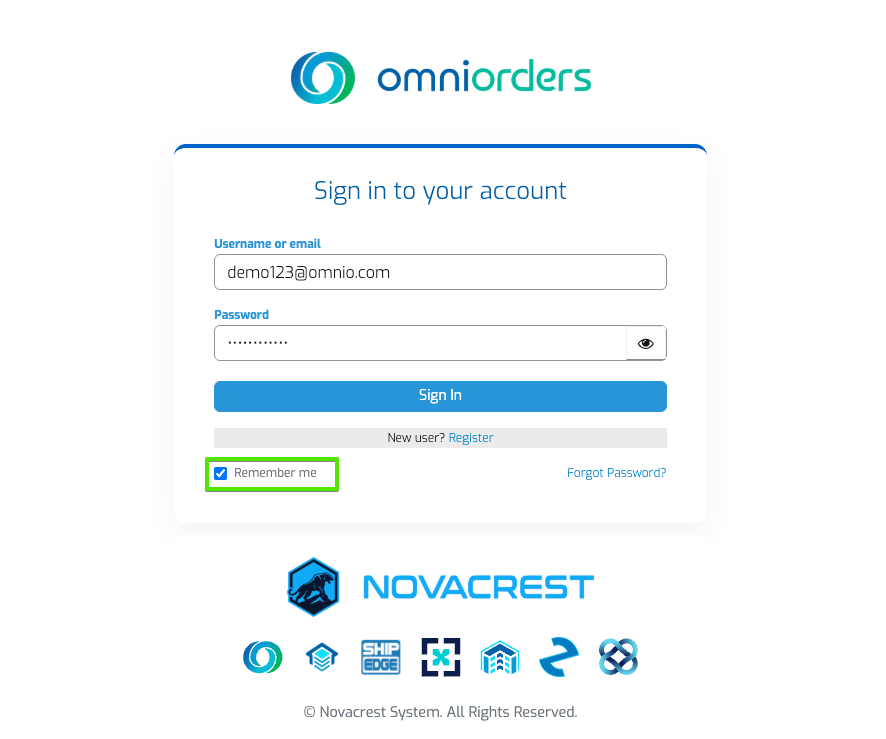
3. **Optional: Remember Me**
Check the `Remember me` box if using a trusted device
</Steps>
<div style="text-align: center; margin: 1.5rem 0;">
</div>
<Steps>
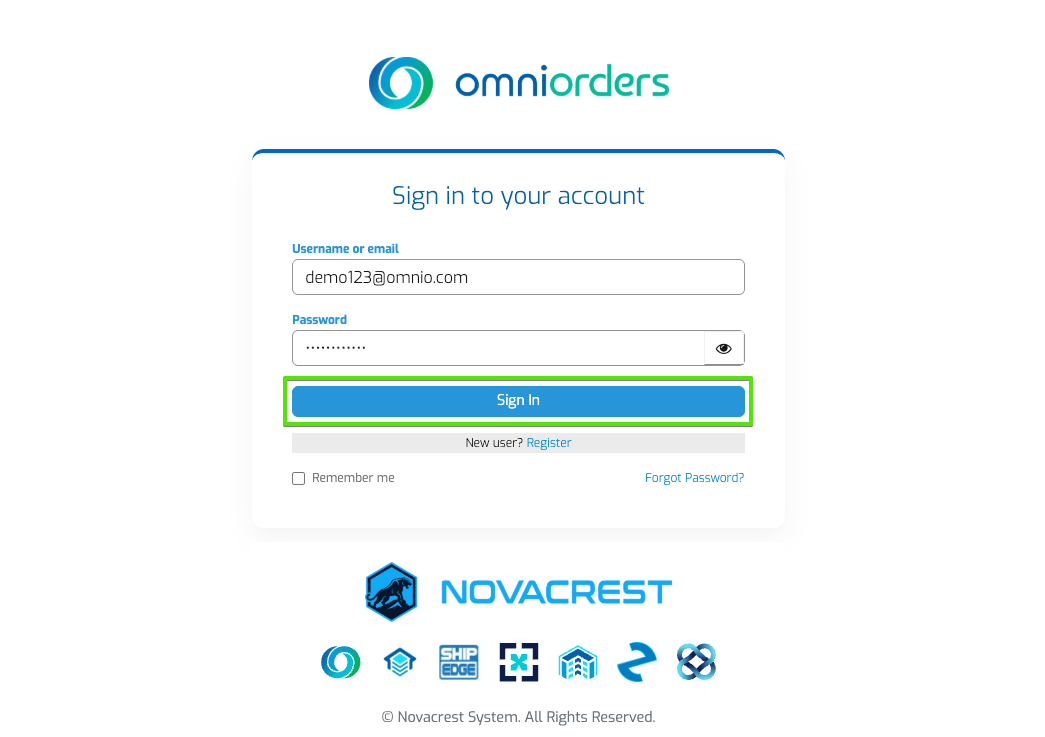
4. **Sign In**
Click `Sign In` - OmniOrders validates your credentials and redirects you to the Dashboard
</Steps>
<div style="text-align: center; margin: 1.5rem 0;">
</div>
<Steps>
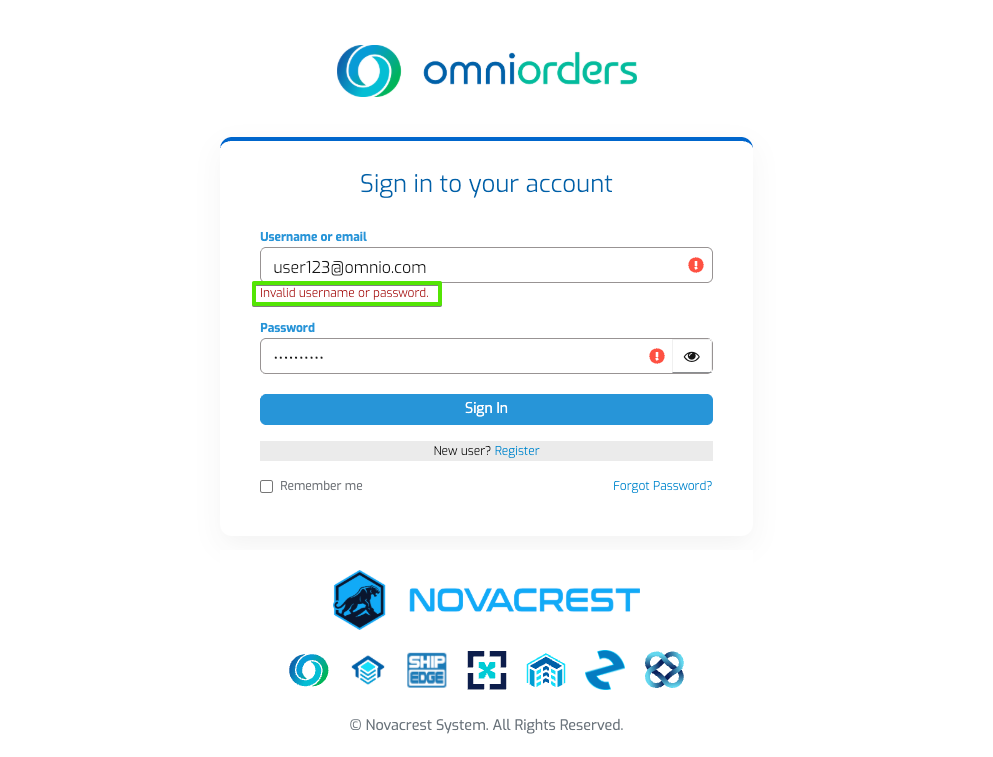
5. **Handle Errors**
If credentials don't match, you'll see a message below the field. Update and try again.
</Steps>
<div style="text-align: center; margin: 1.5rem 0;">
</div>
:::note[Security First]
🔒 OmniOrders uses industry-standard encryption to protect your credentials and session data.
:::
### 🔧 Troubleshooting Email Login
<CardGrid>
<IconCard title="Password Errors" icon="alert-circle">
**Issue**: Password format incorrect
**Solution**: OmniOrders requires a secure password. Follow the guidance shown and ensure:
- Minimum 8 characters
- Mix of letters, numbers, and symbols
</IconCard>
<IconCard title="Account Activation" icon="mail-check">
**Issue**: System asks to complete registration
**Solution**: Check your email for the activation link from your admin and complete the setup process.
</IconCard>
<IconCard title="No Access" icon="ban">
**Issue**: Login denied or account not found
**Solution**: Contact your company admin to verify:
- Account status in `Members` section
- Proper permissions assigned
- Email address matches invitation
</IconCard>
</CardGrid>
---
## 🎯 What Happens After Login
After successful login, you'll be redirected to the Dashboard:
<CardGrid>
<IconCard title="Dashboard Access" icon="layout-dashboard">
You'll be redirected to the **Dashboard** (`dashboard`). Access orders, inventory, shipping, and
daily operations.
</IconCard>
<IconCard title="Saved Preferences" icon="save">
Your personalized settings load automatically:
- Column preferences
- Filter settings
- View configurations
</IconCard>
</CardGrid>
:::tip[Pro Tip]
🎨 OmniOrders remembers your view preferences after your first visit to each module, making subsequent logins even faster!
:::
---
## 🆘 Need Additional Help?
<CardGrid>
<IconCard title="Contact Your Admin" icon="message-circle">
If you believe your account needs updating:
- Reach out to your **company admin**
- Check your email for setup instructions
</IconCard>
<IconCard title="Account Issues" icon="help-circle">
Having trouble logging in?
- Verify your email address matches the invitation
- Check that your password meets requirements
- Contact your company admin if issues persist
</IconCard>
</CardGrid>
---
**Next Steps:** Once logged in, explore the [Dashboard Overview](/dashboard/overview/) to familiarize yourself with the interface.