Learn how to navigate the OmniOrders interface using the sidebar menu, header tabs, and breadcrumbs to move between different sections efficiently.
---
title: Navigation Basics
description: Learn how to navigate the OmniOrders interface using the sidebar menu, header tabs, and breadcrumbs to move between different sections efficiently.
---
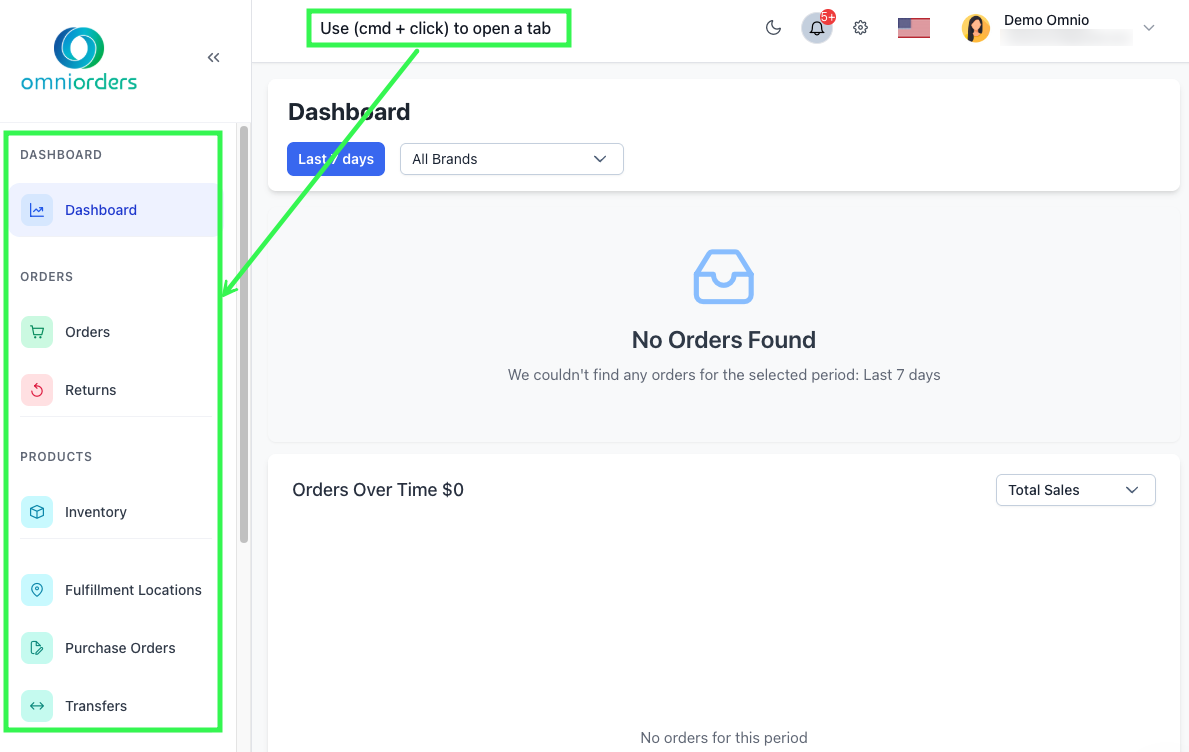
OmniOrders uses a three-part navigation system to help you move between different sections of the application quickly and efficiently. The sidebar menu provides access to all main features, the header tabs let you work on multiple pages at once, and breadcrumbs show where you are in the application.
:::tip[Quick Navigation Shortcut]
Hold `Cmd` (Mac) while clicking any sidebar menu item to open it in a new tab. This lets you work on multiple tasks simultaneously without losing your place.
:::
## Why Learn Navigation?
**OmniOrders navigation is built around three core elements: the sidebar for switching between modules, the header tab system for keeping multiple views open at once, and breadcrumbs for tracking your location. Mastering these three lets you move through the platform quickly and handle complex workflows without losing context.**
<CardGrid>
<IconCard title="Work Faster" icon="rocket">
Navigate between sections quickly with keyboard shortcuts and tabs. Open multiple views at once to compare data or work on several tasks.
</IconCard>
<IconCard title="Stay Organized" icon="list">
The sidebar organizes features by category (Orders, Products, Automation) so you always know where to find what you need.
</IconCard>
<IconCard title="Track Your Location" icon="map">
Breadcrumbs show your current location in the app, making it easy to navigate back or understand where you are in a workflow.
</IconCard>
<IconCard title="Customize Your Workspace" icon="settings">
Collapse the sidebar for more screen space, open tabs for frequently used pages, and rename tabs to organize your work.
</IconCard>
</CardGrid>
## The Sidebar Menu
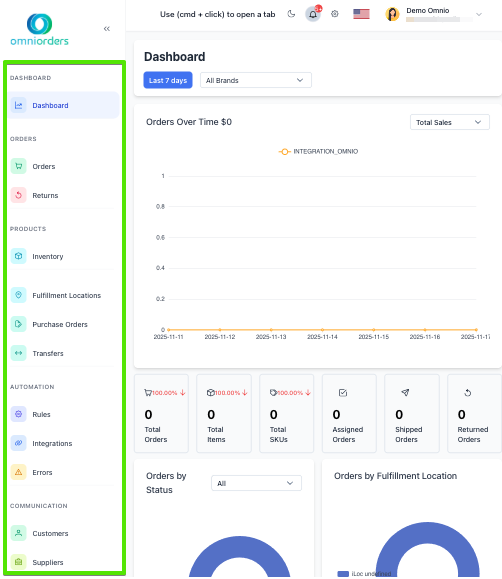
The sidebar is the main navigation panel on the left side of your screen. It contains all major features organized into sections.
### Sidebar Sections
The sidebar groups related features together:
- **Dashboard**: View your overview and key metrics
- **Orders**: Manage orders and returns
- **Products**: Handle inventory and stock
- **Supply Chain**: Access fulfillment locations, purchase orders, and transfers
- **Automation**: Set up rules, integrations, and view errors
- **Communication**: Manage customers and suppliers
### How to Use the Sidebar
<Steps>
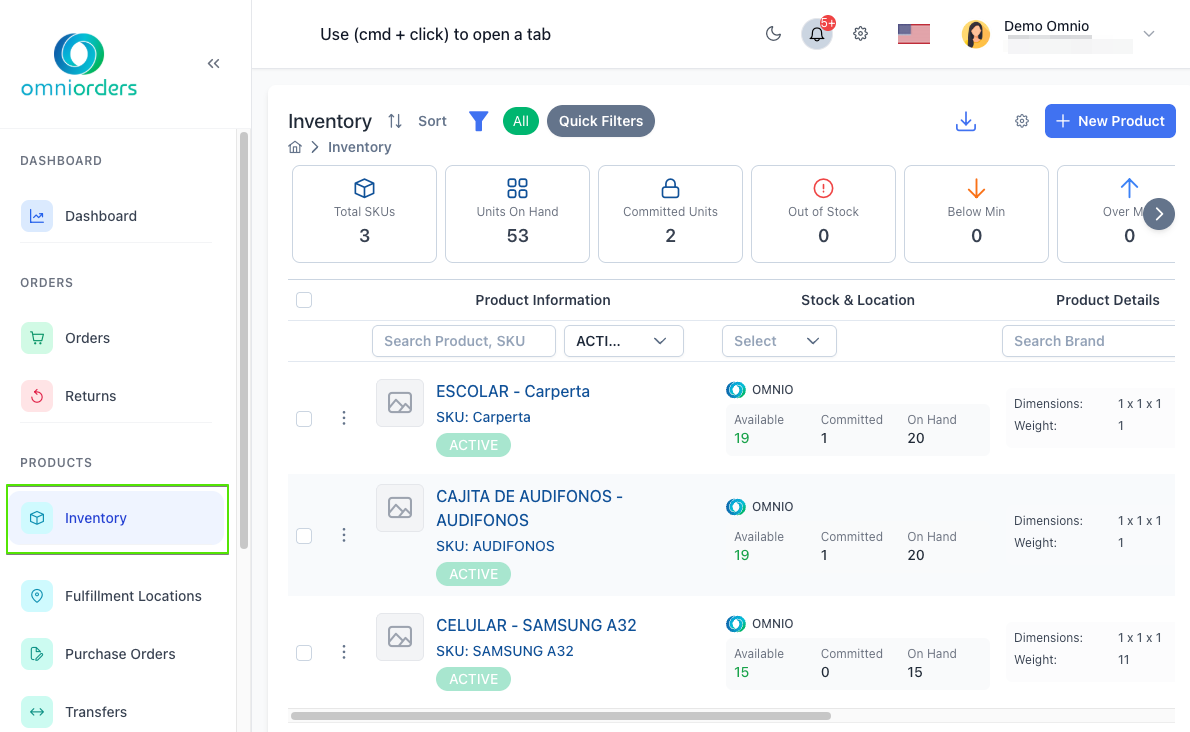
1. **Click any menu item**
Click on any item (like "Orders" or "Inventory") to navigate to that section. The active page is highlighted in blue.
2. **Open tabs with Cmd+Click**
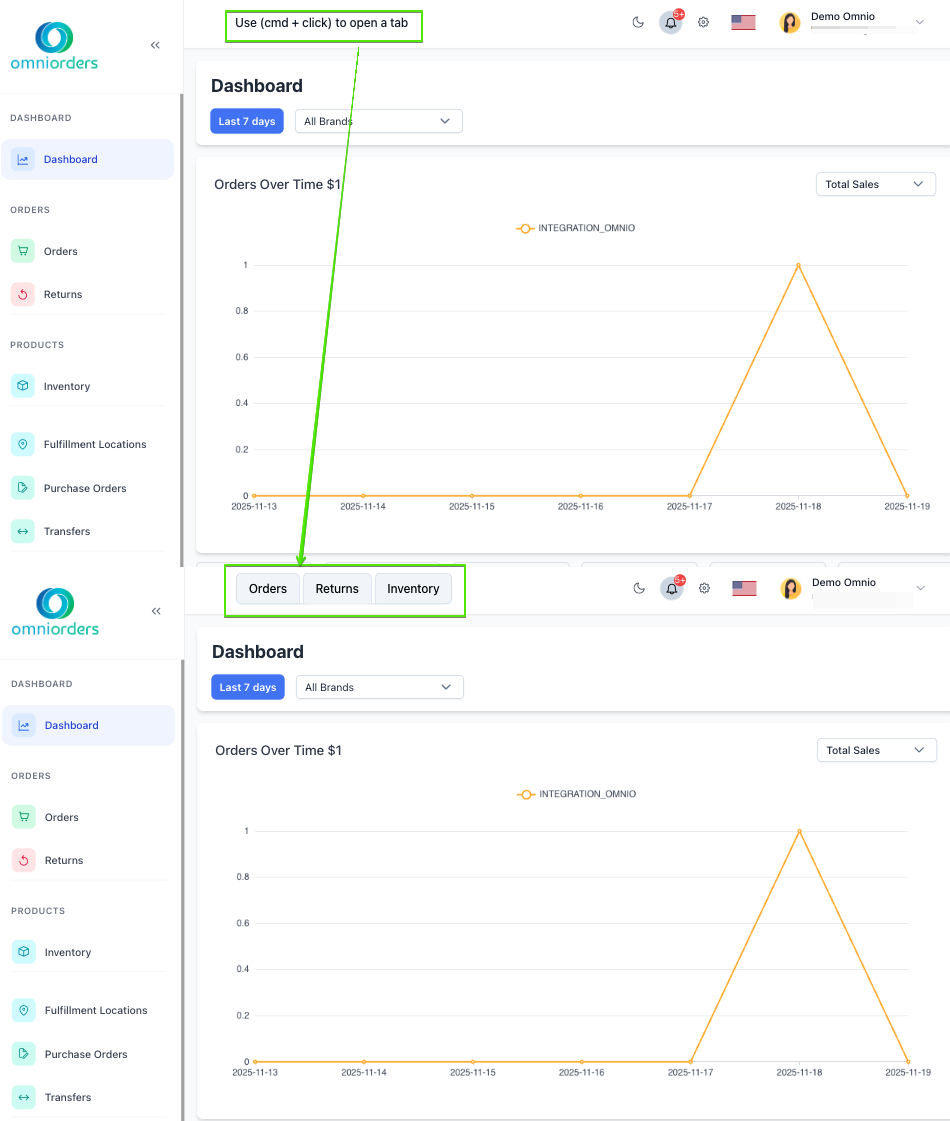
Hold `Cmd` (Mac) and click a menu item to open it in a new tab in the header. This keeps your current page open.
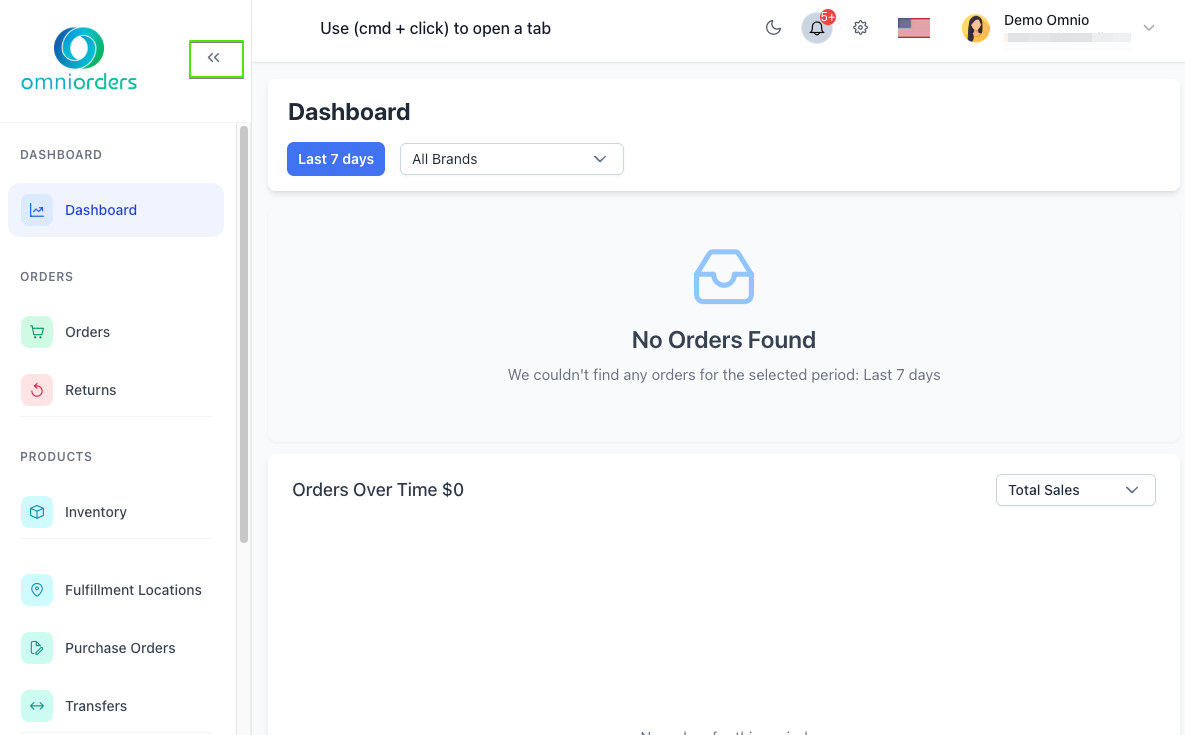
3. **Collapse the sidebar**
Click the double-arrow icon (◀) at the top of the sidebar to collapse it into icons only. This gives you more screen space for viewing data.
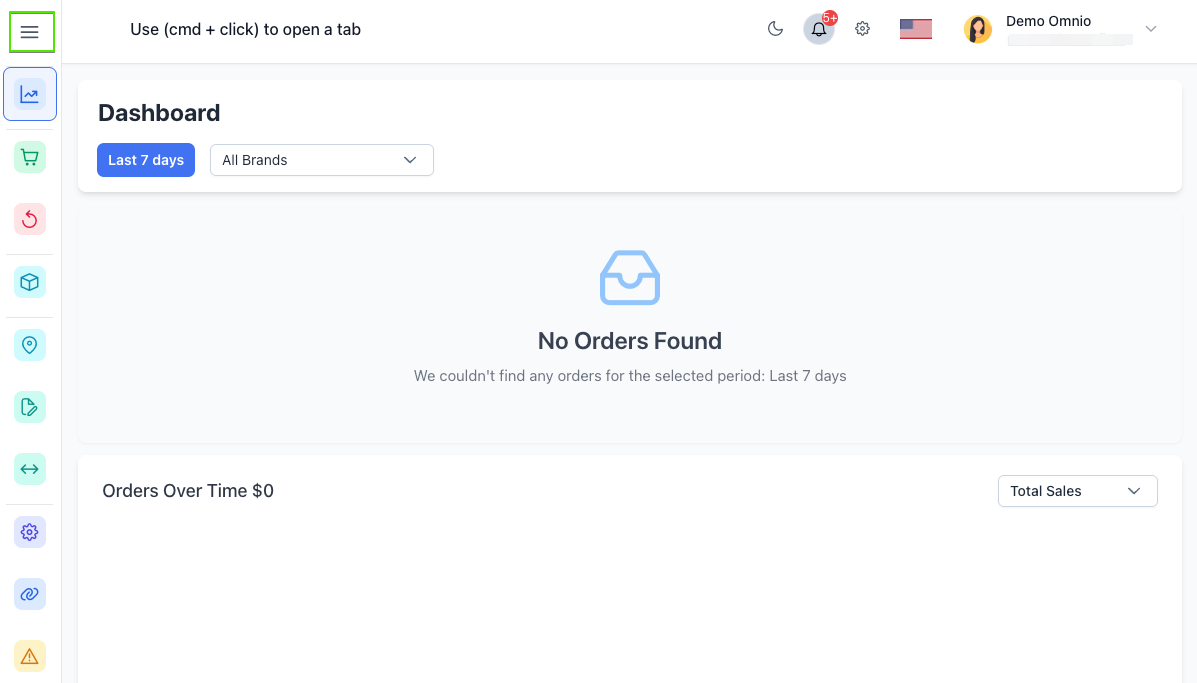
4. **Expand the sidebar**
Click the menu icon (☰) when the sidebar is collapsed to expand it back to full width with labels.
</Steps>
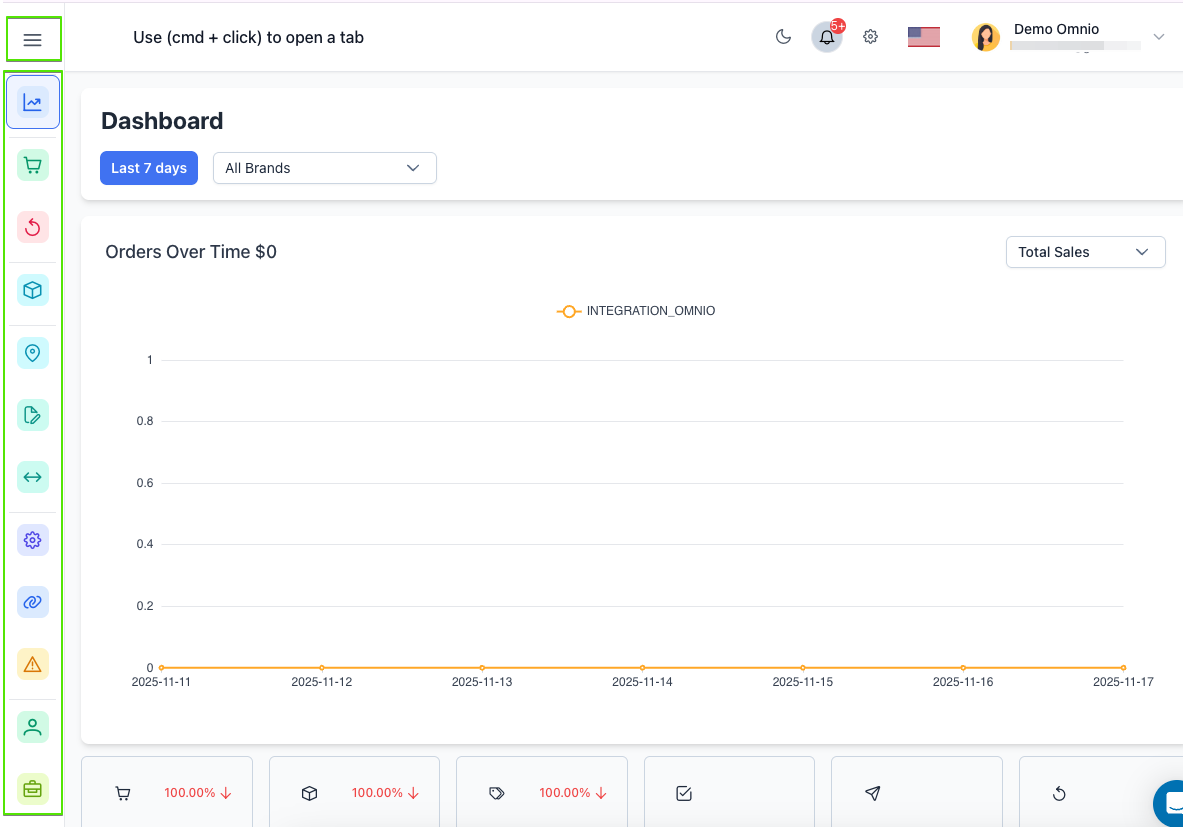
### Collapsed Sidebar Mode
When you collapse the sidebar, it shows only icons with tooltips. This is useful when you need more screen space for tables or forms.
- Hover over any icon to see its label
- Click an icon to navigate to that section
- The expand button (☰) appears at the top
## Header Tabs System
The header at the top of the screen contains your workspace tabs, similar to browser tabs. This feature lets you work on multiple pages simultaneously.
:::note[Using Tabs]
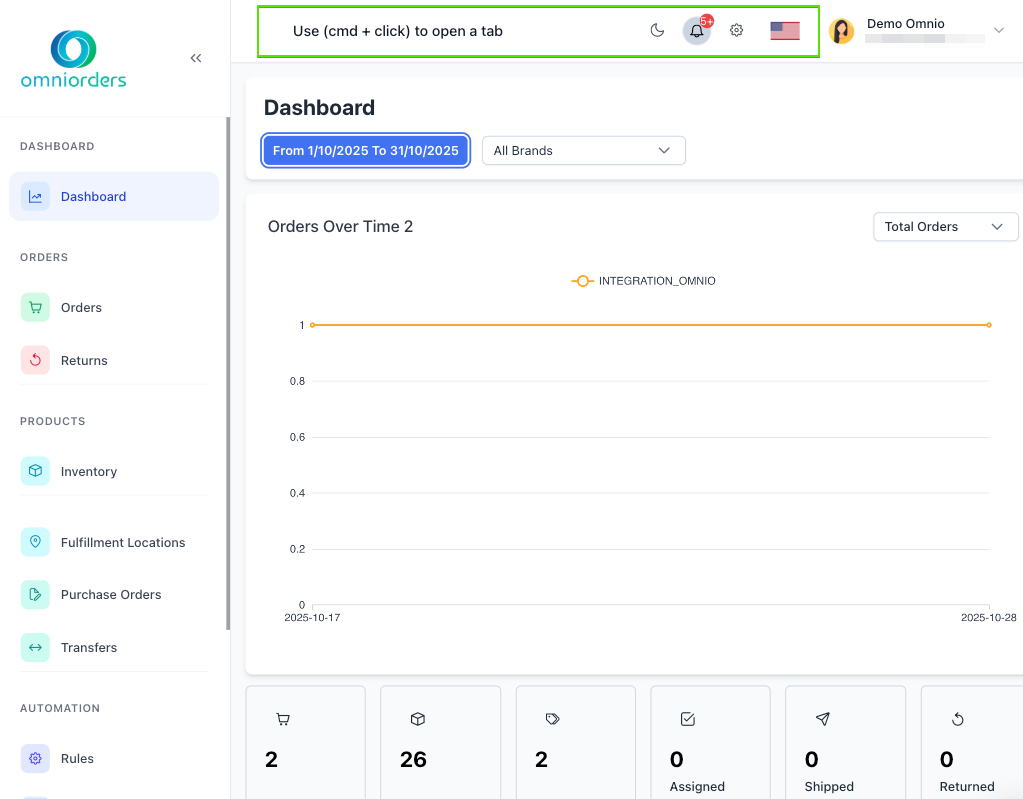
When you open pages using Cmd+Click, tabs will appear in the header area (where you currently see "Use (cmd + click) to open a tab"). Each tab shows the page name and can be renamed, closed, or switched between.
:::
### Opening New Tabs
<Steps>
1. **Use Cmd+Click**
Hold `Cmd` (Mac) while clicking any sidebar menu item to open it in a new tab.
2. **The tab appears in the header**
A new tab appears at the top with the page name. You can click between tabs to switch views.
3. **Keep working**
Your previous page stays open in its tab, so you can switch back anytime without losing your work.
</Steps>
### Managing Tabs
Each tab can be customized and organized:
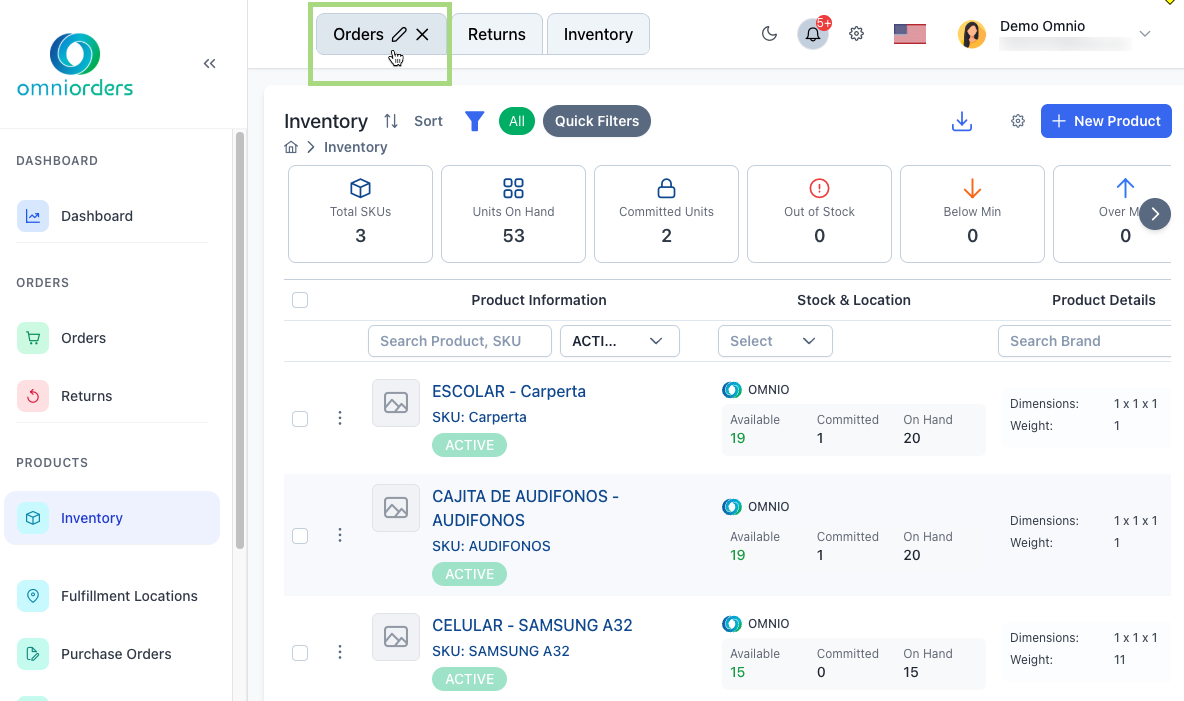
**Rename a Tab:**
- Hover over any tab
- Click the pencil icon (✏️) that appears
- Type a new name and press Enter
- This helps you organize tabs by task or project
**Close a Tab:**
- Hover over the tab
- Click the X icon that appears
- The tab closes and you return to the previous view

**Switch Between Tabs:**
- Click any tab to view that page
- The active tab is highlighted in white/primary color
:::note[First Time Using Tabs]
When you first log in, you'll see a message: "Use (cmd + click) to open a tab". This reminds you how to create tabs. Start using Cmd+Click to open tabs, and this message will be replaced with your tab list.
:::
## Breadcrumbs
Breadcrumbs appear below the header and show your current location in the application hierarchy.
:::note[Breadcrumbs Location]
Breadcrumbs appear below the header on detail pages (like when viewing a specific order or product). They show your location in the app hierarchy, such as "Home > Orders > Order #1234".
:::
### How Breadcrumbs Help
- **Show Your Location**: See exactly where you are (e.g., Home > Orders > Order #1234)
- **Navigate Backward**: Click any breadcrumb to go back to that level
- **Understand Context**: Know which section you're in when viewing details
### Using Breadcrumbs
<Steps>
1. **Check your location**
Look at the breadcrumb trail below the header to see where you are in the app.
2. **Click to go back**
Click any item in the breadcrumb trail to navigate back to that level.
3. **Use the home icon**
Click the home icon (🏠) at the start of breadcrumbs to return to your main dashboard.
</Steps>
## Header Controls
The header also includes quick access to important features on the right side:
### Available Controls
**Dark Mode Toggle:**
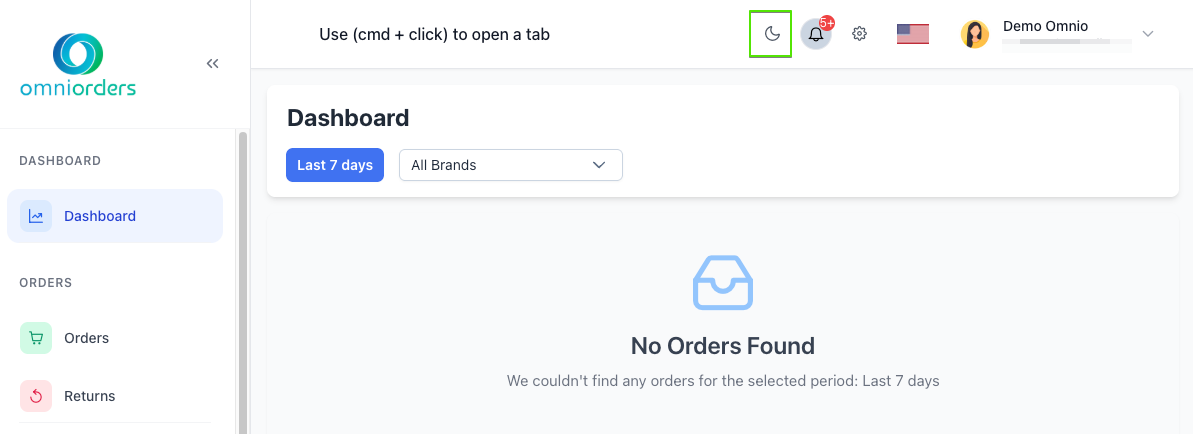
- Click the sun/moon icon to switch between light and dark themes
- Your preference is saved automatically
**Notifications:**
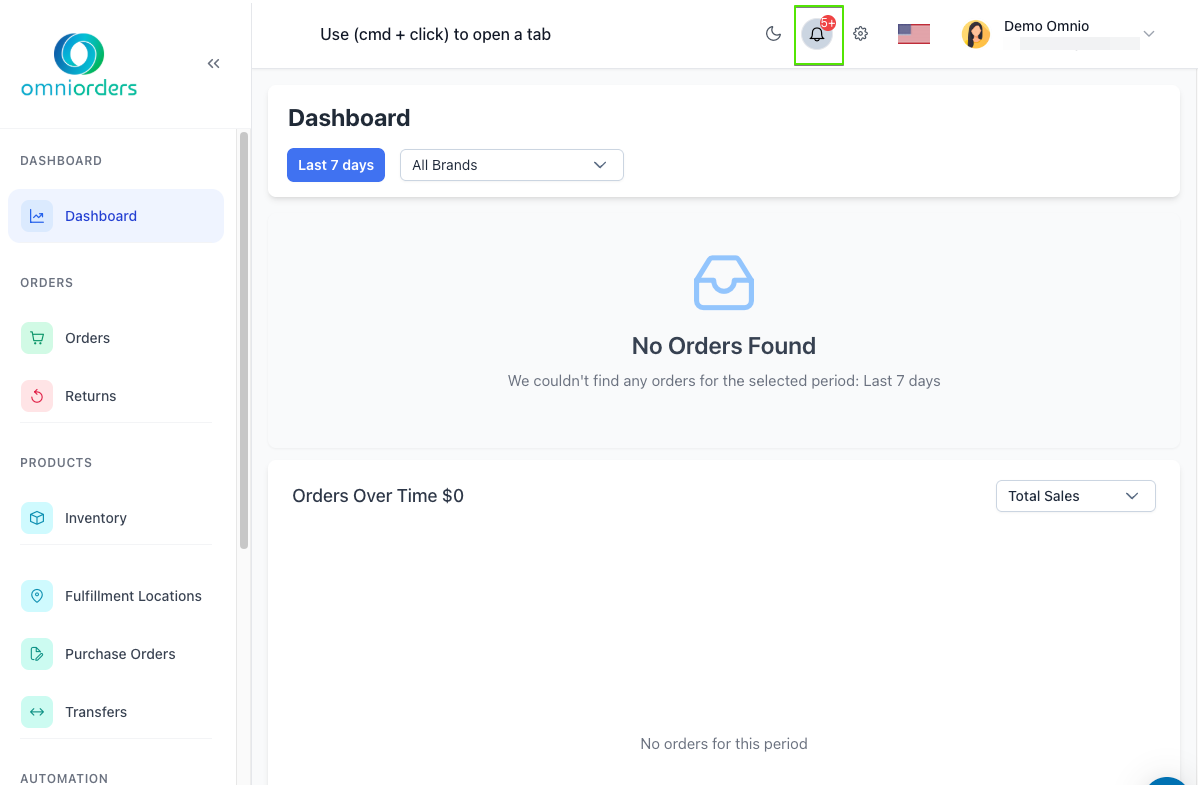
- Click the bell icon to view recent notifications
- A badge shows unread notification count
**Company Settings:**
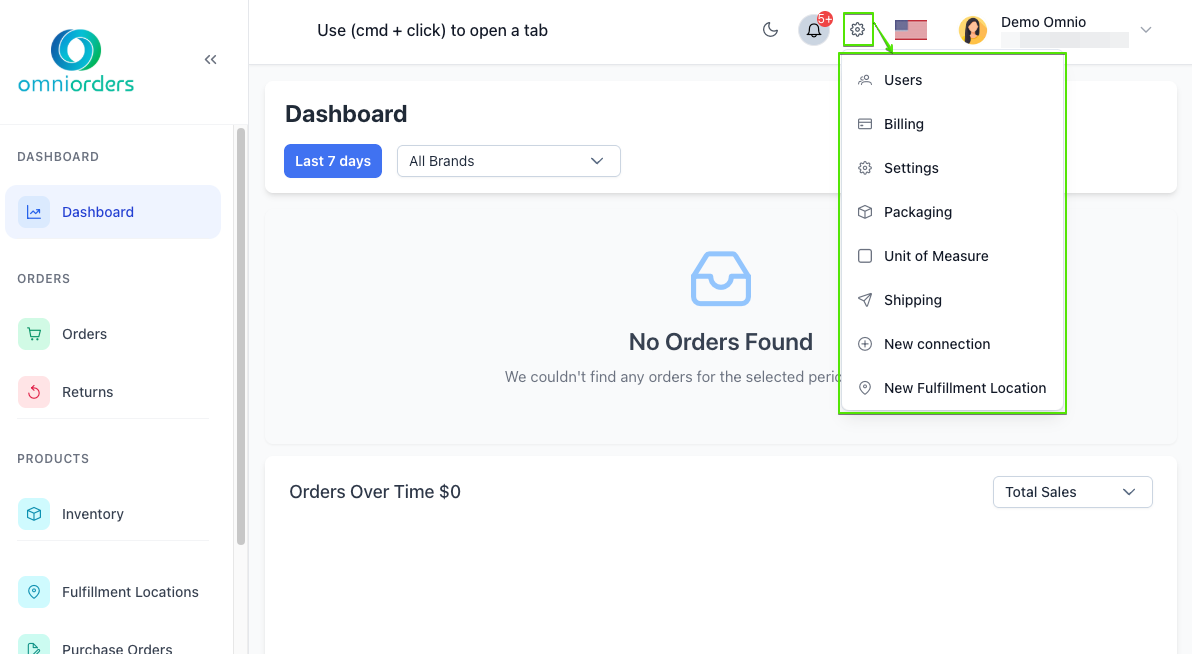
- Click the gear icon (⚙️) to access:
- Users
- Billing
- Settings
- Packaging
- Units of Measure (UOMs)
- Shipping
- New Connection
- New Fulfillment Location
**User Profile Menu:**
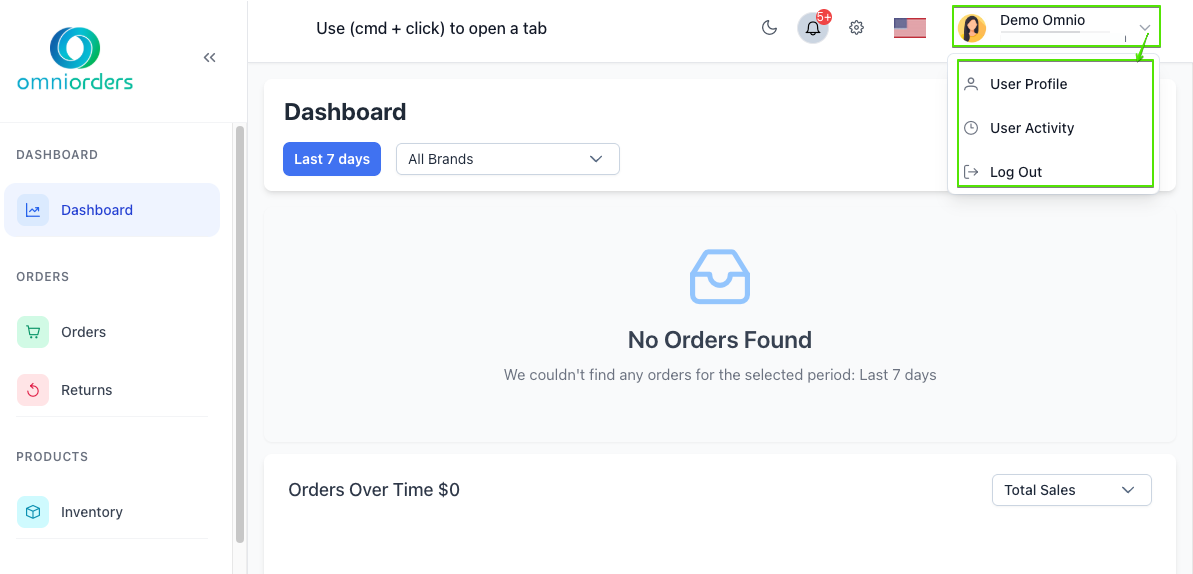
- Click your avatar or name to access:
- User Profile
- User Activity
- Log Out
## 💡 Best Practices
<CardGrid>
<IconCard title="Use Tabs for Multi-Tasking" icon="rocket">
Open orders, inventory, and products in separate tabs to compare data or work on multiple tasks without losing your place. Use Cmd+Click to open any menu item in a new tab.
</IconCard>
<IconCard title="Rename Your Tabs" icon="pencil">
Give tabs meaningful names like "Priority Orders" or "Weekly Inventory Check" to stay organized when working on multiple tasks at once.
</IconCard>
<IconCard title="Collapse Sidebar for Data Views" icon="eye">
When viewing large tables or detailed forms, collapse the sidebar to maximize screen space. You can still access navigation through the icon menu.
</IconCard>
<IconCard title="Use Breadcrumbs to Navigate Back" icon="arrow-left">
Instead of using your browser's back button, click breadcrumbs to navigate back through your workflow. This is more reliable and maintains your application state.
</IconCard>
<IconCard title="Keep Frequently Used Pages in Tabs" icon="bookmark">
Open your most-used pages (like Orders or Inventory) as permanent tabs at the start of your work session for quick access throughout the day.
</IconCard>
<IconCard title="Explore the Sidebar Sections" icon="menu">
The sidebar organizes features logically by function. If you're looking for a specific feature, think about its category (Orders, Products, Supply Chain, etc.) to find it quickly.
</IconCard>
</CardGrid>
## Navigation Keyboard Shortcuts
- **Cmd + Click**: Open menu item in new tab
- **Escape**: Close sidebar on mobile devices
- **Enter**: Activate focused menu item
- **Space**: Activate focused menu item
## Mobile Navigation
On mobile devices (screens smaller than 1024px):
- Tap the menu icon (☰) to open the sidebar
- Tap outside the sidebar to close it
- The sidebar automatically closes after selecting a menu item
- Tabs appear in a scrollable list
## Troubleshooting Navigation
### I Can't Find a Feature
**Solution:**
- Check all sidebar sections - features are grouped by category
- Use the search if available in your plan
- Check the Company Settings menu (⚙️ icon) for configuration features
### Tabs Aren't Appearing
**Solution:**
- Make sure you're holding Cmd (Mac) while clicking
- Check that you clicked on a valid menu item (not a section header)
- Try clicking the menu item again with the keyboard shortcut
### Sidebar Is Missing
**Solution:**
- Look for the menu icon (☰) - the sidebar might be collapsed
- Click the menu icon to expand the sidebar
- On mobile, tap the menu icon in the header
### Breadcrumbs Not Showing
**Solution:**
- Breadcrumbs only appear on certain pages with hierarchical navigation
- Check that you're viewing a detail page (like an order or product)
- Some views don't have breadcrumbs if they're top-level pages