Set up and manage your OmniOrders user profile. Update personal info, configure two-factor authentication, and set your notification and login preferences.
---
title: Profile Setup
description: Set up and manage your OmniOrders user profile. Update personal info, configure two-factor authentication, and set your notification and login preferences.
---
Your user profile contains your personal information, authentication settings, and preferences for using OmniOrders. Keep your profile up to date to ensure smooth communication and access to the platform.
<SupademoEmbed demoId="cmkyjfze92slttw9fjk8qwg5q" />
:::tip[Quick Access]
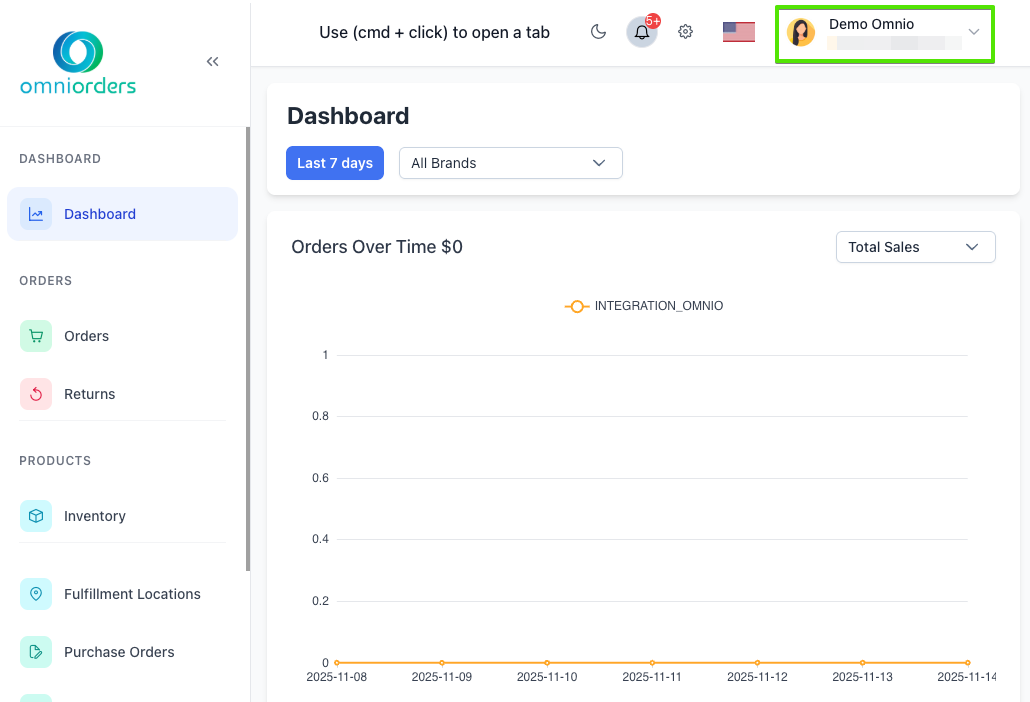
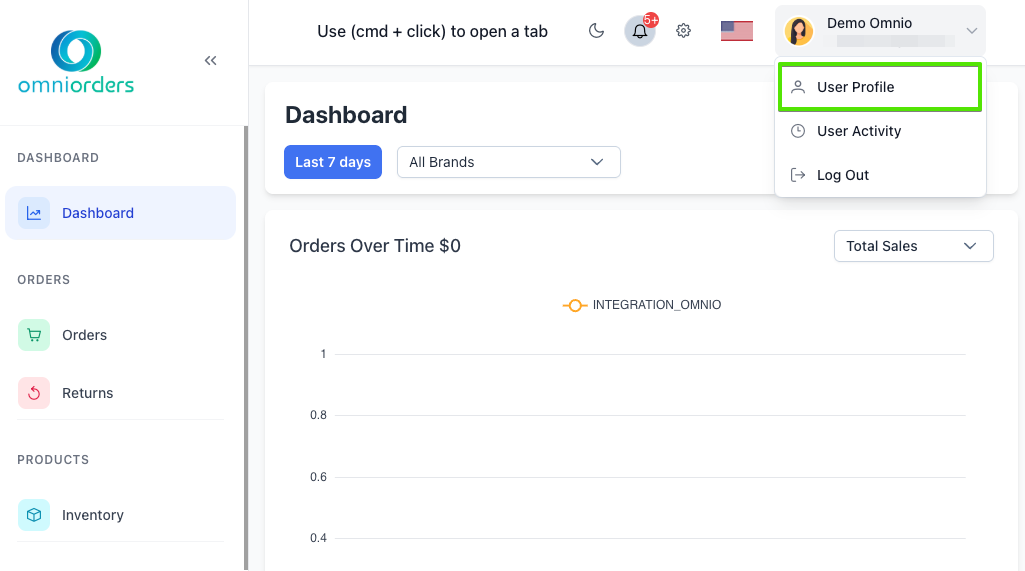
Access your profile anytime by clicking your avatar in the top-right corner and selecting **User Profile** from the dropdown menu.
:::
## Why Manage Your Profile?
**Your OmniOrders profile controls how you log in, what you see when you first open the platform, and how your team or support staff can reach you. Keeping your profile current — with an accurate email, secure password, and correct contact details — is the first step to a personalized experience.**
<CardGrid>
<IconCard title="Personalization" icon="user">
Customize your login experience with your preferred landing page and profile picture.
</IconCard>
<IconCard title="Security" icon="lock">
Keep your authentication credentials secure by updating your email and password as needed.
</IconCard>
<IconCard title="Contact Information" icon="phone">
Ensure your team and support staff can reach you with accurate contact details.
</IconCard>
<IconCard title="Quick Navigation" icon="compass">
Set your preferred landing page to jump straight to the view you use most.
</IconCard>
</CardGrid>
---
## Accessing Your Profile
<Steps>
1. **Open the User Menu**
Click on your avatar or name in the top-right corner of the application.
</Steps>
<Steps>
2. **Select User Profile**
Choose **User Profile** from the dropdown menu to open your profile page.
</Steps>
---
## Profile Sections
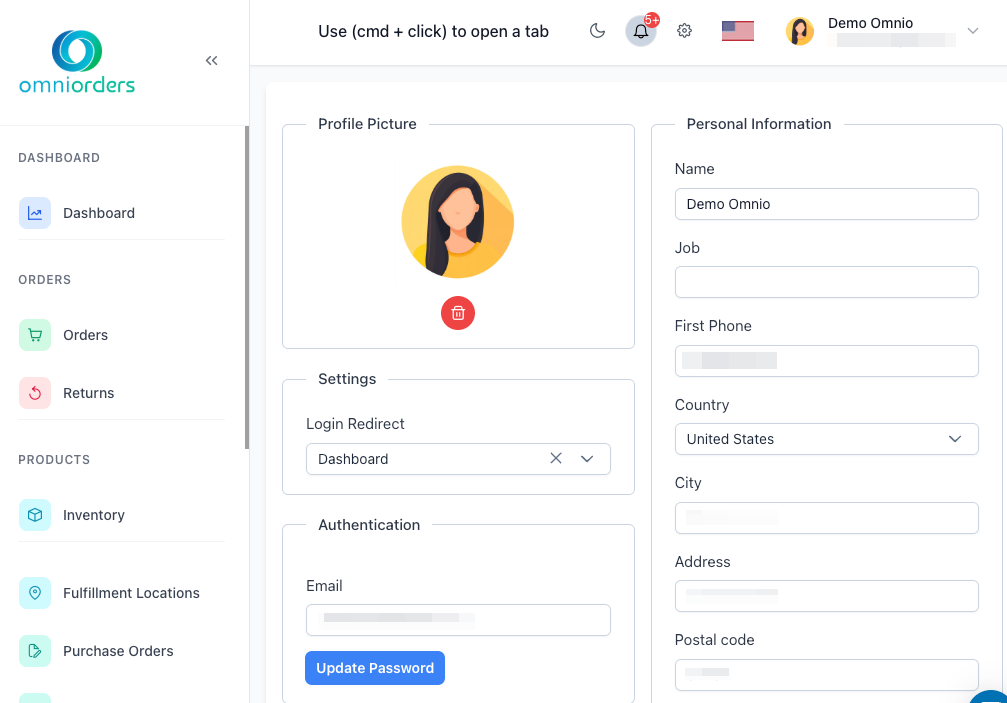
Your profile is organized into four main sections:
### Profile Picture
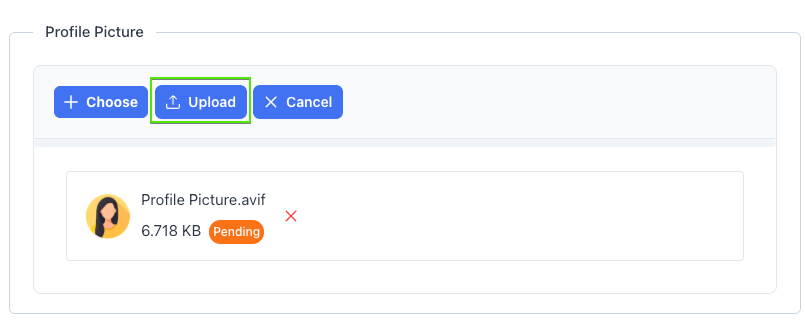
Upload a profile picture to personalize your account and make it easier for team members to recognize you.
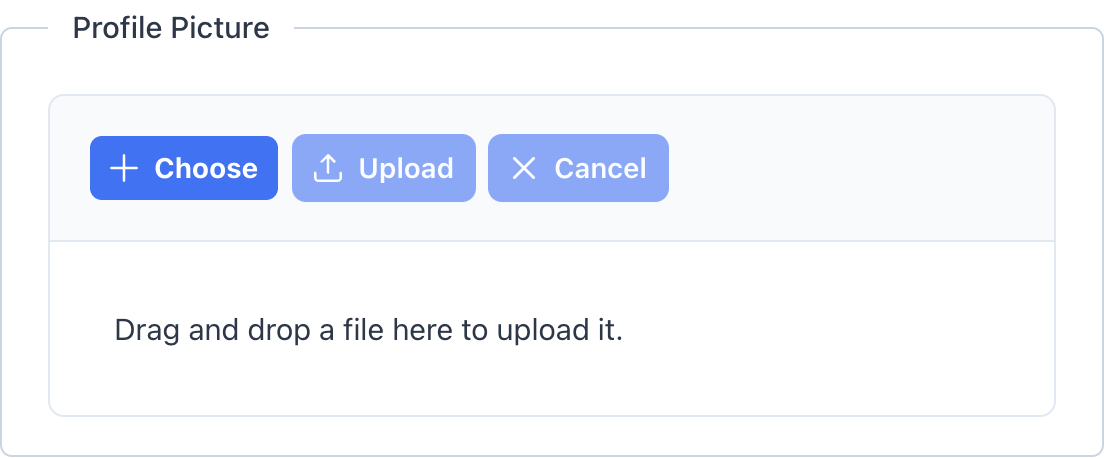
**Upload Requirements:**
- **File size**: Maximum 1 MB
- **File types**: Images only (JPG, PNG, GIF, WebP)
- **Upload method**: Drag and drop or click to browse
<Steps>
1. **Upload Your Image**
Drag and drop an image file into the upload area, or click to browse and select a file from your computer. Click **Upload** to save the selected image.
</Steps>
<div style="text-align: center; margin: 1.5rem 0;">
</div>
<Steps>
2. **Remove Your Image** (optional)
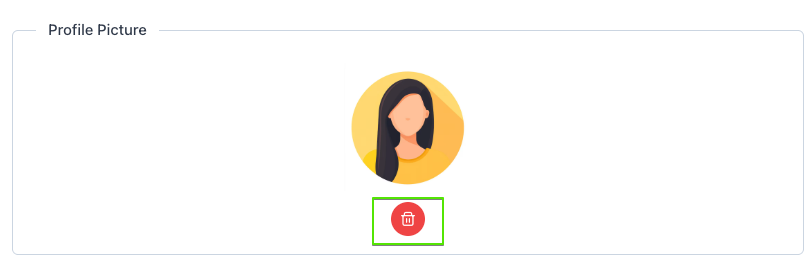
If you want to change or remove your profile picture, click the red trash icon below the image.
</Steps>
<div style="text-align: center; margin: 1.5rem 0;">
</div>
### Settings
Configure your login preferences to customize how you use OmniOrders.
**Login Redirect**: Choose which page you want to see immediately after logging in. This saves time by taking you directly to the view you use most often.
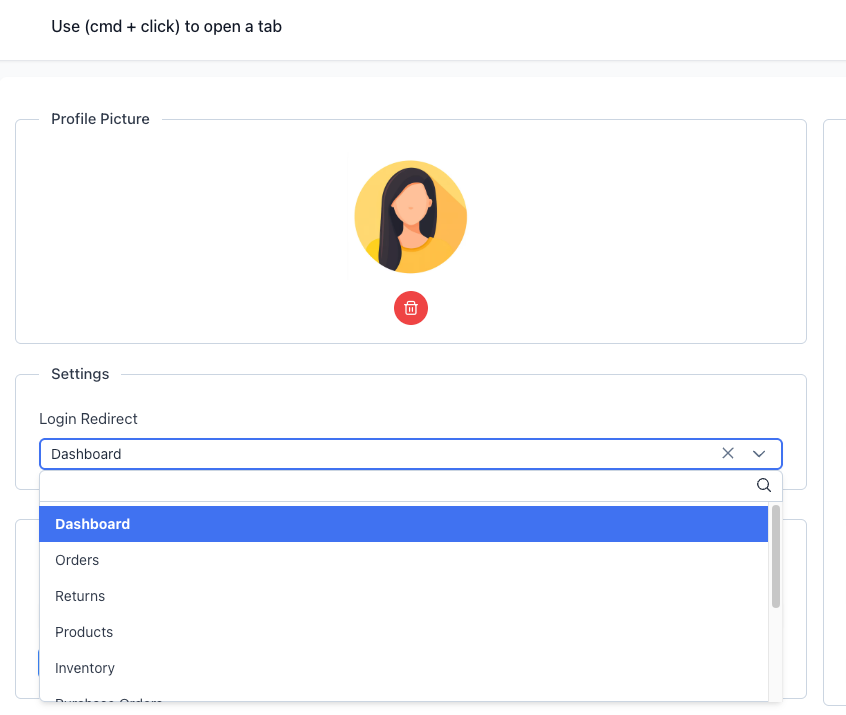
Available options:
- Dashboard
- Orders
- Returns
- Products
- Inventory
- Purchase Orders
- Inventory Location
- Rules
- Connections
- Notifications
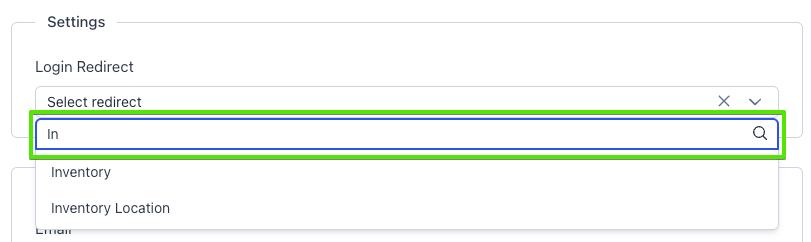
The dropdown is searchable, so you can type to find your preferred page quickly.
<div style="text-align: center; margin: 1.5rem 0;">
</div>
### Authentication
Manage your login credentials and security settings.
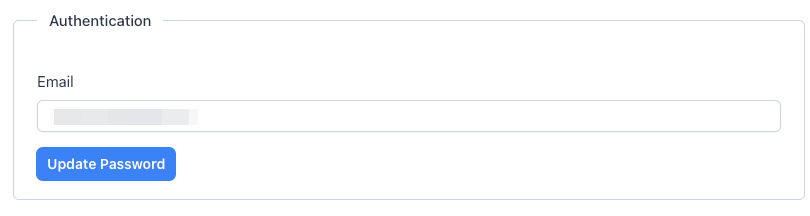
**Email**
Your email address is used for:
- Logging into OmniOrders
- Receiving system notifications
- Password reset requests
- Communication from your team
Update your email if it changes or if you want to use a different address for your account.
**Password**
<Steps>
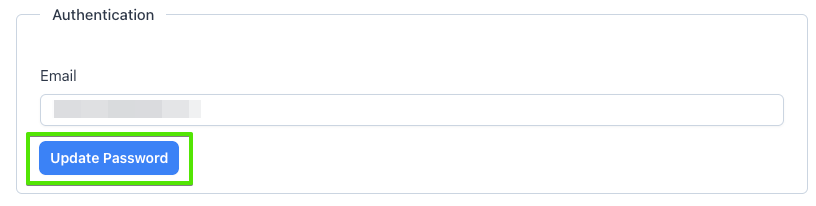
1. **Click Update Password**
Click the **Update Password** button to open the password update dialog.
</Steps>
<Steps>
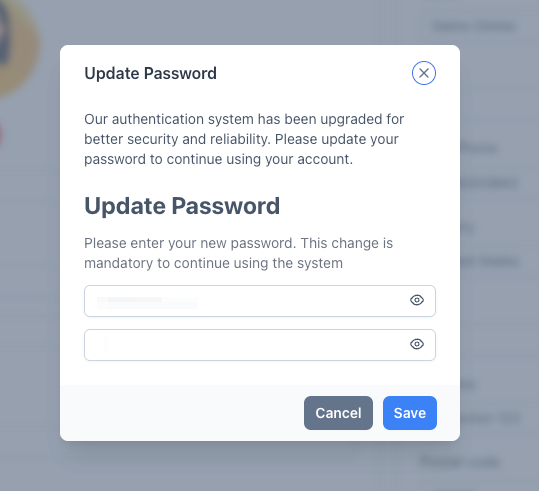
2. **Enter Your Passwords**
In the popup dialog, you'll see:
- Your current password displayed (for verification)
- A field to enter your new password
Type your new password in the field. Click the eye icon to show or hide the password as you type.
</Steps>
<Steps>
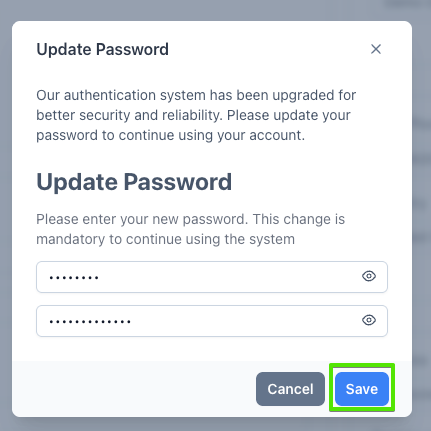
3. **Save Your Changes**
Once you're sure about your new password, click **Save** to update your password.
</Steps>
:::caution[Password Security]
Choose a strong password with a mix of uppercase letters, lowercase letters, numbers, and special characters. Avoid using common words or personal information.
:::
### Personal Information
Keep your contact details current so your team and support staff can reach you when needed.
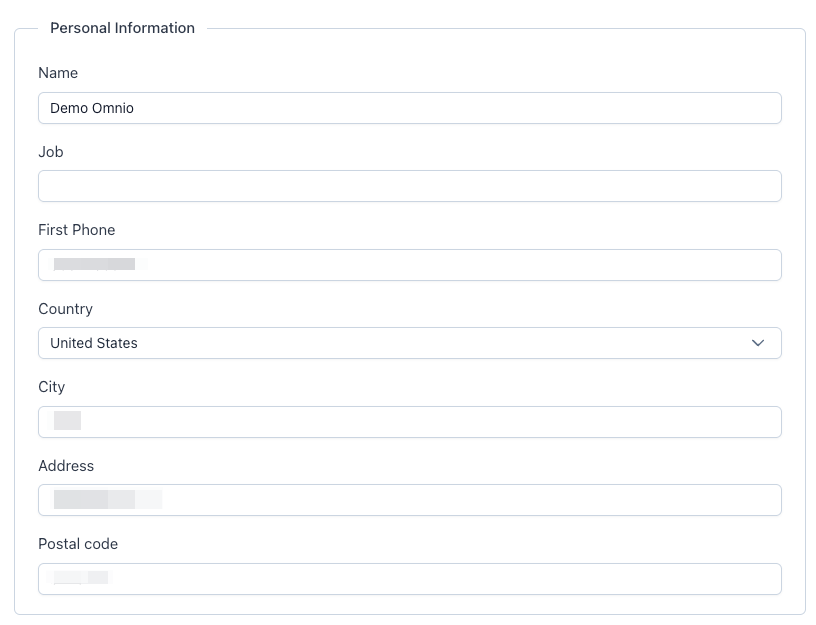
**Available Fields:**
- **Name**: Your full name (required)
- **Job**: Your job title or role
- **First Phone**: Primary phone number
- **Country**: Select from the dropdown list
- **City**: Your city
- **Address**: Street address
- **Postal Code**: ZIP or postal code
All fields update automatically when you finish typing or change focus. You'll see a brief confirmation when your changes are saved.
---
## 💡 Best Practices
<CardGrid>
<IconCard title="Keep Contact Info Current" icon="check-circle">
Update your phone number and address whenever they change so your team can reach you.
</IconCard>
<IconCard title="Use a Professional Email" icon="mail">
Use a work email address if possible, especially if multiple team members use OmniOrders.
</IconCard>
<IconCard title="Set Your Preferred Landing Page" icon="settings">
Choose the view you use most often as your login redirect to save time every day.
</IconCard>
<IconCard title="Add a Profile Picture" icon="image">
Upload a clear photo to help team members recognize you in shared views and notifications.
</IconCard>
<IconCard title="Update Your Password Regularly" icon="lock">
Change your password periodically and never share it with others.
</IconCard>
</CardGrid>
---
## Troubleshooting
### My changes aren't saving
**Solution**: Most fields save automatically when you move to another field. If changes aren't saving:
1. Check that you have a stable internet connection
2. Ensure required fields (like Name) are filled in
3. Refresh the page and try again
4. Contact support if the issue continues
### I can't upload my profile picture
**Possible causes**:
- File is larger than 1 MB
- File is not an image format
- Browser permissions are blocking the upload
**Solution**:
1. Check your file size and type
2. Try a different image or compress your current image
3. Clear your browser cache and try again
### Password update isn't working
**Solution**:
1. Click the **Update Password** button to open the password update dialog
2. Make sure you enter your new password in the field provided
3. Click **Save** to confirm the password change
4. Look for the success message that confirms the update
### Country dropdown isn't showing my country
**Solution**: The dropdown is searchable. Start typing your country name to filter the list. If your country still doesn't appear, contact support to have it added.
---
**Next Steps:** [Navigation Basics](/getting-started/navigation/) | [Dashboard Overview](/dashboard/overview/)