Connect your Shopify store to OmniOrders in minutes. Automatically sync products, orders, and inventory across both platforms with no manual updates required.
---
title: Shopify Integration
description: Connect your Shopify store to OmniOrders in minutes. Automatically sync products, orders, and inventory across both platforms with no manual updates required.
---
<div style="background: linear-gradient(135deg, #7AB55C 0%, #5E9644 100%); border-radius: 12px; padding: 2.5rem 2rem; margin-bottom: 2rem; color: white; display: flex; align-items: center; gap: 1.5rem;">
<IconShopify style="width: 80px; height: 80px; flex-shrink: 0; color: white;" />
<div>
{/* Starlight renders H1 from the page title — use p here to avoid duplicate H1 */}
<p style="font-size: 2rem; font-weight: 700; line-height: 1.2; margin: 0 0 0.5rem 0; color: white;">Shopify Integration</p>
<p style="font-size: 1.125rem; margin: 0; opacity: 0.95;">
Connect your Shopify store and sync everything automatically
</p>
</div>
</div>
Connect your Shopify store to OmniOrders and manage everything from one place. Your products, orders, and inventory will sync automatically—no more manual updates or switching between platforms.
<SupademoEmbed demoId="cmmp1xsi81ppuf8nq74fkx4xo" />
:::tip[Quick Setup]
Most stores connect in under 5 minutes. You'll need admin access to your Shopify store to get started.
:::
---
## Why Connect Shopify?
**Connecting your Shopify store to OmniOrders means new orders flow in automatically, inventory levels stay in sync across all your channels, and fulfillment updates push back to Shopify the moment they happen — no manual imports, no overselling, and no switching between platforms.**
<CardGrid>
<IconCard title="Auto Sync Orders" icon="refresh-cw">
New orders flow directly into OmniOrders as they come in—no delays or manual imports needed.
</IconCard>
<IconCard title="Real-Time Inventory" icon="package">
Stock levels update automatically across Shopify and all your other channels. This prevents
overselling.
</IconCard>
<IconCard title="Product Updates" icon="box">
Add or edit products in one place and changes sync everywhere instantly.
</IconCard>
<IconCard title="Tracking Updates" icon="truck">
Shipping info and tracking numbers automatically update in Shopify when orders ship.
</IconCard>
</CardGrid>
---
## Before You Start
Gather these items before connecting—they make setup faster and smoother:
<CardGrid>
<IconCard title="Shopify Admin Access" icon="shield-check">
You need **admin** or **staff** permissions in your Shopify store. Only these roles can install apps, authorize API access, and manage integration settings. Check your role under **Settings** → **Users and permissions**.
</IconCard>
<IconCard title="OmniOrders Account" icon="globe">
You need an active OmniOrders subscription. The Shopify app is free to install, but syncing requires a paid OmniOrders plan.
</IconCard>
<IconCard title="Products Ready to Sync" icon="check-circle">
Have at least one product with variants and inventory tracking enabled in Shopify before connecting. This lets you verify the sync works right after setup.
</IconCard>
</CardGrid>
---
## Connect Your Shopify Store
<SupademoEmbed demoId="cmmozjldf1kw4f8nqy8gqlvut" />
<Steps>
1. **Go to the Shopify App Store**
Open the [OmniOrders listing on the Shopify App Store](https://apps.shopify.com/OmniOrders) and click **Install**
2. **Authorize OmniOrders**
Shopify will show you the list of permissions OmniOrders needs. Review them and click **Install** to authorize.
:::note[What We Access]
OmniOrders only requests access to products, orders, and inventory — we never access customer payment info.
:::
3. **You're redirected to OmniOrders**
After authorizing, Shopify sends you back to OmniOrders. Your store is now connected and shows up in your **Integrations** list.
4. **Configure Sync Actions**
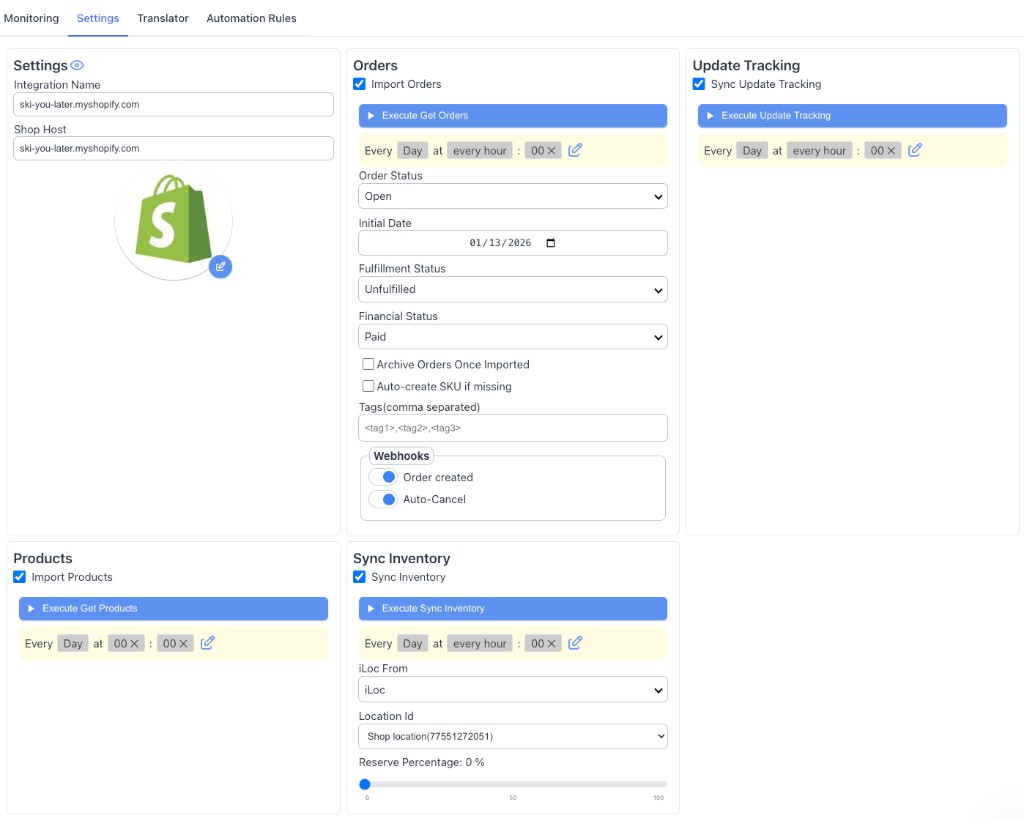
Open your new Shopify integration and go to the **Settings** tab. You'll see four sync sections — enable each one you need:
- **Orders → Import Orders**: Pull new orders from Shopify into OmniOrders
- **Update Tracking → Sync Update Tracking**: Push shipment tracking back to Shopify
- **Products → Import Products**: Sync your product catalog from Shopify
- **Sync Inventory → Sync Inventory**: Keep stock levels in sync across both platforms
5. **Save Settings**
Click **Save Changes** to apply your configuration and activate the integration.
</Steps>
:::tip[First Sync]
The first sync imports your existing products and recent orders. After that, everything updates based on your configured schedules and webhooks.
:::
---
## What Gets Synced?
**The Shopify integration syncs products (names, SKUs, variants, images, pricing, inventory quantities), orders (line items, customer addresses, notes, payment and fulfillment status), and inventory updates — bidirectionally, so changes in either Shopify or OmniOrders reflect on both sides in real time.**
### Products
- Product names and descriptions
- SKUs and barcodes
- Variants (sizes, colors, etc.)
- Images and pricing
- Inventory quantities
### Orders
- Order details and line items
- Customer shipping addresses
- Order notes and tags
- Payment status
- Fulfillment status
### Inventory
- Stock levels by location
- Inventory updates (both directions)
- Low stock alerts
### Fulfillment
- Tracking numbers
- Carrier information
- Shipment status updates
---
## Settings Reference
Each sync action in the **Settings** tab has its own schedule and configuration options. Here's what each section does.
### Orders
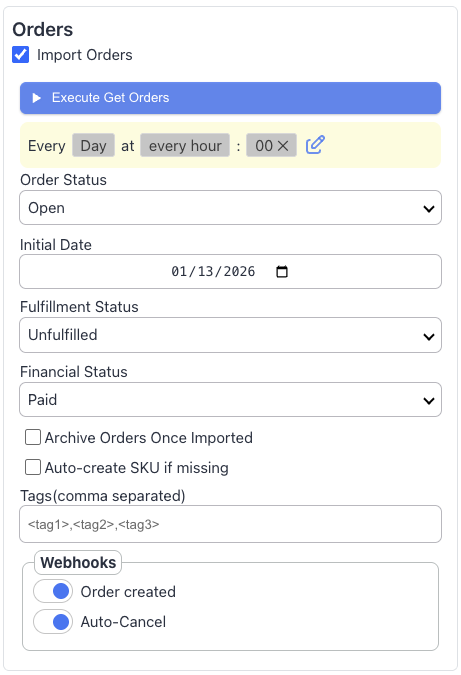
Enable **Import Orders** to pull orders from Shopify into OmniOrders. You can filter which orders are imported:
| Field | Description |
|---|---|
| **Order Status** | Filter by status (e.g., Open) |
| **Initial Date** | Only import orders created after this date |
| **Fulfillment Status** | Filter by fulfillment state (e.g., Unfulfilled) |
| **Financial Status** | Filter by payment state (e.g., Paid) |
| **Archive Orders Once Imported** | Archive orders in Shopify after importing |
| **Auto-create SKU if missing** | Automatically create a SKU when an order line item has none |
| **Tags** | Only import orders matching these Shopify tags (comma separated) |
**Webhooks** let orders arrive in real time without waiting for the schedule:
- **Order created** — OmniOrders receives new orders the moment they're placed in Shopify
- **Auto-Cancel** — OmniOrders is notified when an order is cancelled in Shopify
Click **Execute Get Orders** to run an import manually at any time.
---
### Update Tracking
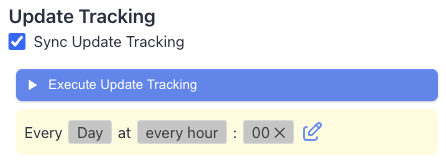
Enable **Sync Update Tracking** to push shipment tracking numbers back to Shopify when orders are fulfilled in OmniOrders. Click **Execute Update Tracking** to run it manually.
---
### Products
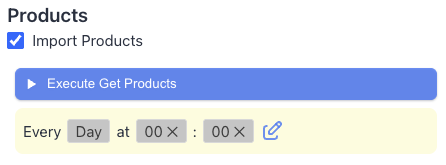
Enable **Import Products** to sync your Shopify product catalog into OmniOrders. Click **Execute Get Products** to run it manually.
---
### Sync Inventory
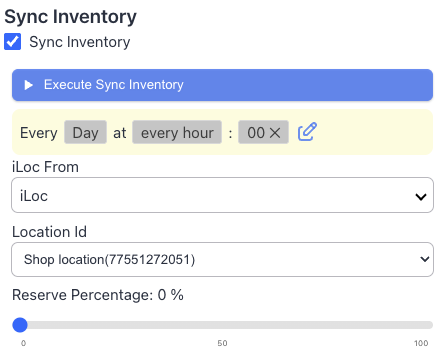
Enable **Sync Inventory** to keep stock levels in sync between OmniOrders and Shopify.
| Field | Description |
|---|---|
| **iLoc From** | The OmniOrders inventory location to sync from |
| **Location Id** | The Shopify location to update inventory for |
| **Reserve Percentage** | Hold back a percentage of stock from being pushed to Shopify |
Click **Execute Sync Inventory** to run it manually.
---
## Managing Your Connection
### View Sync Status
Check if everything is syncing correctly:
1. Go to **Integrations** and select your Shopify connection
2. Open the **Monitoring** tab to see:
- **Order Logs**: errors and order-level sync issues
- **Jobs**: background job history and status for each sync action
### Pause Syncing
Need to temporarily stop syncing?
1. Open your Shopify integration in the **Integrations** section
2. Go to the **Settings** tab
3. Click the **Pause** button in the actions panel
4. Click **Activate** to resume syncing at any time
### Update Settings
Change what syncs:
1. Open your Shopify integration in the **Integrations** section
2. Go to the **Settings** tab
3. Enable or disable any sync action
4. Click **Save Changes**
---
## Common Questions
<CardGrid>
<IconCard title="How often does it sync?" icon="clock">
Orders sync via webhooks when created. Products and inventory sync on a schedule you configure — set the interval in each sync action's schedule settings.
</IconCard>
<IconCard title="Can I sync multiple stores?" icon="store">
Yes! Connect as many Shopify stores as you need. Each store syncs independently.
</IconCard>
<IconCard title="What about existing orders?" icon="history">
We import orders from the last 30 days during initial setup. Older orders can be imported on
request.
</IconCard>
<IconCard title="Is my data secure?" icon="lock">
Absolutely. We use OAuth 2.0 secure authentication and encrypt all data in transit and at rest.
</IconCard>
</CardGrid>
---
## Troubleshooting
### Orders Not Syncing
**Problem**: New Shopify orders aren't appearing in OmniOrders
**Solutions**:
- Check that **Import Orders** is enabled in the **Settings** tab
- Check the **Financial Status** filter — by default only Paid orders are imported
- Look for error messages in the **Monitoring** → **Order Logs** tab
- Click **Execute Get Orders** in the Settings tab to trigger a manual import
### Inventory Not Updating
**Problem**: Stock changes in Shopify don't update in OmniOrders (or vice versa)
**Solutions**:
- Confirm **Sync Inventory** is enabled in the **Settings** tab
- Check that **iLoc From** and **Location Id** point to the correct locations
- Verify inventory tracking is enabled in Shopify for the product
- Click **Execute Sync Inventory** to trigger a manual sync and check the result
### Connection Expired or Missing Permissions
**Problem**: Shopify integration stops syncing or shows a permissions error
**Solutions**:
- Go to the [Shopify App Store listing](https://apps.shopify.com/OmniOrders) and reinstall the app to re-authorize
- This happens if you uninstalled the OmniOrders app from Shopify or permissions changed
- No data is lost — syncing resumes after re-authorization completes
### Duplicate Products
**Problem**: Products appear twice after connecting Shopify
**Solutions**:
- Ensure products aren't created in both systems before connecting
- Use consistent SKUs across both platforms — OmniOrders matches by SKU to prevent duplicates
- Contact support if duplicates already exist and need manual resolution
---
## Best Practices
### For New Users
1. **Start Small**: Connect your store and let the initial sync complete before making changes
2. **Test First**: Create a test order in Shopify and verify it appears in OmniOrders
3. **Map Locations**: If you have multiple warehouses, map them to Shopify locations for accurate inventory
### For Multi-Channel Sellers
1. **Centralize Inventory**: Let OmniOrders be your source of truth for stock levels
2. **Use SKUs**: Keep SKUs consistent across all platforms for automatic matching
3. **Set Buffer Stock**: Configure safety stock levels to prevent overselling across channels
### For Order Fulfillment
1. **Enable Auto-Fulfillment**: Let OmniOrders automatically fulfill orders when ready
2. **Sync Tracking**: Turn on tracking sync so customers get updates in Shopify
3. **Use Order Tags**: Apply tags in Shopify that trigger specific OmniOrders workflows
---
## Need More Help?
<CardGrid>
<IconCard title="Contact Support" icon="message-circle">
Our team is here to help with setup, troubleshooting, or any questions. [Get Support
→](mailto:[email protected])
</IconCard>
<IconCard title="Video Tutorial" icon="play">
Watch a complete walkthrough of the Shopify integration setup process. [Watch Now
→](https://app.supademo.com/demo/cmmozjldf1kw4f8nqy8gqlvut?utm_source=link)
</IconCard>
<IconCard title="More Integrations" icon="layout-grid">
Explore other platforms and integration options. [View Integrations
→](/integrations/overview/)
</IconCard>
</CardGrid>
---
:::tip[Pro Tip]
Enable the **Order created** webhook inside the Orders section of the **Settings** tab. This pushes new Shopify orders to OmniOrders instantly — no need to wait for the next scheduled import.
:::