Learn how to modify draft orders in OmniOrders to update customer information, products, shipping details, and order settings.
---
title: Editing Orders
description: Learn how to modify draft orders in OmniOrders to update customer information, products, shipping details, and order settings.
---
Editing orders allows you to modify order details before they are processed for fulfillment. This is useful for correcting errors, updating customer information, or adding products to draft orders.
:::tip[Draft Orders Only]
You can only edit orders that are in **Draft** status. Once an order is processed and moves to Open, Closed, or other statuses, it cannot be edited through the standard edit form.
:::
## Why Edit Orders?
**Editing orders lets you fix mistakes, honor customer requests, and add missing information before an order goes to fulfillment. Update addresses, quantities, shipping methods, and special instructions on any Draft-status order — without canceling and recreating it from scratch.**
<CardGrid>
<IconCard title="Correct Mistakes" icon="pencil">
Fix typos in customer addresses, update incorrect product quantities, or correct pricing
errors before processing.
</IconCard>
<IconCard title="Update Customer Requests" icon="users">
Add products, change shipping addresses, or update delivery dates based on customer
requests.
</IconCard>
<IconCard title="Add Missing Information" icon="file-text">
Complete orders with missing shipping details, reference numbers, or special instructions.
</IconCard>
<IconCard title="Modify Before Processing" icon="clock">
Make final changes to draft orders before sending them to fulfillment.
</IconCard>
</CardGrid>
## How to Edit an Order
<SupademoEmbed demoId="cmi958spe7h4pb7b492j2j7v1" />
<Steps>
1. **Navigate to Orders**
From the main navigation menu, click **Orders** to view your orders list.
2. **Find the Order**
Locate the order you want to edit:
- Use the search bar to find orders by order number, customer name, or SKU
- Filter orders by status to show only **Draft** orders
- Click the **3-dot menu** (⋮) next to the order
3. **Open the Edit Form**
Click **Edit** from the order's action menu. The order edit form will load showing all current order information.
:::note[Edit Availability]
The **Edit** option is only enabled for orders with **Draft** status. Orders that have been processed (Open, Closed, Cancelled) cannot be edited.
:::
4. **Update Order Information**
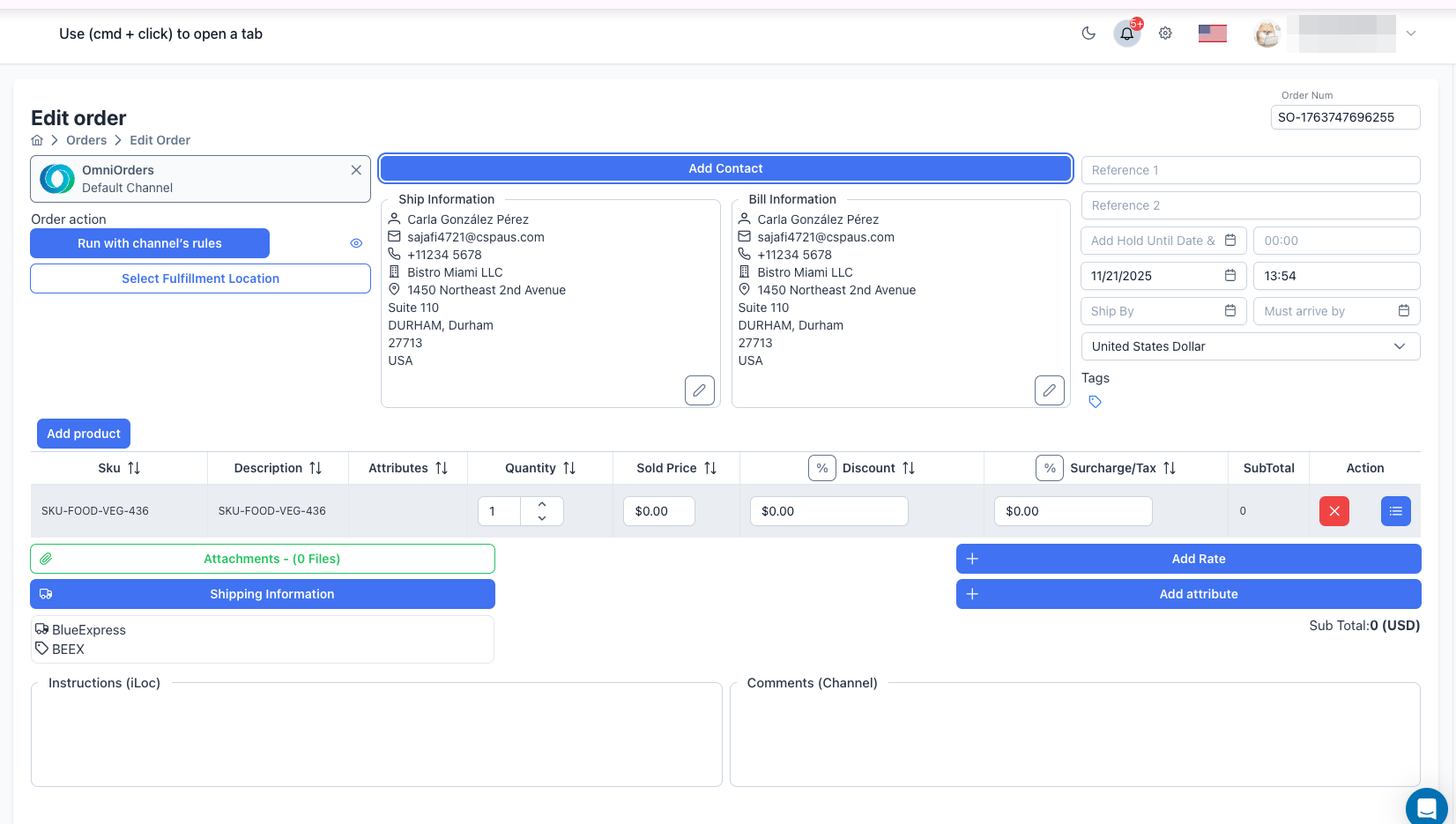
The edit form shows all order details. You can modify:
**Order Basics:**
- **Order Number** - Unique identifier for the order
- **Channel** - Sales channel source (cannot be changed if order has shipments)
- **Fulfillment Location** - Where the order will be fulfilled
**Customer Information:**
- **Contact** - Select a different customer or create a new contact
- **Shipping Address** - Update shipping details, address lines, city, state, postal code
- **Billing Address** - Modify billing information if different from shipping
**Order Details:**
- **Reference 1** and **Reference 2** - Custom reference numbers
- **Order Date** - When the customer placed the order
- **Hold Until Date/Time** - Delay processing until a specific time
- **Ship By** - Target shipping date
- **Must Arrive By** - Delivery deadline
- **Currency** - Order currency (defaults to account currency)
- **Tags** - Add or remove organizational tags
5. **Edit Customer Information**
To update customer details, click the edit icon (pencil) next to the shipping or billing information. This opens a dialog where you can modify:
- **Email** - Customer's email address
- **Phone Number** - Contact phone number
- **First Name** and **Last Name** - Customer's name
- **Company** - Business name (optional)
- **Address 1** and **Address 2** - Street address lines
- **Zip Code** - Postal code
- **Country** - Select from dropdown
- **State** - State or province
- **City** - City name
- **Update customer profile** - Check to save changes to customer record
6. **Modify Products**
Update the product list:
- **Add Products** - Click **Add Product** to search and add more items
- **Update Quantities** - Change the quantity ordered for each product
- **Adjust Pricing** - Modify sold price, discounts, or surcharges
- **Remove Products** - Click the trash icon (🗑️) to delete product lines
- **Product Attributes** - Add custom metadata to specific products
:::caution[Product Changes]
Removing or changing products updates the order total. Review the **SubTotal** before saving.
:::
7. **Update Shipping Information**
Click **Shipping Information** to modify shipping details:
- **Carrier** - Change the shipping carrier (UPS, FedEx, USPS, etc.)
- **Ship Method** - Update the service level (Ground, Express, etc.)
- **Residential** - Mark if shipping to a residence
- **Signature required** - Require signature on delivery
- **Saturday Delivery** - Schedule weekend delivery (UPS Air/FedEx Express only)
- **Include prepaid return label** - Add return shipping label
- **Insurance** - Select No, Order Total, or Custom coverage
- **Bill Type** - Choose Bill Recipient or Collect (UPS Air/FedEx Express only)
- **COD Amount** - Cash on delivery amount
- Click **Confirm** to save shipping changes
8. **Modify Additional Details**
Update optional information:
- **Attached Files** - Add or remove uploaded documents
- **Rates** - Add custom rates or charges
- **Attributes** - Modify order-level metadata (key-value pairs)
- **Instructions (iLoc)** - Special instructions for the fulfillment location
- **Comments (Channel)** - Notes visible to the channel
9. **Save Your Changes**
Click **Update** to save your modifications. A confirmation dialog offers two options:
- **Save as draft** - Saves changes but keeps the order in Draft status
- **Process** - Processes the order and creates a shipment (Status changes to Open)
Or click **Cancel** to discard changes and return to the orders list.
</Steps>
## What You Can Edit
### Editable Fields (Draft Orders)
All order fields can be modified for draft orders:
| Field Type | What You Can Change |
| ----------------------- | ------------------------------------------------------------- |
| **Order Number** | Update to match your numbering system |
| **Customer Contact** | Change customer, update shipping/billing addresses |
| **Products** | Add, remove, or modify quantities and pricing |
| **Order Dates** | Update order date, ship by, must arrive by, hold until dates |
| **Shipping Info** | Change carrier, method, or get new rates |
| **Reference Numbers** | Update Reference 1 and Reference 2 |
| **Tags** | Add or remove organizational tags |
| **Currency** | Change the order currency |
| **Fulfillment** | Change fulfillment location (if no shipments exist) |
| **Instructions** | Update special handling instructions |
| **Comments** | Modify channel-visible notes |
| **Files & Attributes** | Add/remove attached files and custom attributes |
### Restrictions
- **Channel** - Cannot be changed if the order has associated shipments or has been processed
- **Processed Orders** - Orders in Open, Closed, Cancelled, or other non-draft statuses cannot be edited through the edit form
- **Order Items** - If the order has been sent to a warehouse, you cannot modify products
## 💡 Best Practices
<CardGrid>
<IconCard title="Review Before Processing" icon="eye">
Double-check all changes before clicking "Continue" to process the order. Once processed,
the order cannot be edited.
</IconCard>
<IconCard title="Keep Order Numbers Consistent" icon="tag">
If you change the order number, make sure it doesn't conflict with existing orders or your
numbering system.
</IconCard>
<IconCard title="Verify Address Changes" icon="map-pin">
When updating shipping addresses, verify the new address is correct and complete to avoid
delivery issues.
</IconCard>
<IconCard title="Update Order Dates Accurately" icon="calendar">
Keep dates realistic. If you change ship by or must arrive by dates, ensure they're
achievable.
</IconCard>
<IconCard title="Save Frequently" icon="file-text">
For complex edits, save as draft frequently to avoid losing changes if something goes wrong.
</IconCard>
<IconCard title="Add Notes for Changes" icon="pencil">
Use the Comments field to document why changes were made, especially for customer-requested
modifications.
</IconCard>
</CardGrid>
## Common Editing Scenarios
### Updating Customer Address
**When:** Customer provides a corrected shipping address after order placement.
**Steps:**
1. Open the order for editing
2. Click **Select Contact** or modify the shipping address fields directly
3. Update Address 1, City, State, Postal Code, and Country
4. Verify the billing address if it should also change
5. Click **Update** and **Save as draft** or **Continue**
---
### Adding Forgotten Products
**When:** Customer wants to add more items to an existing order.
**Steps:**
1. Open the order for editing
2. Click **Add Product** in the product table header
3. Search for and select the additional products
4. Set quantities and pricing
5. Review the updated SubTotal
6. Click **Update** and choose to save or process
---
### Changing Shipping Method
**When:** Customer requests faster shipping or you need to use a different carrier.
**Steps:**
1. Open the order for editing
2. Click **Add shipping information** or modify existing shipping details
3. Select a new carrier and method
4. Or click **Get Rates** to see available options and pricing
5. Click **Update** and save your changes
---
### Correcting Product Quantities
**When:** Order was entered with wrong quantities.
**Steps:**
1. Open the order for editing
2. Locate the product line with incorrect quantity
3. Click in the **Quantity** field and update the number
4. The SubTotal recalculates automatically
5. Review the new total and click **Update**
## Troubleshooting
### "Edit" option is disabled
**Problem:** The Edit option is grayed out in the order's action menu.
**Solution:** Only draft orders can be edited. Check the order status:
- **Draft** - Editable ✅
- **Open**, **Closed**, **Cancelled**, **On Hold**, **Error** - Not editable ❌
For non-draft orders, use other order management actions like Re-Open Order, Cancel Order, or contact support for help.
---
### Can't change the channel
**Problem:** Channel dropdown is disabled or changes aren't saved.
**Solution:** Channels cannot be changed if the order has shipments or has been processed. Create a new order with the correct channel instead.
---
### Changes aren't saving
**Problem:** Clicking Update doesn't save your modifications.
**Solution:** Check for validation errors:
- All required fields must be filled (Channel, Customer Contact, Products, Order Date)
- Customer address must be complete (Address 1, City, Country, Postal Code)
- At least one product must be in the order
- Shipping carrier and method must be selected (if required)
Look for red error indicators near fields and fill in missing information.
---
### Product prices changed unexpectedly
**Problem:** Product prices updated automatically when editing.
**Solution:** If currency changed, prices may have converted. Verify:
- The currency is correct
- Sold prices are accurate for the new currency
- Manually adjust prices if needed
---
### "Field Required" validation errors
**Problem:** Can't save because of required field errors.
**Solution:** Ensure these critical fields are filled:
- **Channel** - Sales channel must be selected
- **Customer Contact** - Name, email, and complete address required
- **Products** - At least one product with quantity and price
- **Order Date** - Must have a valid order date
- **Shipping Information** - Carrier and method (if enforced)
## What Happens After You Update?
### Save as Draft
Orders updated and saved as draft:
- Remain in **Draft** status
- Do NOT create shipments or trigger fulfillment
- Can be edited again or processed later
- Show as updated in the orders list
### Continue (Process Order)
Orders updated and processed with "Continue":
- Move to **Open** status
- Create a shipment at the selected fulfillment location
- Trigger automation rules if "Run with channel's rules" was selected
- Send to warehouse for picking and packing
- Cannot be edited after processing
:::tip[Next Steps]
After editing orders, you can view them in the [Orders Overview](/orders/overview/), track their status, and manage shipments.
:::
## Related Documentation
- **[Orders Overview](/orders/overview/)** - View and filter all orders
- **[Creating Orders](/orders/creating/)** - Create new manual orders
- **[Order Status & Workflow](/orders/status/)** - Understand order lifecycle
- **[Managing Orders](/orders/managing/)** - Order actions and bulk operations
- **[Customers Overview](/customers/overview/)** - Manage customer information
---
**Need Help?** If you have questions about editing orders, contact our support team through the in-app chat or email [email protected].