Learn how to manage orders in OmniOrders. Perform bulk status updates, apply order actions, filter by sales channel, and streamline your fulfillment workflow.
---
title: Managing Orders
description: Learn how to manage orders in OmniOrders. Perform bulk status updates, apply order actions, filter by sales channel, and streamline your fulfillment workflow.
---
Managing orders efficiently is essential for fulfillment operations. OmniOrders provides powerful tools to handle individual orders and perform bulk actions on multiple orders at once.
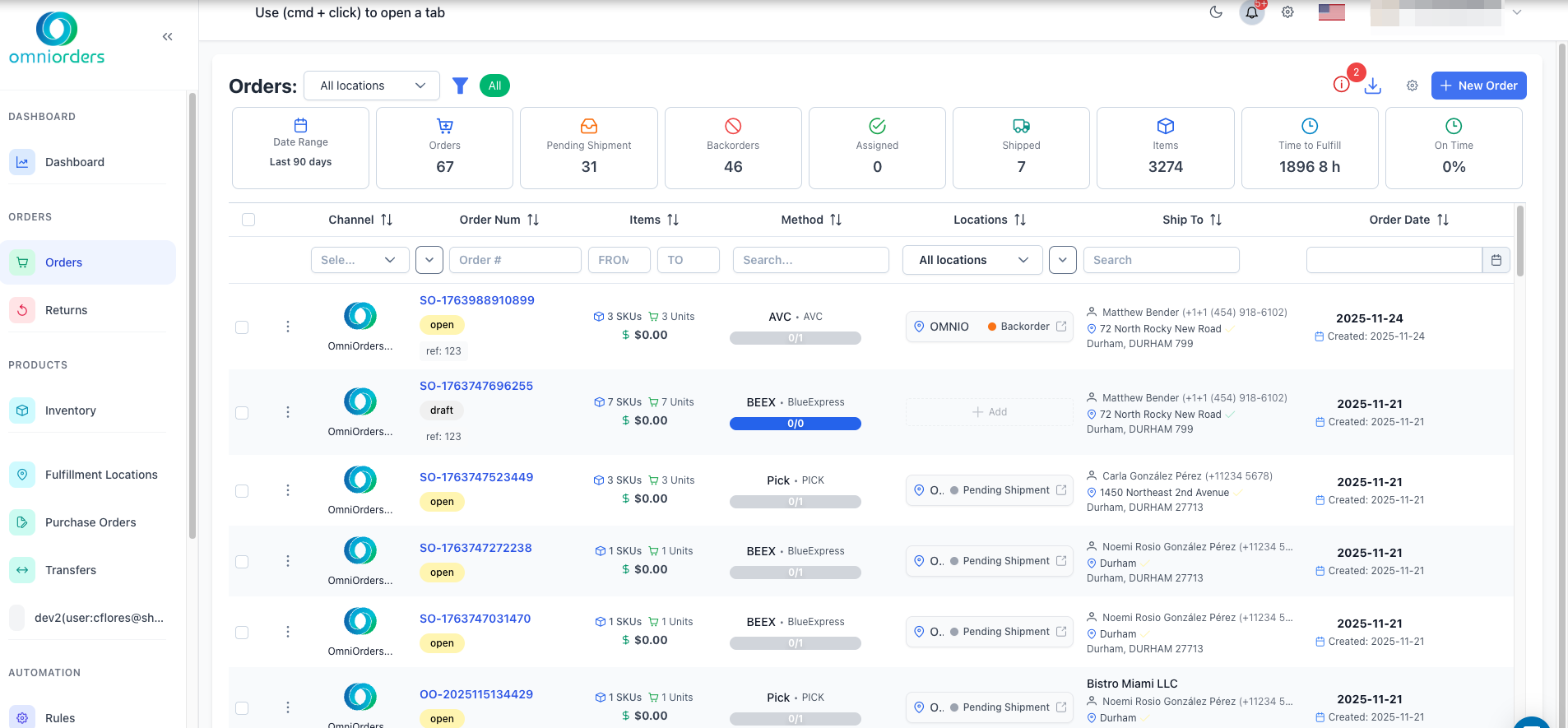
:::tip[Finding Orders First]
Before managing orders, you'll need to find them using filters and search. See [Orders Overview](/orders/overview/) to learn about viewing, filtering, and finding orders.
:::
:::tip[Quick Tip]
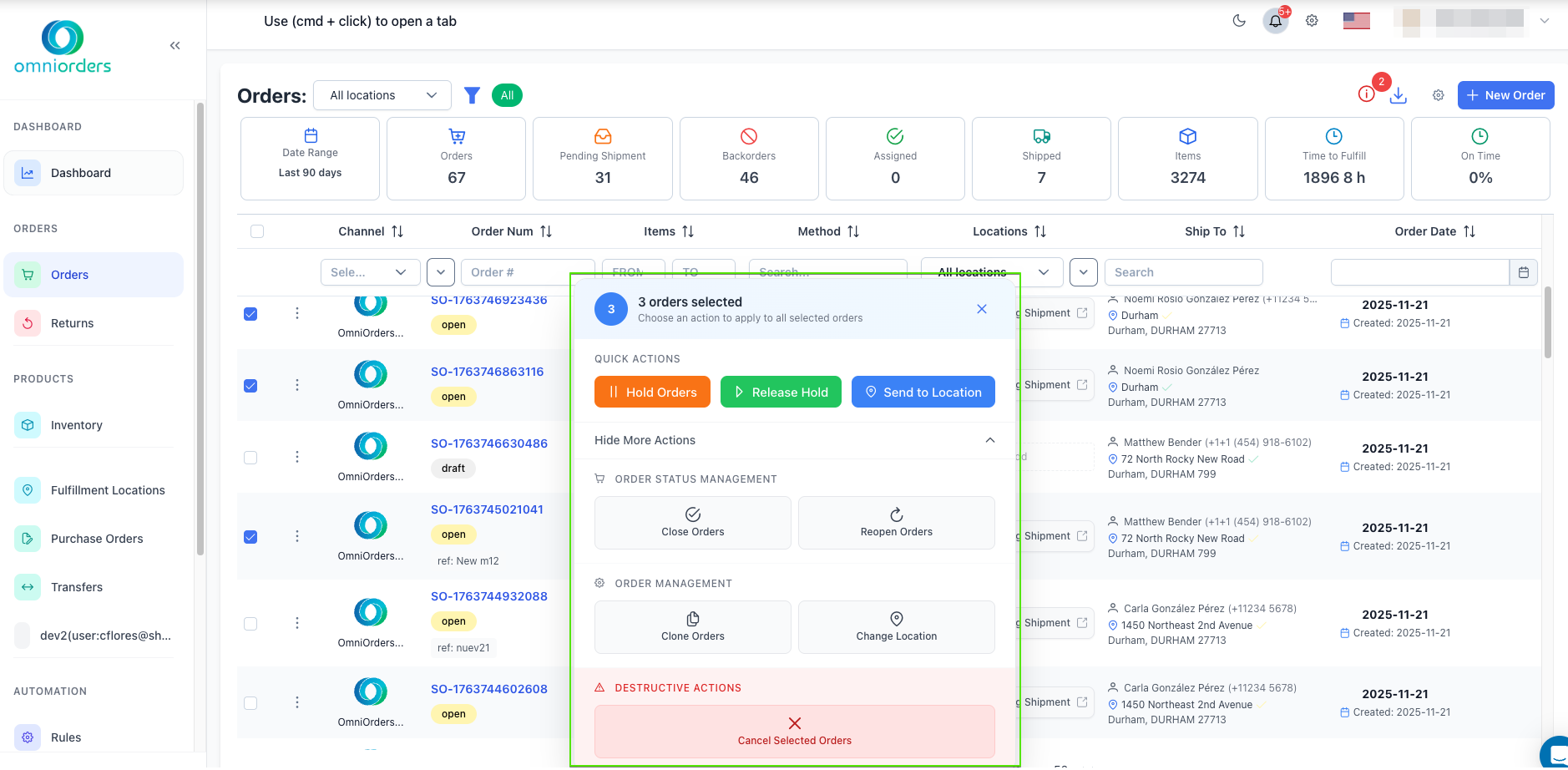
Select multiple orders using checkboxes to access bulk operations. The Bulk Action Toolbar appears automatically when you select orders, giving you quick access to common actions like holding, releasing, or sending orders to fulfillment locations.
:::
## Why Does Order Management Matter?
**Efficient order management keeps your fulfillment operation running smoothly. OmniOrders lets you act on individual orders or process hundreds at once with bulk operations — hold, release, route to a location, cancel, clone, or verify addresses — without leaving the Orders view.**
<CardGrid>
<IconCard title="Save Time" icon="clock">
Process multiple orders at once with bulk operations instead of updating orders one by one.
</IconCard>
<IconCard title="Stay Organized" icon="cog">
Use status changes to track order progress and manage fulfillment workflows effectively.
</IconCard>
<IconCard title="Control Fulfillment" icon="map-pin">
Route orders to specific fulfillment locations and manage order assignments flexibly.
</IconCard>
<IconCard title="Handle Exceptions" icon="shield">
Quickly identify and fix order issues with verify address, hold, and reopen actions.
</IconCard>
</CardGrid>
---
## Individual Order Actions
<SupademoEmbed demoId="cmicgutnq8th4b7b40vjfjxop" />
Each order has a menu with actions you can perform. The available actions depend on the order's current status.
### Accessing Order Actions
<Steps>
1. **Find the Order**
Navigate to the Orders view from the sidebar menu.
2. **Open Actions Menu**
Click the three-dot menu icon (⋮) on the right side of any order row.
3. **Select Action**
Choose the action you want to perform from the dropdown menu.
</Steps>
### Available Order Actions
<CardGrid>
<IconCard title="Edit" icon="pencil">
Modify order details. Only available for orders in **Draft** status.
</IconCard>
<IconCard title="View" icon="eye">
Open a detailed view of the order to see all information including shipments, products, and customer details.
</IconCard>
<IconCard title="Verify Address" icon="map-pin">
Validate the shipping address to ensure accurate delivery. Not available for draft, closed, error, on hold, or cancelled orders.
</IconCard>
<IconCard title="Re-Open Order" icon="refresh-cw">
Return a closed or cancelled order back to open status to allow further operations.
</IconCard>
<IconCard title="Hold Order" icon="pause">
Temporarily pause order fulfillment. Useful when waiting for customer clarification or inventory. Not available for draft, closed, cancelled, or already held orders.
</IconCard>
<IconCard title="Release Order" icon="play">
Remove the hold status and resume order processing. Only available for orders currently on hold.
</IconCard>
<IconCard title="Close Order" icon="lock">
Mark the order as complete. Closed orders cannot be modified further. Not available for already closed orders.
</IconCard>
<IconCard title="Cancel Order" icon="x">
Cancel the order completely. Not available for already closed, error, or cancelled orders.
</IconCard>
<IconCard title="Send To Location" icon="send">
Assign the order to a specific fulfillment location (warehouse). Not available for draft, closed, error, on hold, or cancelled orders.
</IconCard>
<IconCard title="Clone Order" icon="copy">
Create a duplicate copy of the order with the same settings and products.
</IconCard>
</CardGrid>
---
## Bulk Operations
<SupademoEmbed demoId="cmicjmco88w0fb7b463srqewx" />
When you need to perform the same action on multiple orders, use bulk operations to save time.
### Using Bulk Actions
<Steps>
1. **Select Orders**
Check the boxes next to the orders you want to update. You can select multiple orders across different pages.
2. **View Bulk Toolbar**
The Bulk Action Toolbar automatically appears at the bottom of the screen showing how many orders are selected.
3. **Choose Action**
Select from Quick Actions (Hold, Release Hold, Send to Location) or click "Show More Actions" to see all available bulk operations.
4. **Confirm Action**
Review the selected orders in the dialog that appears and confirm the action. The system will process all selected orders.
5. **Check Results**
A success message shows how many orders were processed. The selection clears automatically after the action completes.
</Steps>
### Quick Actions
These actions are immediately visible in the Bulk Action Toolbar:
- **Hold Orders**: Put all selected orders on hold at once
- **Release Hold**: Remove hold status from all selected orders
- **Send to Location**: Assign selected orders to a specific fulfillment location
### More Bulk Actions
Click "Show More Actions" to access additional operations:
**Order Status Management:**
- **Close Orders**: Mark multiple orders as complete
- **Reopen Orders**: Return closed orders back to open status
**Order Management:**
- **Clone Orders**: Create duplicates of selected orders
- **Change Location**: Reassign orders to different fulfillment locations
**Destructive Actions:**
- **Cancel Selected Orders**: Cancel multiple orders at once (use carefully - this action cannot be undone)
:::caution[Important: Bulk Cancellation]
Cancelling orders in OmniOrders does not automatically cancel them at fulfillment locations (warehouses, 3PLs, etc.). Always verify with your fulfillment location before cancelling orders to avoid duplicate shipments or inventory issues.
:::
---
## 💡 Best Practices
<CardGrid>
<IconCard title="Use Bulk Actions Wisely" icon="check-circle">
Always review the list of selected orders before performing bulk operations. Start with a small test batch when trying bulk actions for the first time.
</IconCard>
<IconCard title="Verify Before Cancelling" icon="shield">
Check with your fulfillment location before cancelling orders that may already be in process. Cancelling in OmniOrders doesn't automatically stop warehouse operations.
</IconCard>
<IconCard title="Use Hold for Exceptions" icon="pause-circle">
Put orders on hold when you need time to resolve issues like address verification, inventory shortages, or customer questions. This prevents orders from being shipped incorrectly.
</IconCard>
<IconCard title="Save Common Filters" icon="filter">
Create and save filters for order views you check frequently (like "Orders on hold" or "Orders ready to ship"). This saves time navigating back to important order groups.
</IconCard>
<IconCard title="Clone for Similar Orders" icon="copy">
When creating multiple orders with similar products or settings, clone an existing order and modify the details instead of starting from scratch.
</IconCard>
<IconCard title="Monitor Feed History" icon="history">
Regularly check Feed History after bulk imports to catch and fix errors early. Address errors promptly to keep orders flowing smoothly.
</IconCard>
</CardGrid>
---
## Troubleshooting Common Issues
### Orders Stuck on Hold
**Problem**: Orders remain on hold status even after resolving issues.
**Solution**:
1. Select the held orders using checkboxes
2. Click "Release Hold" in the Bulk Action Toolbar
3. Confirm the action to resume order processing
### Cannot Cancel Order
**Problem**: The Cancel option is disabled or grayed out.
**Solution**:
- Orders already closed, in error status, or already cancelled cannot be cancelled again
- If the order has active shipments, you may need to cancel shipments first
- Check with your fulfillment location if the order is already being packed or shipped
### Bulk Action Not Working
**Problem**: Bulk action completes but some orders weren't updated.
**Solution**:
- Review the action result message - it shows how many orders were successfully processed
- Some orders may not be eligible for the action based on their current status
- Check individual orders that weren't updated to see if they have restrictions
### Address Verification Fails
**Problem**: "Verify Address" action shows errors.
**Solution**:
1. View the order details to see specific address validation errors
2. Edit the order (if in draft status) or contact the customer to correct the address
3. Common issues include missing apartment numbers, incorrect ZIP codes, or PO box restrictions
---
## Next Steps
Now that you understand order management actions, explore these related features:
- **[Orders Overview](/orders/overview/)** - Learn to view, filter, and find orders
- **[Order Status & Workflow](/orders/status/)** - Understand order statuses and lifecycle
- **[Creating Orders](/orders/creating/)** - Create new orders manually
- **[Editing Orders](/orders/editing/)** - Modify draft orders before processing