Manage all your customer orders in one place with OmniOrders. Access real-time metrics, powerful search filters, bulk actions, and complete order history.
---
title: Orders Overview
description: Manage all your customer orders in one place with OmniOrders. Access real-time metrics, powerful search filters, bulk actions, and complete order history.
---
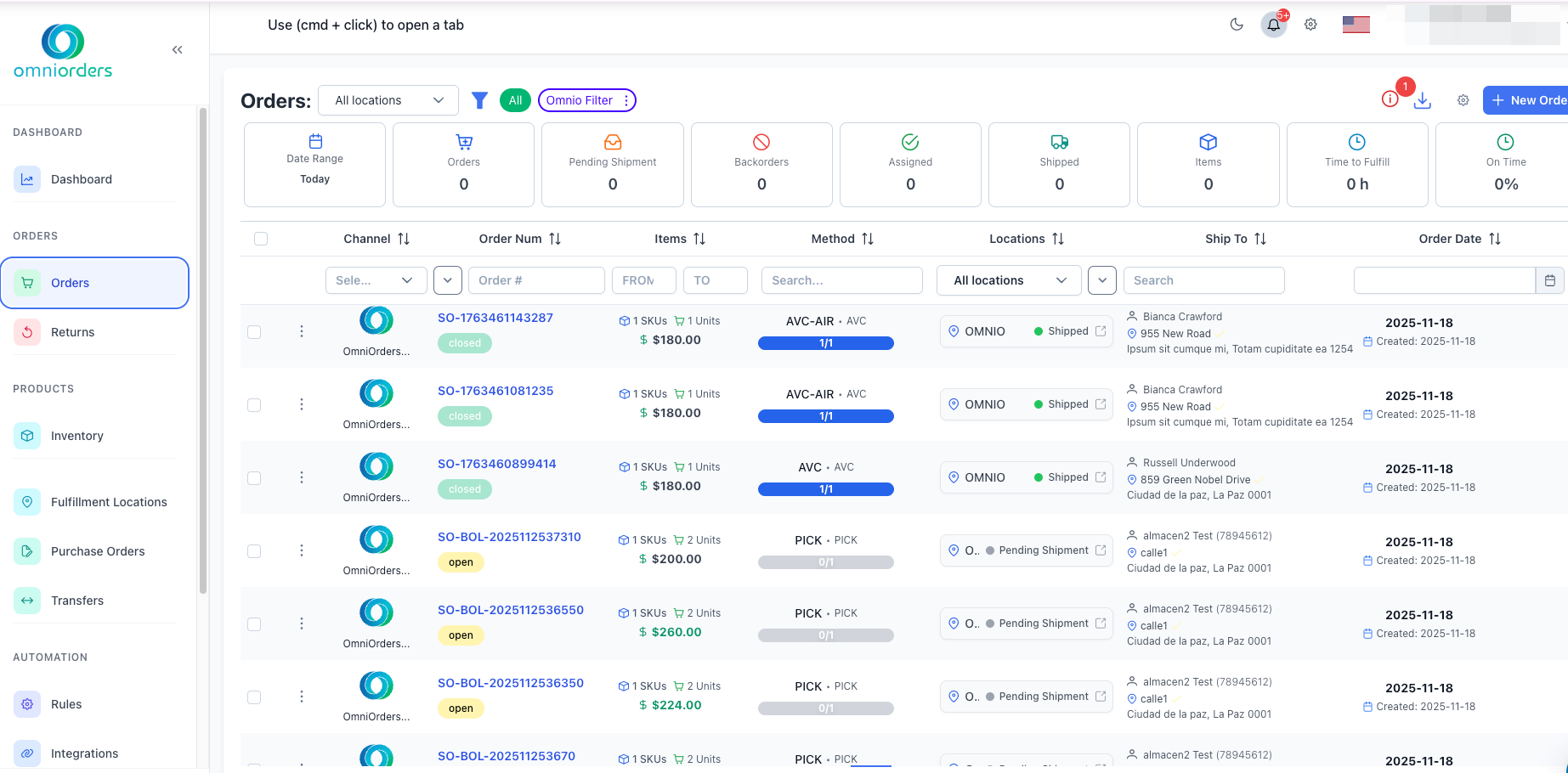
The Orders Overview is your central hub for managing all customer orders in OmniOrders. This page provides a complete view of your order pipeline, from new orders to shipped packages, with real-time metrics and tools to find and process orders quickly.
:::tip[Quick Access]
Navigate to **Orders** from the main menu to access the Orders Overview at any time. Use `Cmd + Click` to open orders in a new tab for multitasking.
:::
## Why Use Orders Overview?
**The Orders Overview is your central hub for every customer order in OmniOrders. Monitor real-time metrics, filter by status or location, run bulk actions on multiple orders at once, and customize the columns you see — all from a single view. It's the starting point for every daily order management workflow.**
<CardGrid>
<IconCard title="Real-Time Metrics" icon="chart-bar">
Monitor live order counts, shipment status, and fulfillment times at a glance. Track key performance indicators like pending shipments, backorders, and on-time delivery percentage.
</IconCard>
<IconCard title="Powerful Filtering" icon="filter">
Find orders instantly using location filters, saved filters, and advanced search criteria. Filter by status, date range, customer, shipping method, or any order field.
</IconCard>
<IconCard title="Bulk Actions" icon="check-square">
Select multiple orders and perform actions like hold, release, send to location, clone, or cancel all at once. Save time with efficient batch processing.
</IconCard>
<IconCard title="Customizable View" icon="settings">
Choose which columns to display and reorder them to match your workflow. Your preferences are saved automatically and persist across sessions.
</IconCard>
</CardGrid>
## Understanding the Dashboard Metrics
The top of the Orders Overview displays scrollable metric cards that update based on your selected date range. These metrics help you track order flow and fulfillment performance in real-time.
:::note[Order vs Shipment Metrics]
Many metrics show **shipment statuses** (like Pending Shipment, Assigned, Shipped) rather than order statuses. This gives you insight into the actual fulfillment progress of your orders. Learn more in [Order Status & Workflow](/orders/status/).
:::

### Date Range Filter
Click the **Date Range** card on the left to select a custom date range. All metrics update automatically to reflect the selected time period. Options include:
- Today
- Yesterday
- Last 7 days
- Last 30 days
- This month
- Last month
- Custom range
### Available Metrics
| Metric | What It Shows | Type | Icon |
| -------------------- | ----------------------------------------------------------------------------------- | ---- | ---- |
| **Orders** | Total number of orders in the selected date range | Order Count | 🛒 |
| **Pending Shipment** | Orders awaiting shipment (Shipment Status: Routing, On Hold, Pending Shipment) | Shipment Status | 📥 |
| **Backorders** | Orders with items out of stock or unavailable (Shipment Status: Backorder) | Shipment Status | 🚫 |
| **Assigned** | Orders assigned to a fulfillment location (Shipment Status: Assigned) | Shipment Status | ✅ |
| **Shipped** | Orders that have been shipped to customers (Shipment Status: Shipped) | Shipment Status | 🚚 |
| **Items** | Total number of items across all orders (excludes cancelled orders) | Item Count | 📦 |
| **Time to Fulfill** | Average time to fulfill orders, displayed in hours | Performance | ⏰ |
| **On Time** | Percentage of orders shipped on time based on ship-by date | Performance | 🎯 |
:::note[Metric Updates]
All metrics update automatically when you change the date range filter or apply location filters. The data refreshes in real-time to reflect current order and shipment status.
:::
## Accessing Orders Overview
<SupademoEmbed demoId="cmmuv252l07veen0ykmhkusxf" />
<Steps>
1. **Navigate to Orders**
Click **Orders** in the main navigation menu under the "Orders" section. The Orders Overview page will load with your current orders.
2. **View Dashboard Metrics**
Review the metric cards at the top of the page. Scroll horizontally if needed to see all available metrics for your selected date range.
3. **Filter by Location (Optional)**
Use the **All locations** dropdown in the header to filter orders by specific fulfillment location. This is helpful when managing multiple warehouses.
4. **Browse or Search Orders**
Scroll through the order table, use column filters, or apply saved filters to find specific orders. Click any order number to view details in a side panel.
</Steps>
## Key Features
<CardGrid>
<IconCard title="Order Table" icon="table">
View all orders in a customizable data table with sorting, filtering, and inline actions. Click any order number to view detailed information in a side panel without leaving the page.
</IconCard>
<IconCard title="Saved Filters" icon="bookmark">
Create and save custom filter combinations for quick access to specific order segments. Apply saved filters with one click to view orders that match your criteria.
</IconCard>
<IconCard title="Column Customization" icon="sliders">
Choose which columns to display and reorder them by dragging. Available columns include Channel, Order Number, Items, Shipping Method, Locations, Ship To address, and Order Date.
</IconCard>
<IconCard title="Bulk Selection" icon="check-square">
Select multiple orders using checkboxes to perform bulk actions. A bulk action toolbar appears at the bottom when orders are selected.
</IconCard>
<IconCard title="Export & Import" icon="download">
Export orders to CSV for reporting or data analysis. Import orders from CSV files for bulk order creation from offline sources.
</IconCard>
<IconCard title="Location Filtering" icon="map-pin">
Filter orders by fulfillment location to focus on specific warehouse operations. Useful for multi-location businesses managing different fulfillment centers.
</IconCard>
</CardGrid>
## Order Table Columns
The order table displays key information for each order:
- **Channel** - Sales channel or integration source (e.g., Shopify, Amazon, manual)
- **Order Num** - Unique order number with status badge (open, backorder, shipped, etc.)
- **Items** - Number of SKUs, units, and total order value
- **Method** - Shipping method and carrier (e.g., UPS Ground, FedEx 2Day)
- **Locations** - Assigned fulfillment location with status badge
- **Ship To** - Customer name and shipping address
- **Order Date** - Order date and creation timestamp
### Column Filters
Each column header includes a filter row where you can:
- **Channel** - Select from dropdown of available channels
- **Order Num** - Search by order number
- **Items** - Filter by SKU or unit count range
- **Method** - Search shipping methods
- **Locations** - Filter by fulfillment location
- **Ship To** - Search customer names or addresses
- **Order Date** - Select date ranges
## Order Actions
Each order has a menu icon with available actions based on its current status. Common actions include viewing details, editing drafts, holding/releasing orders, and managing fulfillment locations.
:::tip[Learn More About Actions]
For detailed information about individual order actions and bulk operations, see [Managing Orders](/orders/managing/).
:::
## Bulk Actions
When you select multiple orders using checkboxes, a bulk action toolbar appears at the bottom of the screen. You can hold, release, send to location, clone, close, reopen, or cancel multiple orders at once.
:::tip[Bulk Operations Guide]
For detailed instructions on using bulk actions, see [Managing Orders](/orders/managing/#bulk-operations).
:::
## Filtering Orders
<SupademoEmbed demoId="cmi7ovq7c5l2kb7b4ngccs5ib" />
### Using the Location Filter
Filter orders by fulfillment location using the **All locations** dropdown in the header. This shows only orders assigned to specific warehouses or fulfillment centers.
To clear location filter:
1. Click the location dropdown
2. Select **All locations**
### Using Saved Filters
1. Click the **Filter List** button (bookmark icon) in the header
2. Select a saved filter from the list
3. The order table updates to show only matching orders
4. Click **All** to clear the filter and show all orders
### Using Column Filters
Each column has an inline filter in the header row:
1. **Text columns** - Type to search (Order Num, Ship To, Method)
2. **Dropdown columns** - Select from available options (Channel, Locations)
3. **Number columns** - Enter min/max range (Items)
4. **Date columns** - Select date range (Order Date)
Click the bookmark icon in each filter field to save commonly used filter values for quick access.
## Column Customization
<SupademoEmbed demoId="cmi7shdlc5r4bb7b46ik8zcsk" />
<Steps>
1. **Open Column Settings**
Click the **Settings** button in the toolbar to open the column customization sidebar.
2. **Show/Hide Columns**
Toggle checkboxes next to column names to show or hide them in the order table. Commonly hidden columns can be enabled anytime.
3. **Reorder Columns**
Drag and drop columns in the list to change their order in the table. Arrange columns to match your workflow priorities.
</Steps>
## Import and Export Orders
<SupademoEmbed demoId="cmi7td4j15sz8b7b4ogcqgeul" />
### Importing Orders
<Steps>
1. **Open Import Dialog**
Click the menu icon in the Orders header and select "Upload by File (CSV)".
2. **Choose File**
Select your CSV file containing order data. The file should match the OmniOrders format.
3. **Review Import**
The system validates your file and shows any errors that need correction.
4. **Complete Import**
Confirm to import the orders. You can check the Feed History to track import progress.
</Steps>
### Exporting Orders
<Steps>
1. **Select Orders (Optional)**
To export specific orders, check their boxes first. Leave unselected to export all orders matching current filters.
2. **Open Export Dialog**
Click the menu icon in the Orders header and select "Export by File (CSV)".
3. **Choose Options**
Select which order data fields to include in the export and any additional settings.
4. **Download File**
Click export to generate and download the CSV file.
</Steps>
### Feed History
Track all import and export operations by clicking "Feed History" from the menu icon. This shows:
- Upload status (submitted, processed, errors)
- Date and time of each operation
- Error details if imports failed
- Download links for completed exports
## Order Status
Orders display status badges that show their current stage in the fulfillment process (Draft, Open, On Hold, Shipped, etc.). Each status determines which actions are available for that order.
:::tip[Understanding Status Workflow]
For detailed information about order statuses and lifecycle, see [Order Status & Workflow](/orders/status/).
:::
## 💡 Best Practices
<CardGrid>
<IconCard title="Use Saved Filters" icon="bookmark">
Create saved filters for common order segments like "Today's Orders," "Pending Shipment," or "On Hold." This saves time and ensures consistency when reviewing orders daily.
</IconCard>
<IconCard title="Monitor Metrics Daily" icon="chart-line">
Check the dashboard metrics each morning to understand your order pipeline. Pay special attention to pending shipments, backorders, and on-time percentage to identify bottlenecks early.
</IconCard>
<IconCard title="Customize Your View" icon="sliders">
Hide columns you don't use and arrange important columns first. A cleaner, focused view helps you work faster and spot issues more quickly. Each team member can customize their own view.
</IconCard>
<IconCard title="Use Bulk Actions Wisely" icon="check-square">
Double-check your selection before performing bulk actions, especially cancellations or location transfers. Use the preview to confirm which orders will be affected before proceeding.
</IconCard>
<IconCard title="Filter by Location" icon="map-pin">
If you manage multiple fulfillment locations, use the location filter to focus on one warehouse at a time. This helps reduce cognitive load and prevents mistakes when processing orders.
</IconCard>
<IconCard title="Check Order Details" icon="info">
Click order numbers to view full details in the side panel before taking actions. Verify shipping address, items, and status to ensure accuracy before processing or shipping.
</IconCard>
</CardGrid>
## Troubleshooting
### Orders Not Showing
**Problem**: Orders are missing from the table or table is empty.
**Solutions**:
- Check your **location filter** - Clear it by selecting **All locations** to see orders from all warehouses
- Remove any active **column filters** by clicking the bookmark icon in filter fields
- Verify the **date range** includes the orders you're looking for - try expanding to "Last 30 days"
- Check for **saved filters** that might be active - Click **All** to clear saved filters
- Refresh the page to reload data
### Can't Perform Action on Order
**Problem**: An action is disabled, greyed out, or doesn't appear in the menu.
**Solutions**:
- **Check order status** - Some actions only work in specific statuses (e.g., "Edit" only for Draft orders)
- **Verify permissions** - Ensure you have permission to perform the action for your role
- **Review status badge** - Orders in "Shipped" or "Cancelled" status have limited available actions
- **Look for error badges** - Orders with errors may have restricted actions until issues are resolved
- Hover over disabled actions to see tooltip explanations
### Bulk Action Not Working
**Problem**: Bulk action doesn't affect all selected orders or shows unexpected results.
**Solutions**:
- **Review the action preview** before confirming - It shows which orders are eligible
- **Check order statuses** - Only orders in appropriate statuses will be processed (e.g., can't cancel shipped orders)
- **Look for confirmation messages** - System explains which orders were skipped and why
- **Verify selection count** - Make sure the correct orders are selected with checkboxes
- Try processing smaller batches if dealing with many orders
### Metrics Not Updating
**Problem**: Dashboard metrics show zero or don't update after changing date range.
**Solutions**:
- **Wait a few seconds** - Metrics update automatically but may take a moment to load
- **Check date range** - Ensure the selected period includes orders (try "Last 30 days" for testing)
- **Clear location filter** - Location filter affects metric calculations
- **Refresh the page** - Force reload to fetch latest data
- Check if you have any orders in the system - Create a test order if needed
### Column Filters Not Working
**Problem**: Column filters don't filter orders or show unexpected results.
**Solutions**:
- **Check filter syntax** - Some filters are case-sensitive or require exact matches
- **Clear other filters** - Multiple active filters combine (AND logic), which may be too restrictive
- **Try different filter values** - Test with broader search terms
- **Reset filters** - Clear all column filters and saved filters, then try again
- Check the bookmark icon - Saved filter values might be interfering
## Next Steps
Now that you understand the Orders Overview, explore these related features:
- **[Creating Orders](/orders/creating/)** - Learn how to create new orders manually in the system
- **[Editing Orders](/orders/editing/)** - Modify draft orders before processing
- **[Managing Orders](/orders/managing/)** - Take action on orders with individual and bulk operations
- **[Order Status & Workflow](/orders/status/)** - Deep dive into order lifecycle and status transitions