Manage product returns and refunds in OmniOrders. Track return requests, process refunds, and restock inventory with a comprehensive return management workflow.
---
title: "Returns & Refunds"
description: Manage product returns and refunds in OmniOrders. Track return requests, process refunds, and restock inventory with a comprehensive return management workflow.
---
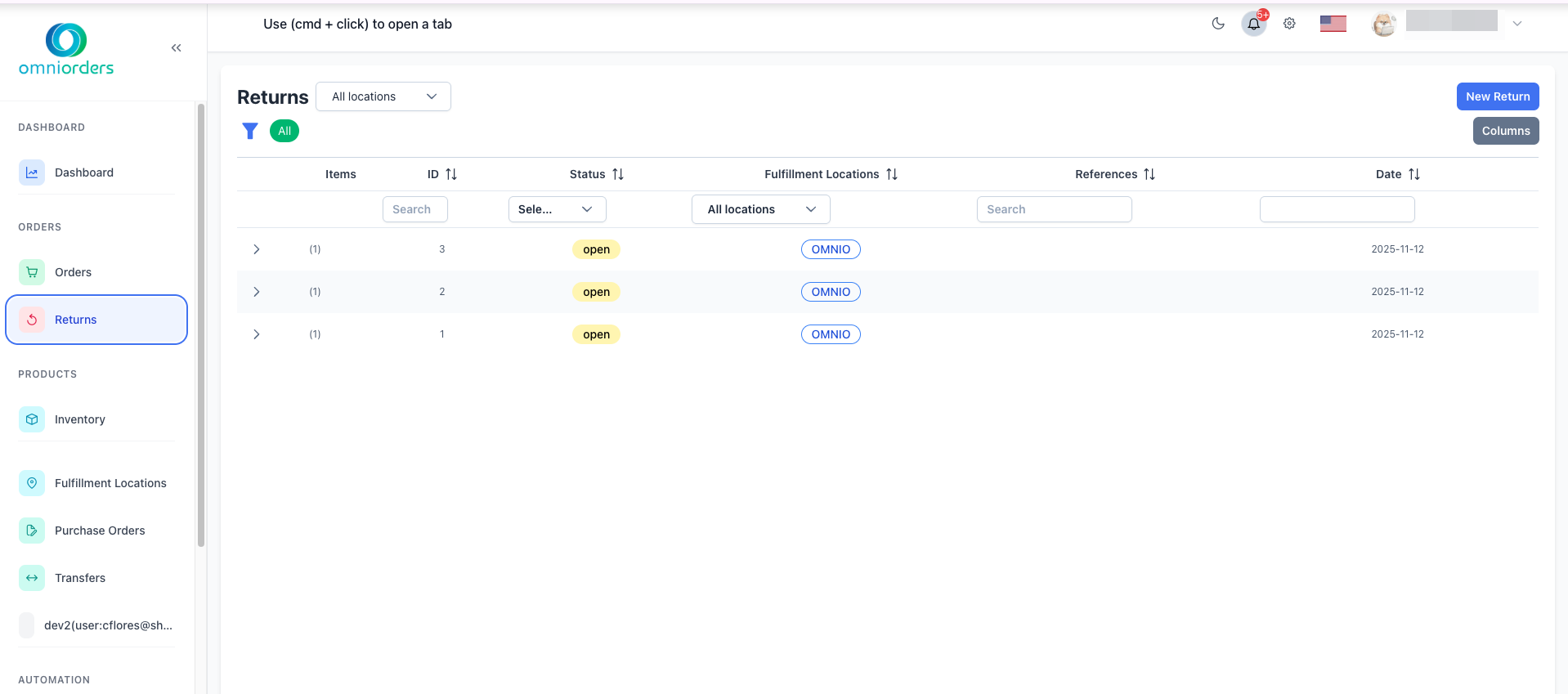
Product returns are a natural part of e-commerce operations. OmniOrders makes it easy to track, process, and complete returns from customers with a simple workflow that keeps everyone informed.
:::tip[Quick Start]
You can create returns by selecting shipped orders or specific products. The system tracks each return from request through completion, making sure inventory is updated automatically.
:::
## Why Use Return Management?
**Return management gives you a structured process for handling customer returns from initial request through completion. Track each return's status, create returns for full shipments or individual items, and let OmniOrders automatically update inventory when returns are processed — keeping stock counts accurate.**
<CardGrid>
<IconCard title="Track Every Return" icon="package-open">
Monitor returns from request through completion with clear status updates at every step.
</IconCard>
<IconCard title="Flexible Return Options" icon="refresh-cw">
Create returns for entire shipments or individual products based on your customer's needs.
</IconCard>
<IconCard title="Automatic Inventory Updates" icon="check-circle">
When returns are completed, inventory adjusts automatically to reflect returned items.
</IconCard>
<IconCard title="Complete Return History" icon="clock">
View requested dates, received dates, and processing dates for each return with full tracking details.
</IconCard>
</CardGrid>
---
## How to Create a Return
<SupademoEmbed demoId="cmihw0wleelb9b7b4m9ibcw45" />
<Steps>
1. **Navigate to Returns**
Click **Returns** in the sidebar menu to view all returns in the system.
2. **Click New Return**
Click the **New Return** button in the top right corner to start creating a return.
3. **Choose Return Type**
Select how you want to create the return:
- **Shipments Tab**: Select entire shipments to return all items in that order
- **SKUs Tab**: Select specific products to return individual items
:::note[Return Type Selection]
Choose **Shipments** when customers are returning complete orders. Choose **SKUs** when customers are returning only certain items from an order.
:::
4. **Select Items to Return**
In the shipments or SKUs list, select the items the customer is returning by checking the boxes next to each item.
5. **Click Continue**
After selecting items, click **Continue** to proceed to the return details page.
6. **Fill Return Information**
Complete the return form with these details:
- **Date**: The date the return was requested
- **Fulfillment Location**: Where the returned items will be received
- **Shipping Method**: How the customer will send items back
- **Notes**: Any additional information about the return
- **Qty Returned Good**: Number of items returned in good condition
- **Qty Returned Hurt**: Number of items returned in damaged condition
:::tip[Tracking Quantities]
Separating good and damaged quantities helps maintain accurate inventory and identify quality issues. Good items can be restocked, while damaged items may need special handling.
:::
7. **Submit the Return**
Click **Save** to create the return in the system.
</Steps>
---
## Return Statuses Explained
Returns move through different statuses as they progress from request to completion:
<CardGrid>
<IconCard title="Draft" icon="pencil" bgColor="#f8fafc" bgColorDark="rgba(100, 116, 139, 0.12)">
Return is being created but not yet submitted. No inventory changes have occurred.
</IconCard>
<IconCard title="Open" icon="unlock" bgColor="#eff6ff" bgColorDark="rgba(59, 130, 246, 0.12)">
Return request has been submitted and is awaiting approval or shipment from customer.
</IconCard>
<IconCard title="Approved" icon="check-circle" bgColor="#f0fdf4" bgColorDark="rgba(34, 197, 94, 0.12)">
Return has been approved and customer can ship items back to your location.
</IconCard>
<IconCard title="Rejected" icon="x-circle" bgColor="#fef2f2" bgColorDark="rgba(239, 68, 68, 0.12)">
Return request was denied and will not be processed.
</IconCard>
<IconCard title="In Transit" icon="truck" bgColor="#fffbeb" bgColorDark="rgba(251, 191, 36, 0.12)">
Returned items have been shipped and are on their way back to your warehouse.
</IconCard>
<IconCard title="Processing" icon="refresh-cw" bgColor="#faf5ff" bgColorDark="rgba(168, 85, 247, 0.12)">
Items have been received and are being inspected and processed.
</IconCard>
<IconCard title="Discrepancy" icon="alert-circle" bgColor="#fffbeb" bgColorDark="rgba(251, 191, 36, 0.12)">
There is a mismatch between what was expected and what was received.
</IconCard>
<IconCard title="Completed" icon="archive" bgColor="#f0fdf4" bgColorDark="rgba(34, 197, 94, 0.12)">
Return is complete and inventory has been updated.
</IconCard>
<IconCard title="Routing" icon="map-pin" bgColor="#f0fdfa" bgColorDark="rgba(20, 184, 166, 0.12)">
Return is being routed to the correct fulfillment location.
</IconCard>
<IconCard title="Error" icon="x-circle" bgColor="#fef2f2" bgColorDark="rgba(239, 68, 68, 0.12)">
An error occurred during return processing. Check error details for more information.
</IconCard>
</CardGrid>
---
## Managing Returns
### Viewing Return Details
Click on any return in the Returns table to view complete details including:
- **Return ID**: Unique identifier for tracking
- **Status**: Current status of the return
- **Fulfillment Location**: Where items will be received
- **References**: Any reference numbers associated with the return
- **Date Created**: When the return was created in the system
- **Requested Date**: When the customer requested the return
- **Received Date**: When items were received at the warehouse
- **Processed Date**: When the return was completed
- **Customer Email**: Contact information for the customer
- **Country and Zip Code**: Return shipping location
### Filtering Returns
Use the table filters to find specific returns:
- **ID**: Search by return ID number
- **Status**: Filter by return status (open, approved, completed, etc.)
- **Location**: Filter by fulfillment location
- **References**: Search by reference numbers
- **Date**: Filter by creation date
- **Requested Date**: Filter by when customers requested returns
- **Received Date**: Filter by when items were received
- **Processing Date**: Filter by when returns were completed
- **Email**: Search by customer email
### Location Filter
Use the location dropdown at the top of the page to view returns for specific warehouses or all locations.
---
## Return Items and Quantities
When processing returns, track two types of quantities:
- **Qty Returned Good**: Items returned in sellable condition that can go back into inventory
- **Qty Returned Hurt**: Items returned damaged or unsellable that need special handling
These quantities help maintain accurate inventory levels and identify product quality issues.
---
## 💡 Best Practices
<CardGrid>
<IconCard title="Set Clear Return Policies" icon="file-text">
Communicate your return policies clearly to customers including timeframes, condition requirements, and any restocking fees.
</IconCard>
<IconCard title="Inspect Returns Promptly" icon="eye">
Process returns quickly after receiving them to update inventory accurately and resolve customer issues faster.
</IconCard>
<IconCard title="Track Return Reasons" icon="message-square">
Use the notes field to document why items were returned. This helps identify product issues or fulfillment problems.
</IconCard>
<IconCard title="Separate Good and Damaged Items" icon="package-check">
Accurately record quantities for good vs hurt items to maintain inventory accuracy and track product quality.
</IconCard>
<IconCard title="Update Status Regularly" icon="refresh-cw">
Keep return statuses current so customers and your team know exactly where each return stands.
</IconCard>
<IconCard title="Use References for Tracking" icon="hash">
Add reference numbers (RMA numbers, case IDs) to make returns easier to find and track.
</IconCard>
</CardGrid>
---
## Return Workflow Example
Here's a typical return workflow from start to finish:
1. **Customer contacts you** about returning a product
2. **Create a return** in OmniOrders with status "open"
3. **Approve the return** if it meets your return policy
4. **Customer ships items** back to your warehouse
5. **Update status to "in transit"** when tracking shows the package is on the way
6. **Receive the items** at your warehouse
7. **Update status to "processing"** while inspecting items
8. **Record quantities** for good and hurt items
9. **Complete the return** - inventory updates automatically
10. **Issue refund** to the customer through your payment system
---
## Troubleshooting Returns
### Return Not Showing in List
- Check the location filter - you might be viewing a different warehouse
- Verify the return was saved successfully
- Try clearing table filters to see all returns
### Can't Find Shipment to Return
- Ensure the order has been shipped (status must be "shipped")
- Check that the shipment exists in the system
- Verify you're searching in the correct date range
### Inventory Not Updated
- Make sure the return status is "completed"
- Check that quantities were entered for good or hurt items
- Verify the fulfillment location is correct
### Missing Return Information
- Use the table column selector to show hidden fields like email, country, or dates
- Click on the return row to expand and see full details
- Check if filters are hiding the information you need
---
## Related Features
**Next Steps:** [Order Status & Workflow](/orders/status/)
**Learn More About:**
- [Orders Overview](/orders/overview/) - View and manage your orders
- [Managing Orders](/orders/managing/) - Perform actions on orders
- [Inventory Overview](/inventory/overview/) - Track your inventory levels
- [Stock Management](/inventory/stock/) - Manage stock adjustments