Configure shipping carriers and methods in OmniOrders to control how orders are fulfilled. Set carrier rules by weight, zone, or channel to optimize delivery.
---
title: "Shipping & Fulfillment"
description: Configure shipping carriers and methods in OmniOrders to control how orders are fulfilled. Set carrier rules by weight, zone, or channel to optimize delivery.
---
The Shipping settings page lets you manage all shipping carriers and shipping methods in OmniOrders. Configure default carriers like USPS, FedEx, and UPS, or create custom carriers and methods that match your business needs.
:::tip[Quick Access]
Navigate to **Settings** → **Shipping** to configure carriers and shipping methods at any time.
:::
<SupademoEmbed demoId="cmii0148jemu8b7b4piqqdle3" />
## Why Configure Shipping?
**Shipping configuration controls which carriers and methods are available when creating or fulfilling orders. Without active carriers, your team cannot assign a shipping method to any order. OmniOrders also maps shipping methods imported from sales channels to your configured carriers automatically.**
<CardGrid>
<IconCard title="Control Fulfillment" icon="truck" bgColor="#eff6ff" bgColorDark="rgba(59, 130, 246, 0.12)">
Define which shipping methods are available when creating or editing orders. Only active methods appear in dropdown menus during order processing.
</IconCard>
<IconCard title="Carrier Flexibility" icon="package" bgColor="#f0fdf4" bgColorDark="rgba(34, 197, 94, 0.12)">
Work with any carrier your business uses. Enable default carriers or create custom carriers for regional providers, freight companies, or local delivery services.
</IconCard>
<IconCard title="Method Mapping" icon="map-pin" bgColor="#faf5ff" bgColorDark="rgba(168, 85, 247, 0.12)">
Match shipping methods from sales channels to your internal methods. When orders import, OmniOrders maps customer-selected shipping to your configured methods automatically.
</IconCard>
<IconCard title="Organized Processing" icon="check-circle" bgColor="#f0fdfa" bgColorDark="rgba(20, 184, 166, 0.12)">
Keep shipping options organized and consistent across all fulfillment locations. Your team always knows which methods are available for each carrier.
</IconCard>
</CardGrid>
## How Shipping Configuration Works
### Default vs Custom Carriers
OmniOrders provides two types of carriers:
**Default Carriers**
- Pre-configured carriers like USPS, FedEx, UPS, DHL, and other major shipping providers
- Come with standard shipping methods already set up (Ground, 2-Day, Overnight, etc.)
- Can be activated or deactivated as needed
- Shipping methods can be enabled or disabled individually
**Custom Carriers**
- Carriers you create for your specific business needs
- Regional carriers, freight companies, local couriers, or internal delivery
- You define both the carrier name and all shipping methods
- Full control over method names and descriptions
### How Shipping Methods Work
When you create or edit an order in OmniOrders:
1. Select a **Carrier** (e.g., FedEx)
2. Select a **Shipping Method** for that carrier (e.g., Ground, 2-Day)
3. Only active methods appear in the dropdowns
When orders import from sales channels:
- The channel provides a shipping method name (e.g., "Standard Shipping")
- OmniOrders maps it to your configured carrier and method
- If no match exists, the order holds with a shipping method error
## Accessing Shipping Settings
<SupademoEmbed demoId="cmikgtno6fx4sb7b46mv6c2pe" />
<Steps>
1. **Navigate to Settings**
Click **Settings** in the main navigation menu or open your user menu and select **Settings**.
2. **Open Shipping Section**
In the Settings area, click **Shipping** from the sidebar menu or tabs.
3. **Choose Carrier Type**
You'll see two tabs at the top:
- **Default Carrier** - Pre-configured major carriers
- **Custom Carriers** - Carriers you create
4. **Configure Carriers**
Browse the carrier list, activate/deactivate carriers, and enable shipping methods as needed.
</Steps>
## Managing Default Carriers
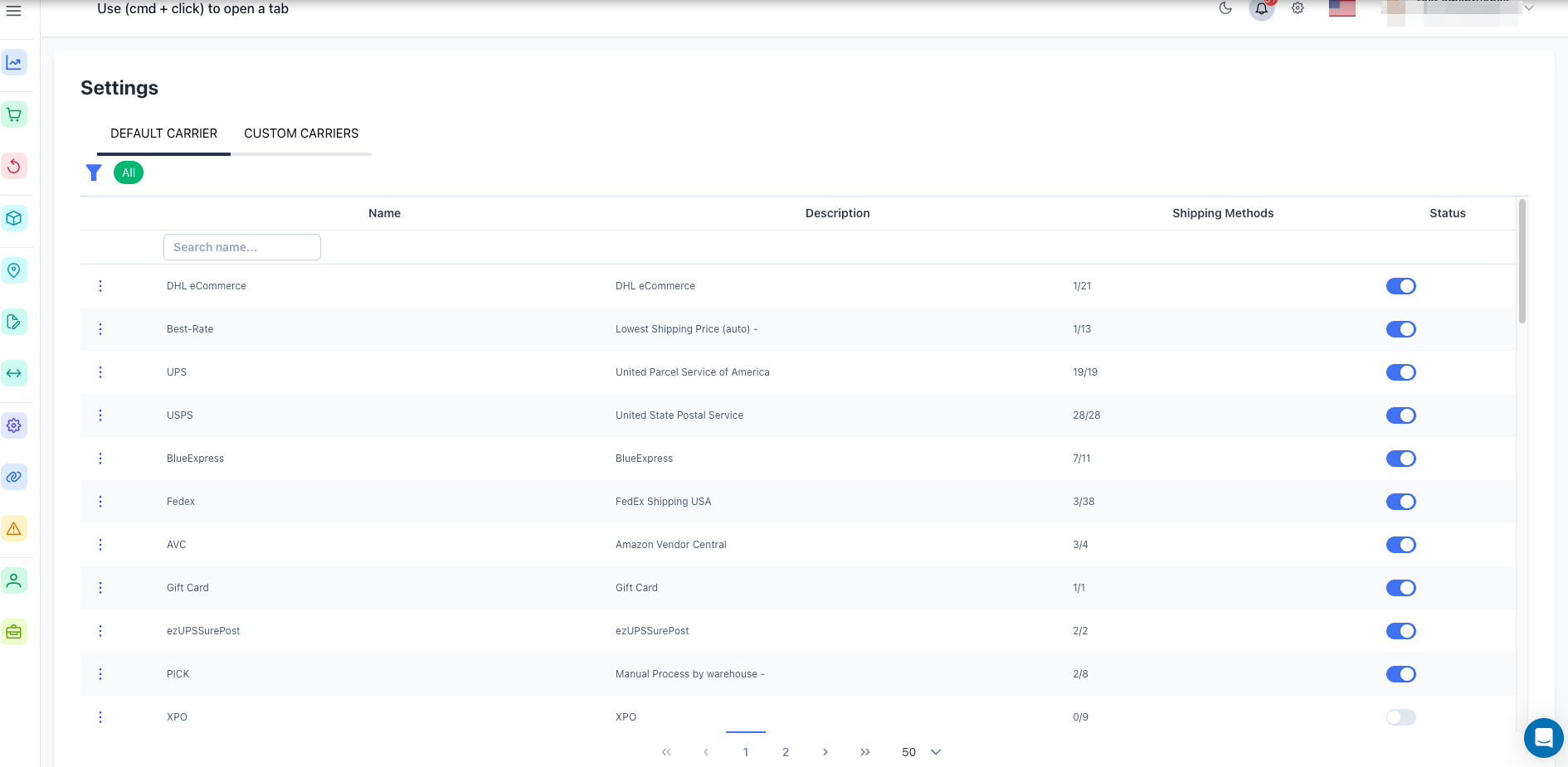
Default carriers are pre-configured with common shipping providers and their standard methods.
### Viewing Default Carriers
The Default Carrier tab shows a table with:
- **Name** - Carrier name (e.g., USPS, FedEx, UPS)
- **Description** - Brief carrier description
- **Shipping Methods** - Count of active methods vs total methods (e.g., "5/8" means 5 active out of 8 total)
- **Status** - Active or Inactive toggle
### Activating a Default Carrier
<SupademoEmbed demoId="cmikhn6iafxyib7b4o5krmqbu" />
<Steps>
1. **Find the Carrier**
Browse or search for the carrier in the table. Use the Name column filter to search by name.
2. **Enable the Carrier**
Toggle the **Status** switch from Inactive (off) to Active (on). The carrier is now available.
3. **Configure Shipping Methods**
Click the three-dot menu (⋯) next to the carrier and select **Shipping Methods** to choose which methods are active.
</Steps>
### Configuring Shipping Methods for Default Carriers
<SupademoEmbed demoId="cmikikocmfydgb7b4qrf7v30h" />
<Steps>
1. **Open Shipping Methods Dialog**
Click the three-dot menu (⋯) next to a carrier and select **Shipping Methods**.
2. **Review Available Methods**
A dialog opens showing all shipping methods for that carrier. Each method has:
- Method name (e.g., Ground, 2-Day, Overnight)
- Description
3. **Enable Methods**
Toggle each method you want to use from Inactive to Active. Only active methods appear in order creation dropdowns.
4. **Save Changes**
Click **Save Changes** to apply your method configuration. The carrier's method count updates in the table.
</Steps>
:::tip[Start Simple]
Enable only the shipping methods you actually use. Too many active methods can confuse order processing. You can always enable more methods later as needed.
:::
### Deactivating a Default Carrier
If you no longer use a carrier:
1. Find the carrier in the table
2. Toggle the **Status** switch from Active to Inactive
3. The carrier and all its methods become unavailable in orders
Deactivating a carrier doesn't delete it - you can reactivate it anytime.
## Managing Custom Carriers
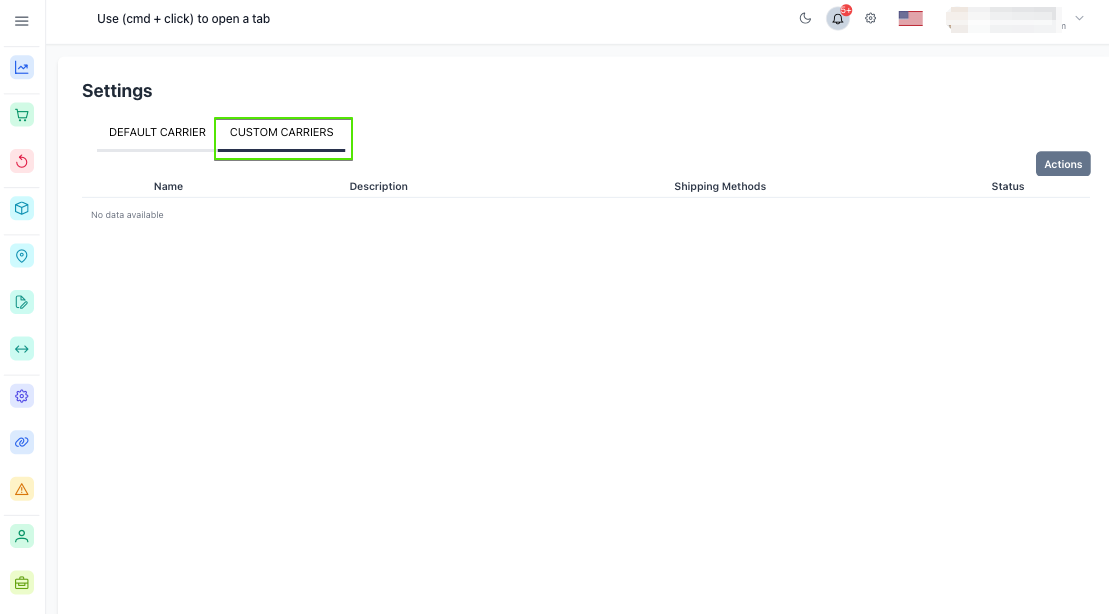
Custom carriers let you add regional carriers, freight companies, local couriers, or any shipping provider not in the default list.
### Creating a Custom Carrier
<SupademoEmbed demoId="cmimaprwpgfppb7b45m2s5ekl" />
<Steps>
1. **Open Create Dialog**
On the Custom Carriers tab, click the **Actions** button in the top right and select **Create Carriers**.
2. **Enter Carrier Details**
Fill in the form:
- **Code** - Carrier code or name (e.g., "Regional Express", "Local Courier")
- **Description** - Brief description of the carrier (optional)
3. **Save Carrier**
Click **Save Changes** to create the carrier. It appears in the Custom Carriers table with status Inactive.
4. **Activate the Carrier**
Toggle the **Status** switch to Active to make it available.
5. **Add Shipping Methods**
Click the three-dot menu (⋯) and select **Shipping Methods** to add methods for this carrier.
</Steps>
### Adding Shipping Methods to Custom Carriers
<SupademoEmbed demoId="cmimbu6upgg5xb7b41wadtikx" />
<Steps>
1. **Open Shipping Methods Dialog**
Click the three-dot menu (⋯) next to your custom carrier and select **Shipping Methods**.
2. **Create New Method**
Click **Create Method** to add a new shipping method.
3. **Enter Method Details**
Fill in the form:
- **Method Name** - The shipping method name (e.g., "Same Day", "Standard Ground")
- **Description** - Description of the method (optional)
- **Status** - Active or Inactive
4. **Save Method**
Click **Save** to add the method. It appears in the methods list for this carrier.
5. **Repeat for More Methods**
Add as many shipping methods as needed for this carrier.
</Steps>
### Editing Custom Carriers
<SupademoEmbed demoId="cmimc5jnzggj1b7b4hh5ti98r" />
<Steps>
1. **Open Edit Dialog**
Click the three-dot menu (⋯) next to the custom carrier and select **Edit**.
2. **Update Details**
Change the **Code** or **Description** as needed.
3. **Save Changes**
Click **Save Changes** to update the carrier information.
</Steps>
### Deleting Custom Carriers
<SupademoEmbed demoId="cmimcc2gbggm1b7b43wyrj8ri" />
:::caution[Permanent Action]
Deleting a carrier removes it and all its shipping methods permanently. This action cannot be undone.
:::
<Steps>
1. **Open Delete Dialog**
Click the three-dot menu (⋯) next to the custom carrier and select **Delete**.
2. **Confirm Deletion**
Review the confirmation message and click **Yes** to permanently delete the carrier.
</Steps>
Only delete carriers that are no longer used and have no active orders associated with them.
## Filtering and Searching Carriers
### Searching by Name
Both Default and Custom Carrier tables have a **Name** column filter:
1. Click in the Name filter field
2. Type part of the carrier name
3. Press Enter to filter
4. Click the X icon to clear the filter
### Using Saved Filters
If you've created saved filters for carriers:
1. Click the **Filter List** button (bookmark icon) in the header
2. Select a saved filter
3. The table updates to show matching carriers
4. Click **All** to clear and show all carriers
### Refreshing the List
If carriers don't appear or data seems outdated:
- Click the **Actions** menu and select **Refresh** (if available)
- Or refresh your browser page to reload data
## How Shipping Affects Orders
### During Order Creation
When creating a manual order:
1. Select a **Carrier** from the dropdown (only active carriers appear)
2. Select a **Shipping Method** for that carrier (only active methods appear)
3. The selected method saves with the order
### During Order Import
When orders import from sales channels:
1. The channel provides a shipping method name
2. OmniOrders tries to map it to a carrier and method
3. If a match is found, the order imports successfully
4. If no match exists, the order holds with a **Shipping Method Missing** error
To fix mapping issues:
- Create a custom carrier/method that matches the channel's shipping name
- Or configure your sales channel to use standard shipping method names
### During Fulfillment
When processing orders:
- Fulfillment staff see the carrier and method assigned to each order
- Warehouse systems can use this information to select the correct carrier
- Tracking numbers are associated with the carrier/method combination
## 💡 Best Practices
<CardGrid>
<IconCard title="Enable Only Used Methods" icon="check-circle">
Activate only the shipping methods you actually use to avoid confusion during order processing. Review your active methods quarterly and disable unused ones.
</IconCard>
<IconCard title="Use Clear Method Names" icon="pencil">
When creating custom carriers, use clear, descriptive names that your team easily understands. Avoid abbreviations or internal codes that might confuse new staff.
</IconCard>
<IconCard title="Match Channel Methods" icon="map-pin">
Create custom methods that exactly match shipping names from your sales channels. This prevents mapping errors when orders import automatically.
</IconCard>
<IconCard title="Document Custom Carriers" icon="file-text">
Keep notes about what each custom carrier is for, especially if you have many. Add detailed descriptions to help team members understand when to use each one.
</IconCard>
<IconCard title="Test Before Activating" icon="alert-circle">
Before activating a new carrier or method, create a test order to verify it appears correctly in dropdowns and processes as expected.
</IconCard>
<IconCard title="Review Regularly" icon="refresh-cw">
Audit your active carriers and methods quarterly. Remove carriers you no longer use and add new ones as your shipping partners change.
</IconCard>
</CardGrid>
## Troubleshooting
### Carrier Doesn't Appear in Order Creation
**Problem**: A carrier you activated doesn't show in the carrier dropdown when creating orders.
**Solutions**:
- Verify the carrier **Status** is Active (green toggle)
- Ensure at least one shipping method for that carrier is also Active
- Refresh the order creation page to reload available carriers
- Check if you're filtering by location - some carriers may be location-specific
### Shipping Method Missing on Imported Orders
**Problem**: Orders import with a "Shipping Method Missing" error.
**Solutions**:
- Check the channel's shipping method name in the error details
- Create a **custom carrier and method** that exactly matches the channel's name
- Or configure your sales channel to use standard method names (like "Ground", "2-Day")
- Review import logs to see which shipping names are causing issues
### Can't Delete Custom Carrier
**Problem**: Delete option is disabled or delete fails with an error.
**Solutions**:
- Check if orders are using this carrier - delete is blocked if orders reference it
- First reassign orders to a different carrier
- Or deactivate the carrier instead of deleting it (safer option)
- Contact support if the carrier should be deletable but the option is unavailable
### Too Many Shipping Methods
**Problem**: The shipping method dropdown has too many options and it's confusing.
**Solutions**:
- Review each carrier's shipping methods
- Deactivate methods you don't actually use by opening the Shipping Methods dialog
- Consider combining similar methods (e.g., merge "Standard" and "Ground" if they're the same)
- Keep only 3-5 active methods per carrier for simplicity
### Changes Not Saving
**Problem**: Carrier or method changes don't save or revert after saving.
**Solutions**:
- Ensure you clicked the **Save Changes** button before closing dialogs
- Check for validation errors (red text) indicating required fields or invalid data
- Verify you have permission to edit shipping settings
- Try refreshing the page and making changes again
- Clear browser cache if issues persist
### Method Count Incorrect
**Problem**: The "Shipping Methods" column shows wrong count (e.g., "3/8" but you only see 2 methods).
**Solutions**:
- Open the Shipping Methods dialog to see the actual count
- Some methods may be inactive and hidden from the main view
- Refresh the page to reload accurate counts
- Contact support if counts remain incorrect after refresh
## Related Features
**Configure Fulfillment Locations**
[Fulfillment Locations](/inventory/locations/) - Set up warehouses and fulfillment centers where orders are shipped from
**Manage Orders**
[Managing Orders](/orders/managing/) - Take actions on orders including editing shipping methods
**Order Creation**
[Creating Orders](/orders/creating/) - Create manual orders with custom carrier and method selection
**Next Steps**: Review your current carriers and methods, enable only those you use, and test order creation with the configured options.