
Account Setup
Ensure your company admin has:
- Created your account in OmniOrders
- Sent your welcome email
Logging in to OmniOrders starts from the standard sign-in page. You only need your email and password to access your workspace and reach the dashboard quickly.
Prepare the following before accessing your account:
Ensure your company admin has:
Have available:
Use a secure device:
Follow these steps to access OmniOrders with your email and password:
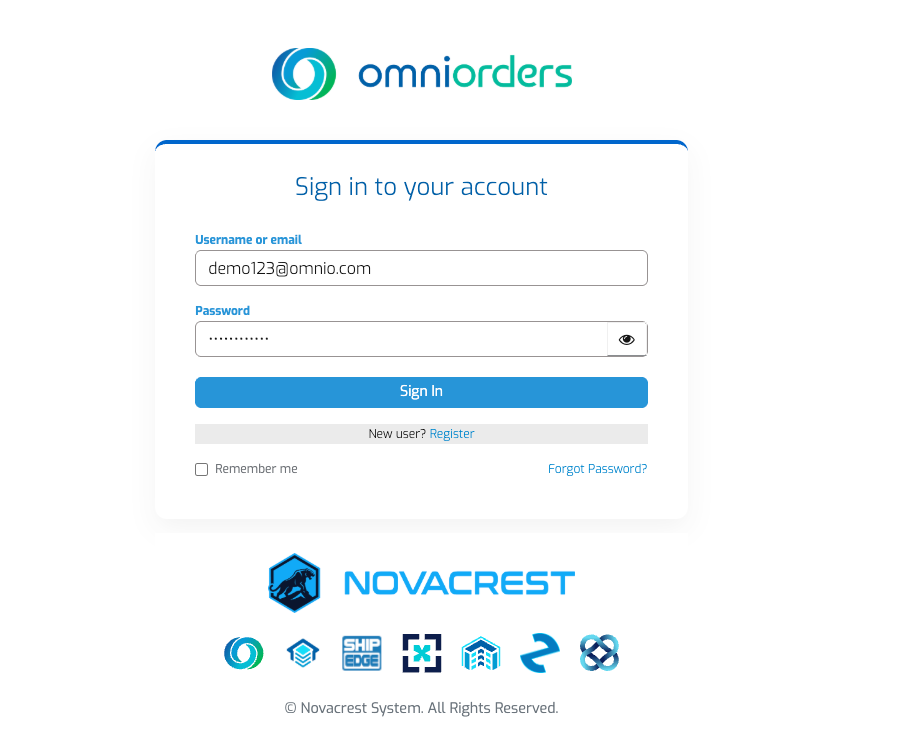
Navigate to Login Page
Open the OmniOrders login page at /session/login
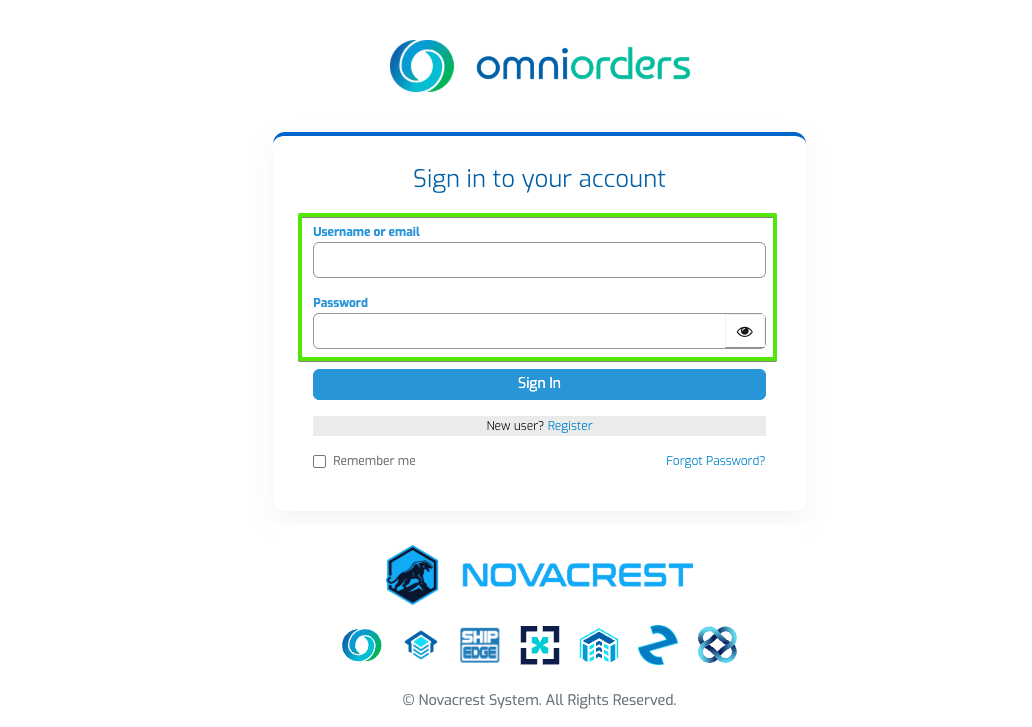
Enter Your Credentials
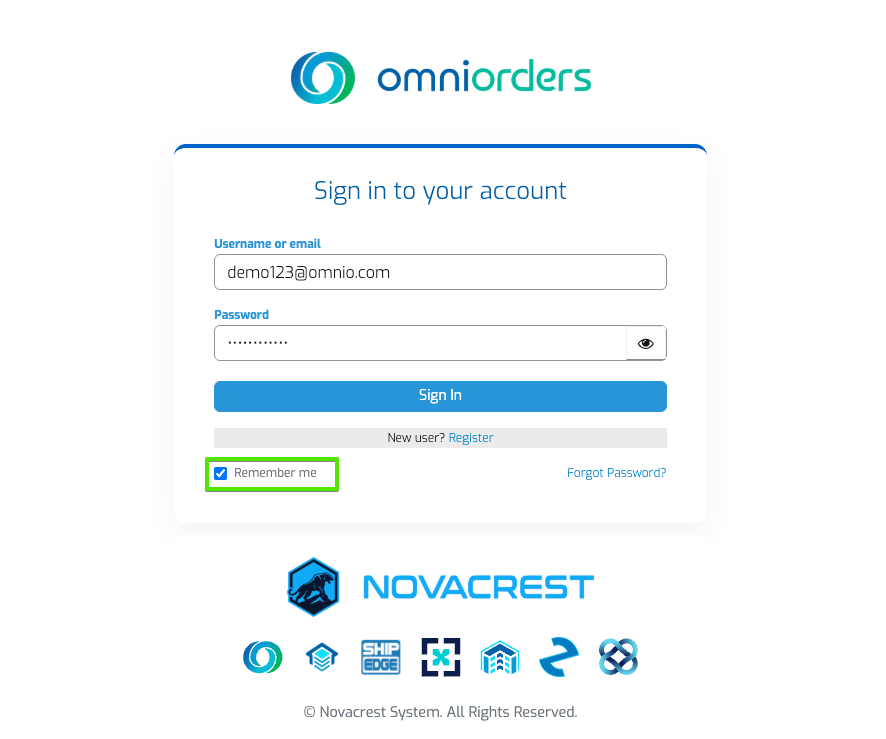
Optional: Remember Me
Check the Remember me box if using a trusted device
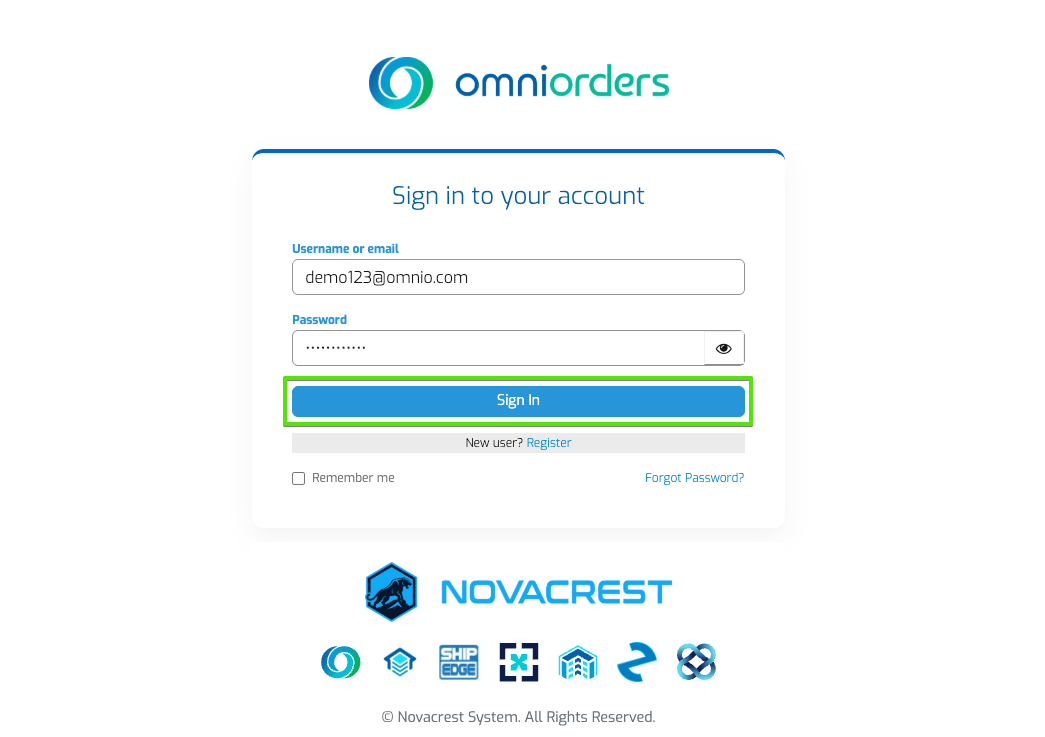
Sign In
Click Sign In - OmniOrders validates your credentials and redirects you to the Dashboard
Handle Errors
If credentials don’t match, you’ll see a message below the field. Update and try again.
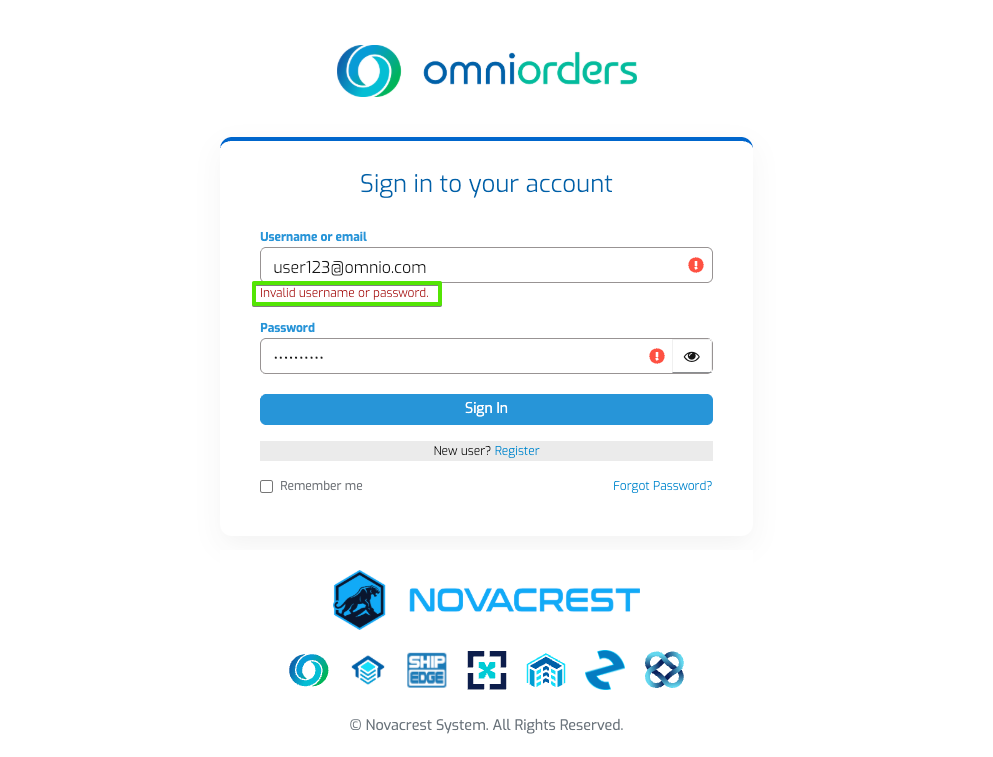
Issue: Password format incorrect
Solution: OmniOrders requires a secure password. Follow the guidance shown and ensure:
Issue: System asks to complete registration
Solution: Check your email for the activation link from your admin and complete the setup process.
Issue: Login denied or account not found
Solution: Contact your company admin to verify:
Members sectionAfter successful login, you’ll be redirected to the Dashboard:
You’ll be redirected to the Dashboard (dashboard). Access orders, inventory, shipping, and
daily operations.
Your personalized settings load automatically:
If you believe your account needs updating:
Having trouble logging in?
Next Steps: Once logged in, explore the Dashboard Overview to familiarize yourself with the interface.