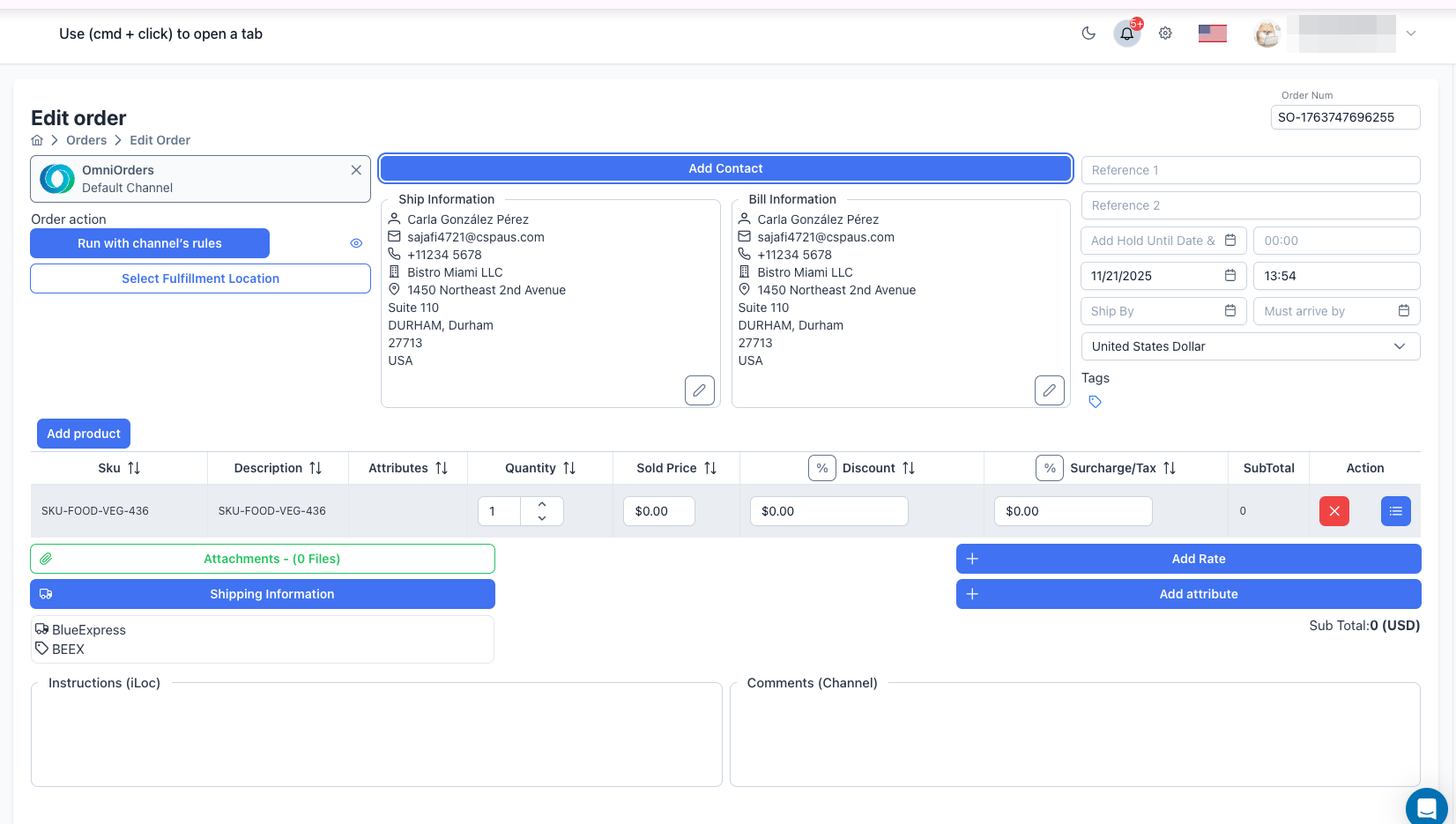
Editing orders allows you to modify order details before they are processed for fulfillment. This is useful for correcting errors, updating customer information, or adding products to draft orders.
You can only edit orders that are in Draft status. Once an order is processed and moves to Open, Closed, or other statuses, it cannot be edited through the standard edit form.
Editing orders lets you fix mistakes, honor customer requests, and add missing information before an order goes to fulfillment. Update addresses, quantities, shipping methods, and special instructions on any Draft-status order — without canceling and recreating it from scratch.
Fix typos in customer addresses, update incorrect product quantities, or correct pricing
errors before processing.
Add products, change shipping addresses, or update delivery dates based on customer
requests.
Complete orders with missing shipping details, reference numbers, or special instructions.
Make final changes to draft orders before sending them to fulfillment.
Navigate to Orders
From the main navigation menu, click Orders to view your orders list.
Find the Order
Locate the order you want to edit:
Use the search bar to find orders by order number, customer name, or SKU
Filter orders by status to show only Draft orders
Click the 3-dot menu (⋮) next to the order
Open the Edit Form
Click Edit from the order’s action menu. The order edit form will load showing all current order information.
Update Order Information
The edit form shows all order details. You can modify:
Order Basics:
Order Number - Unique identifier for the orderChannel - Sales channel source (cannot be changed if order has shipments)Fulfillment Location - Where the order will be fulfilled
Customer Information:
Contact - Select a different customer or create a new contactShipping Address - Update shipping details, address lines, city, state, postal codeBilling Address - Modify billing information if different from shipping
Order Details:
Reference 1 and Reference 2 - Custom reference numbersOrder Date - When the customer placed the orderHold Until Date/Time - Delay processing until a specific timeShip By - Target shipping dateMust Arrive By - Delivery deadlineCurrency - Order currency (defaults to account currency)Tags - Add or remove organizational tags
Edit Customer Information
To update customer details, click the edit icon (pencil) next to the shipping or billing information. This opens a dialog where you can modify:
Email - Customer’s email addressPhone Number - Contact phone numberFirst Name and Last Name - Customer’s nameCompany - Business name (optional)Address 1 and Address 2 - Street address linesZip Code - Postal codeCountry - Select from dropdownState - State or provinceCity - City nameUpdate customer profile - Check to save changes to customer record
Modify Products
Update the product list:
Add Products - Click Add Product to search and add more itemsUpdate Quantities - Change the quantity ordered for each productAdjust Pricing - Modify sold price, discounts, or surchargesRemove Products - Click the trash icon (🗑️) to delete product linesProduct Attributes - Add custom metadata to specific products
Update Shipping Information
Click Shipping Information to modify shipping details:
Carrier - Change the shipping carrier (UPS, FedEx, USPS, etc.)Ship Method - Update the service level (Ground, Express, etc.)Residential - Mark if shipping to a residenceSignature required - Require signature on deliverySaturday Delivery - Schedule weekend delivery (UPS Air/FedEx Express only)Include prepaid return label - Add return shipping labelInsurance - Select No, Order Total, or Custom coverageBill Type - Choose Bill Recipient or Collect (UPS Air/FedEx Express only)COD Amount - Cash on delivery amountClick Confirm to save shipping changes
Modify Additional Details
Update optional information:
Attached Files - Add or remove uploaded documentsRates - Add custom rates or chargesAttributes - Modify order-level metadata (key-value pairs)Instructions (iLoc) - Special instructions for the fulfillment locationComments (Channel) - Notes visible to the channel
Save Your Changes
Click Update to save your modifications. A confirmation dialog offers two options:
Save as draft - Saves changes but keeps the order in Draft statusProcess - Processes the order and creates a shipment (Status changes to Open)
Or click Cancel to discard changes and return to the orders list.
All order fields can be modified for draft orders:
Field Type What You Can Change Order Number Update to match your numbering system Customer Contact Change customer, update shipping/billing addresses Products Add, remove, or modify quantities and pricing Order Dates Update order date, ship by, must arrive by, hold until dates Shipping Info Change carrier, method, or get new rates Reference Numbers Update Reference 1 and Reference 2 Tags Add or remove organizational tags Currency Change the order currency Fulfillment Change fulfillment location (if no shipments exist) Instructions Update special handling instructions Comments Modify channel-visible notes Files & Attributes Add/remove attached files and custom attributes
Channel - Cannot be changed if the order has associated shipments or has been processedProcessed Orders - Orders in Open, Closed, Cancelled, or other non-draft statuses cannot be edited through the edit formOrder Items - If the order has been sent to a warehouse, you cannot modify products
Double-check all changes before clicking “Continue” to process the order. Once processed,
the order cannot be edited.
If you change the order number, make sure it doesn’t conflict with existing orders or your
numbering system.
When updating shipping addresses, verify the new address is correct and complete to avoid
delivery issues.
Keep dates realistic. If you change ship by or must arrive by dates, ensure they’re
achievable.
For complex edits, save as draft frequently to avoid losing changes if something goes wrong.
Use the Comments field to document why changes were made, especially for customer-requested
modifications.
When: Customer provides a corrected shipping address after order placement.
Steps:
Open the order for editing
Click Select Contact or modify the shipping address fields directly
Update Address 1, City, State, Postal Code, and Country
Verify the billing address if it should also change
Click Update and Save as draft or Continue
When: Customer wants to add more items to an existing order.
Steps:
Open the order for editing
Click Add Product in the product table header
Search for and select the additional products
Set quantities and pricing
Review the updated SubTotal
Click Update and choose to save or process
When: Customer requests faster shipping or you need to use a different carrier.
Steps:
Open the order for editing
Click Add shipping information or modify existing shipping details
Select a new carrier and method
Or click Get Rates to see available options and pricing
Click Update and save your changes
When: Order was entered with wrong quantities.
Steps:
Open the order for editing
Locate the product line with incorrect quantity
Click in the Quantity field and update the number
The SubTotal recalculates automatically
Review the new total and click Update
Problem: The Edit option is grayed out in the order’s action menu.
Solution: Only draft orders can be edited. Check the order status:
Draft - Editable ✅Open , Closed , Cancelled , On Hold , Error - Not editable ❌
For non-draft orders, use other order management actions like Re-Open Order, Cancel Order, or contact support for help.
Problem: Channel dropdown is disabled or changes aren’t saved.
Solution: Channels cannot be changed if the order has shipments or has been processed. Create a new order with the correct channel instead.
Problem: Clicking Update doesn’t save your modifications.
Solution: Check for validation errors:
All required fields must be filled (Channel, Customer Contact, Products, Order Date)
Customer address must be complete (Address 1, City, Country, Postal Code)
At least one product must be in the order
Shipping carrier and method must be selected (if required)
Look for red error indicators near fields and fill in missing information.
Problem: Product prices updated automatically when editing.
Solution: If currency changed, prices may have converted. Verify:
The currency is correct
Sold prices are accurate for the new currency
Manually adjust prices if needed
Problem: Can’t save because of required field errors.
Solution: Ensure these critical fields are filled:
Channel - Sales channel must be selectedCustomer Contact - Name, email, and complete address requiredProducts - At least one product with quantity and priceOrder Date - Must have a valid order dateShipping Information - Carrier and method (if enforced)
Orders updated and saved as draft:
Remain in Draft status
Do NOT create shipments or trigger fulfillment
Can be edited again or processed later
Show as updated in the orders list
Orders updated and processed with “Continue”:
Move to Open status
Create a shipment at the selected fulfillment location
Trigger automation rules if “Run with channel’s rules” was selected
Send to warehouse for picking and packing
Cannot be edited after processing
After editing orders, you can view them in the Orders Overview , track their status, and manage shipments.
Need Help? If you have questions about editing orders, contact our support team through the in-app chat or email [email protected]