
Track Every Return
Monitor returns from request through completion with clear status updates at every step.
Product returns are a natural part of e-commerce operations. OmniOrders makes it easy to track, process, and complete returns from customers with a simple workflow that keeps everyone informed.
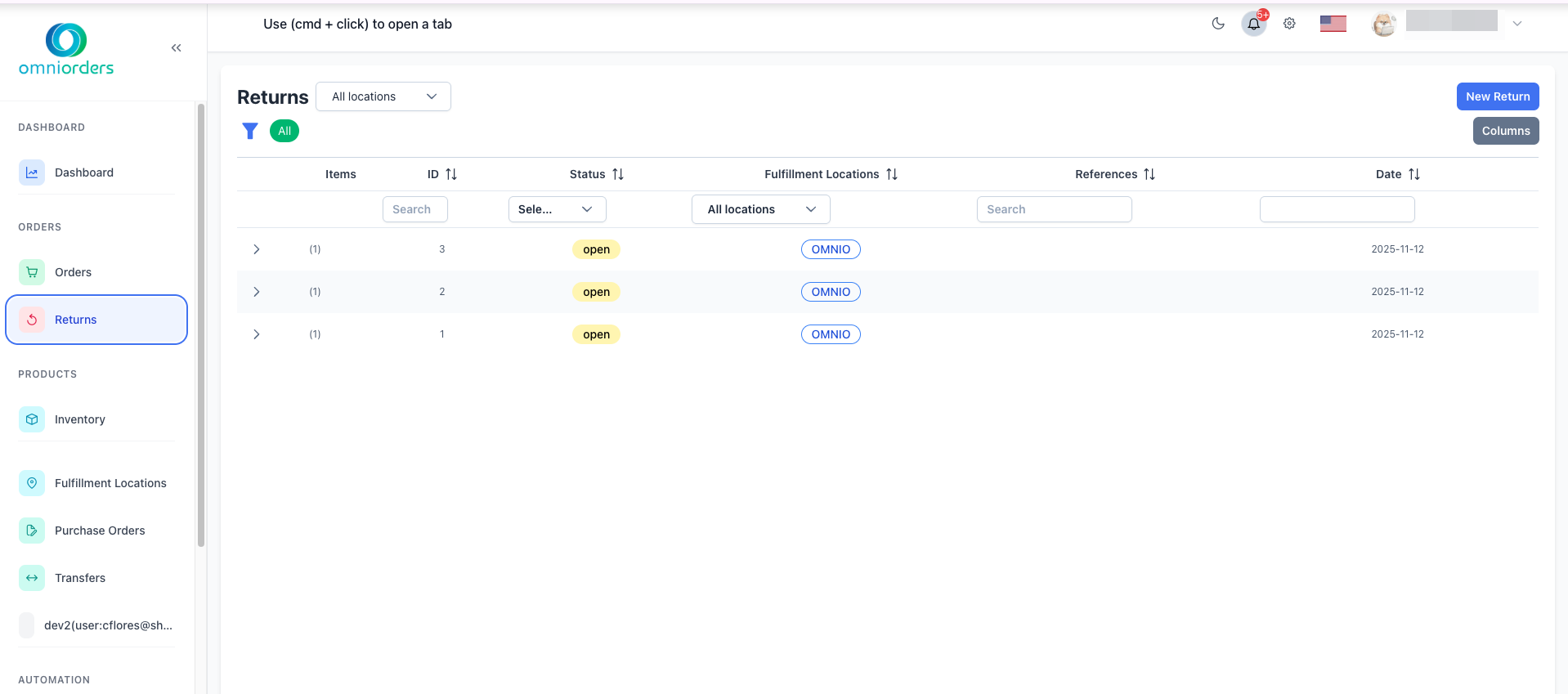
Return management gives you a structured process for handling customer returns from initial request through completion. Track each return’s status, create returns for full shipments or individual items, and let OmniOrders automatically update inventory when returns are processed — keeping stock counts accurate.
Monitor returns from request through completion with clear status updates at every step.
Create returns for entire shipments or individual products based on your customer’s needs.
When returns are completed, inventory adjusts automatically to reflect returned items.
View requested dates, received dates, and processing dates for each return with full tracking details.
Navigate to Returns
Click Returns in the sidebar menu to view all returns in the system.
Click New Return
Click the New Return button in the top right corner to start creating a return.
Choose Return Type
Select how you want to create the return:
Select Items to Return
In the shipments or SKUs list, select the items the customer is returning by checking the boxes next to each item.
Click Continue
After selecting items, click Continue to proceed to the return details page.
Fill Return Information
Complete the return form with these details:
Submit the Return
Click Save to create the return in the system.
Returns move through different statuses as they progress from request to completion:
Return is being created but not yet submitted. No inventory changes have occurred.
Return request has been submitted and is awaiting approval or shipment from customer.
Return has been approved and customer can ship items back to your location.
Return request was denied and will not be processed.
Returned items have been shipped and are on their way back to your warehouse.
Items have been received and are being inspected and processed.
There is a mismatch between what was expected and what was received.
Return is complete and inventory has been updated.
Return is being routed to the correct fulfillment location.
An error occurred during return processing. Check error details for more information.
Click on any return in the Returns table to view complete details including:
Use the table filters to find specific returns:
Use the location dropdown at the top of the page to view returns for specific warehouses or all locations.
When processing returns, track two types of quantities:
These quantities help maintain accurate inventory levels and identify product quality issues.
Communicate your return policies clearly to customers including timeframes, condition requirements, and any restocking fees.
Process returns quickly after receiving them to update inventory accurately and resolve customer issues faster.
Use the notes field to document why items were returned. This helps identify product issues or fulfillment problems.
Accurately record quantities for good vs hurt items to maintain inventory accuracy and track product quality.
Keep return statuses current so customers and your team know exactly where each return stands.
Add reference numbers (RMA numbers, case IDs) to make returns easier to find and track.
Here’s a typical return workflow from start to finish:
Next Steps: Order Status & Workflow
Learn More About: